
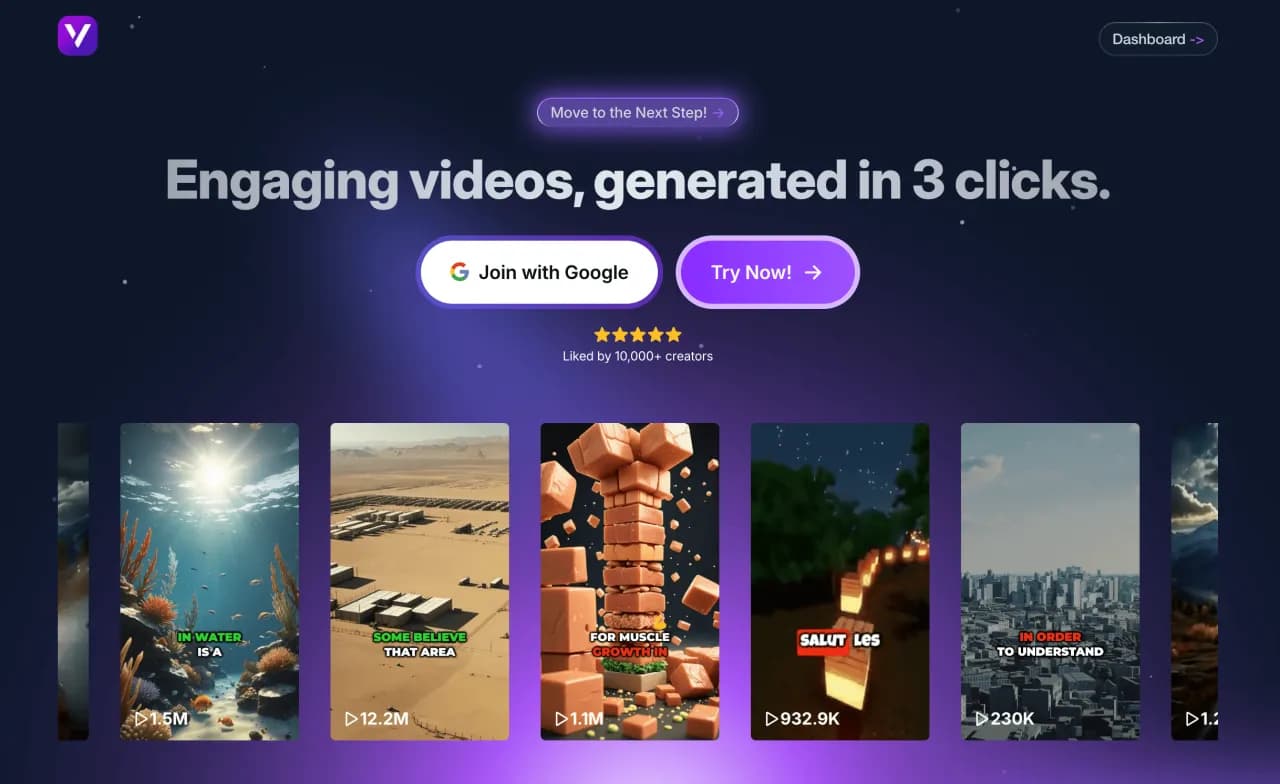
How to Easily Create a MP3 to Video on Vexub from Start to Finish
Create a Text to Video project on Vexub
Step 1: Create a project
Start by going to your Vexub workspace and opening the Project tab. This is where your video creation begins. Click on Create a Video to start.
A new page will open with the first step: choosing the type of video. Several options are available depending on your goal, but for this guide, we’ll focus on the MP3 to Video mode.
This mode helps you quickly convert your audio file into a complete, ready-to-use video—no editing tools or technical know-how needed. Once you’ve made your choice, click Next Step to continue.
Step 2: Choose the format
In this step, choose the video format based on the platform where you’ll share it. The vertical format is perfect for TikTok, Instagram, or YouTube Shorts, while the horizontal format is better suited for longer YouTube videos. This choice affects the layout and overall impact of your video. Think about your audience and platform before moving on.
Step 3: Choose the voice and the Star
Since this is the MP3 to Video mode, the voice in your video will come directly from your audio file. You won’t need to select a generated voice.
However, you can add a Star—an animated character that appears on screen to bring your content to life. With a Basic subscription, you have access to three Stars.
If you have a higher plan, you’ll unlock four additional exclusive Stars, giving you even more creative options. Once you’ve selected your Star, click Next Step.
Step 4: Upload your audio file
This is a key step. The audio file you upload will serve as the foundation of your video. Vexub makes this process simple: just upload your MP3 file (up to 150MB and 5 minutes long). You’ll need to check a box to specify whether your MP3 is a music track or a voice recording, which helps optimize the video generation and prevent errors. Once uploaded, you can preview the video to ensure everything looks good before moving on.

Step 5: Choose the visual style
Here’s where creativity comes in. Vexub offers more than 20 image styles to set the tone and atmosphere of your video. You can choose between realistic, cartoon, minimalist, futuristic, or artistic styles. Each option gives your video a distinct personality. Experiment with different looks to find the one that best fits your message and audience. When you’re satisfied, move on to the generation step.
Step 6: Generation and customization
Once the generation starts, Vexub automatically combines all the elements of your video: the audio, subtitles, images, and background music. Within minutes, your full video is ready. You can then fine-tune it using the built-in customization tool, which includes four tabs: Video, Sound, Subtitles, and Style. You can adjust the playback speed, sync timing, change music, tweak colors, or refine subtitles to match your brand’s visual identity. This lets you turn an automatically generated video into something truly unique and professional.

Step 7: Export your video
When you’re happy with the result, export your video in optimal quality directly from Vexub. You’ll also get an automatically generated thumbnail, ready to use for your post. Whether it’s for social media, YouTube, or professional use, your video will be ready to publish in just a few clicks.
With these simple steps, Vexub lets you transform any audio file into a complete, dynamic, and professional video. No technical skills are required—everything happens online, quickly, and the result is worthy of top content creators.
For more on this topic, check out our guide on how to Easily Create a AI Subtitling Video (MP4 to, our article on how to Easily Create a SMS Video on Vexub from Start, and our guide to how to Easily Create a Text to Video on Vexub from.







