
Exporting AI-generated videos can sometimes feel like navigating a labyrinth. With complex algorithms and extensive data processing involved, encountering export issues is not uncommon. Whether it's an error message, a greyed-out export button, or a final product that doesn't meet expectations, these challenges can halt your creative process.
This guide provides you with practical solutions to troubleshoot AI video export issues. By understanding common problems and their fixes, you can streamline your workflow and ensure a smooth export process. Let's dive into the most common issues and how to resolve them effectively.
Why Is My Video Not Exporting?
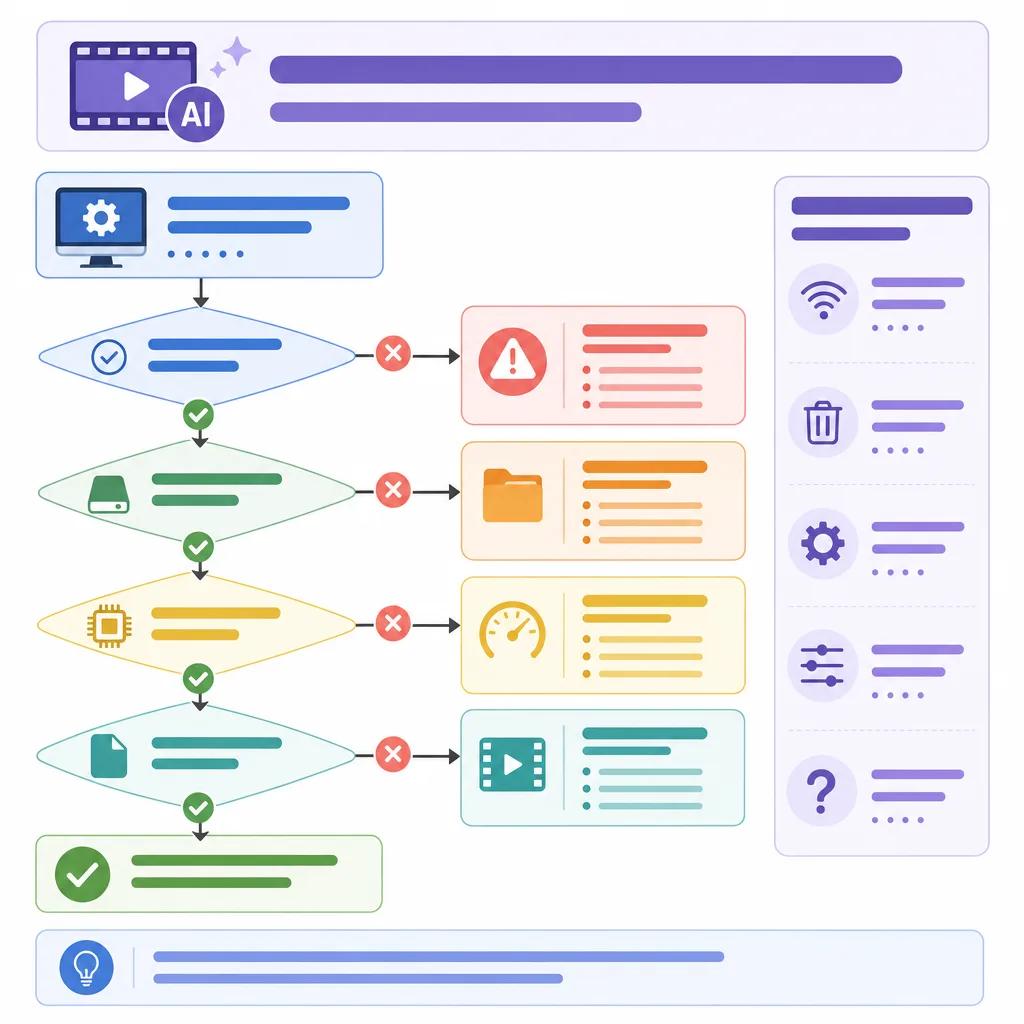
One of the most frequent frustrations is when a video refuses to export. This can happen for several reasons. Often, it's due to software glitches, insufficient system resources, or incorrect export settings. Before panicking, check your system's memory and CPU usage. High resource consumption can impede the export process.
Another potential cause is incorrect export settings. Ensure that your video format, resolution, and frame rate are compatible with your editing software. If you're using Vexub, the platform provides specific guidelines and presets to help you choose the right settings. Reconfigure these settings if necessary and attempt to export again.
Export Option Greyed Out
Seeing a greyed-out export option can be perplexing. This usually indicates that the software isn't ready to export due to unresolved edits, unsaved changes, or missing media files. First, save your project and double-check for any pending edits.
If you're using software like Descript, ensure all media is correctly linked and available. Missing files can prevent the software from completing the export process. Relink or replace any missing media, then try to export the video again.
Dealing with AI Video Glitches
AI video glitches, such as unexpected jumps or sync issues, can stem from several factors. Often, these are related to data processing errors or incompatible settings. Review the source footage for any inconsistencies, and consider reprocessing the video with optimized settings.
Utilizing Vexub's AI-driven tools can help minimize these glitches. The platform offers advanced algorithms that ensure smoother transitions and accurate video rendering. If problems persist, check for updates to your software as newer versions frequently include bug fixes.
AI Video Length Limitations
Why can't AI make longer videos? This question pops up frequently, especially when users attempt to export lengthy projects. AI-generated content often involves substantial data processing, which can strain system resources. This limitation may be due to hardware constraints or software settings.
To overcome length restrictions, consider breaking your project into smaller sections. Export each section individually, then combine them in your editing software. Vexub can assist by providing tools that efficiently handle large data sets, easing the export of longer videos.
Create videos like this with AI
Script, voiceover, images and subtitles — automated in minutes.
Common Error Messages in AI Video Exports
Encountering error messages can be frustrating, but understanding them can lead to quick solutions. Common errors include 'license not available' or 'download failed'. These errors often relate to software licensing issues or network connectivity problems.
Ensure that your software license is active and properly configured. For network-related errors, check your internet connection and firewall settings. Vexub users benefit from a robust support system that assists in resolving such errors swiftly.
License and Connectivity Errors
License errors can occur if your software subscription has expired or if there are configuration issues. Verify your subscription status and re-enter your license details if necessary. Connectivity errors, on the other hand, typically require troubleshooting your network settings.
Ensure your firewall allows the necessary connections for your editing software. If issues persist, consult the software's support documentation or reach out to customer service for assistance.

Optimizing Export Settings for Better Results
Fine-tuning your export settings can significantly impact the quality and success of your video exports. Pay attention to the codec, resolution, and bit rate. These settings must align with the intended use of your video, whether for online streaming or offline playback.
For instance, choose a higher bit rate for videos intended for large screens to ensure clarity. Platforms like Vexub provide preset options that simplify this process, offering optimal settings based on your project's requirements. Explore link('AI video tools pricing comparison', '/blog/ai-video-tools-pricing-comparison-2026') to find software that fits your needs.
By understanding and applying these troubleshooting tips, you can resolve common AI video export issues efficiently. This not only saves time but also enhances your overall productivity, allowing you to focus on creating impactful video content.