
Introduction
It is very easy to fix subtitles in Vexub, which can help ensure your video's words are correct. In this guide, we will walk you through the process of correcting your subtitle step by step. So, let’s get started.
Steps To Correct Subtitles
Sign In To Vexub
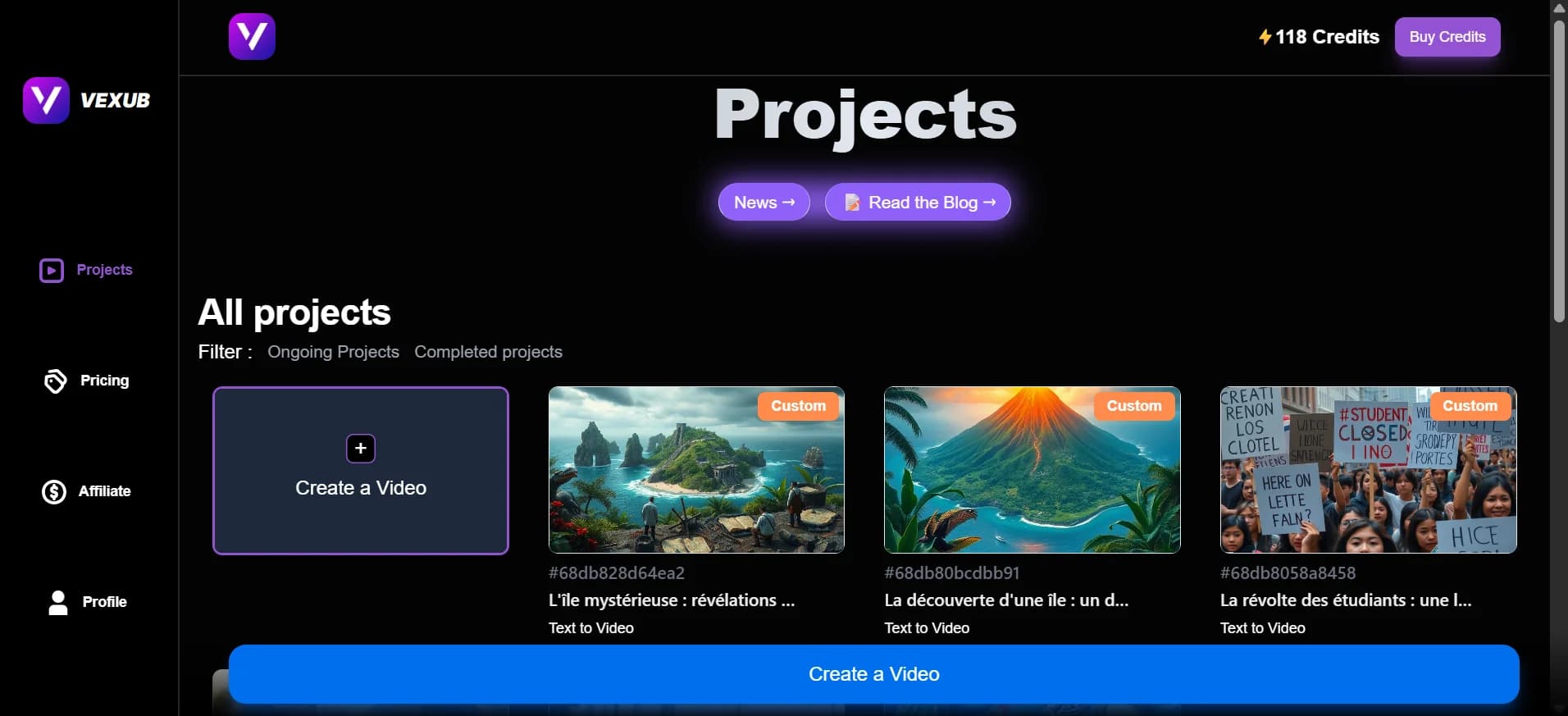
Sign in to your Vexub account and pick the project that has your video.
Open The Video
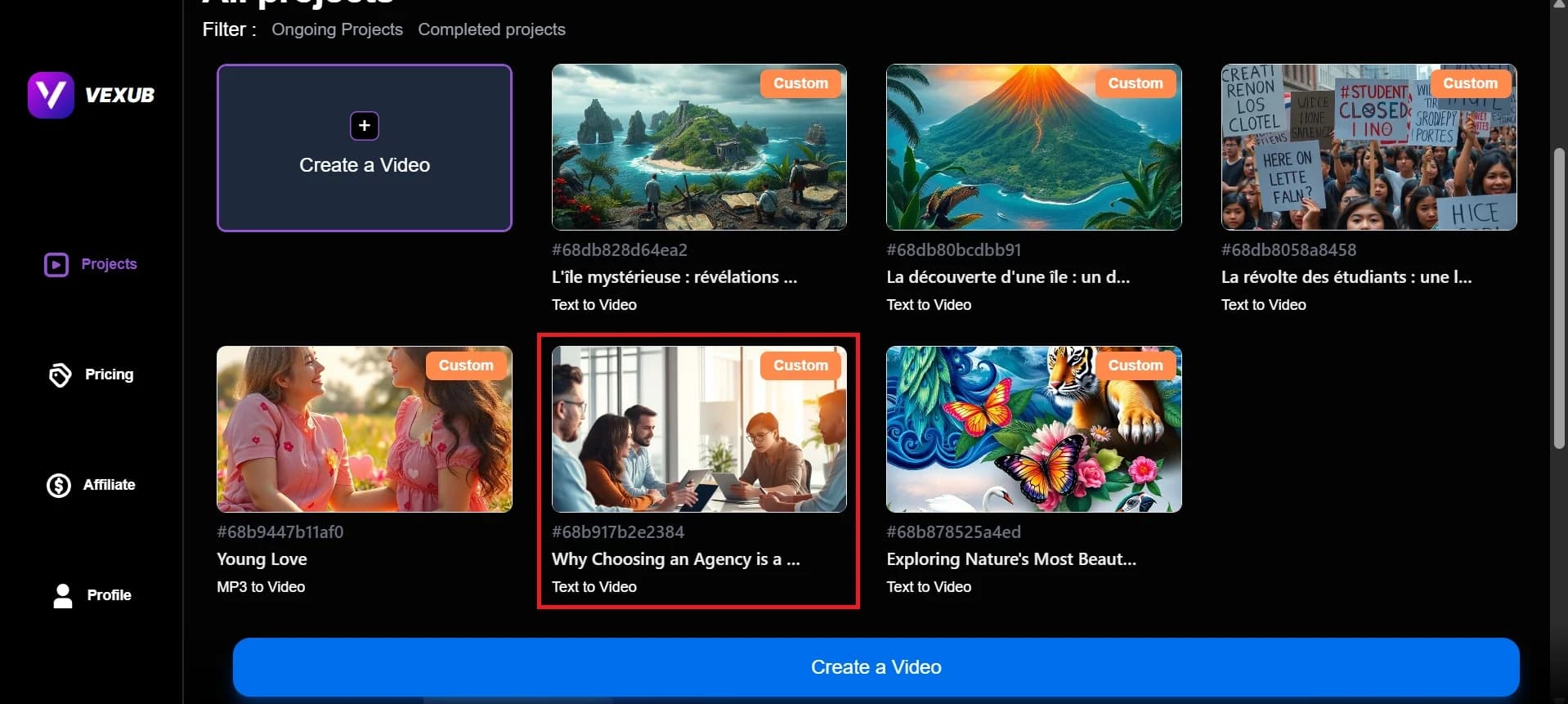
Click on the video that you want to edit.
Find Mistakes
Watch and listen closely. If you see a mistake in the word. For example, there is a word hirrng, but the actual word is hiring.
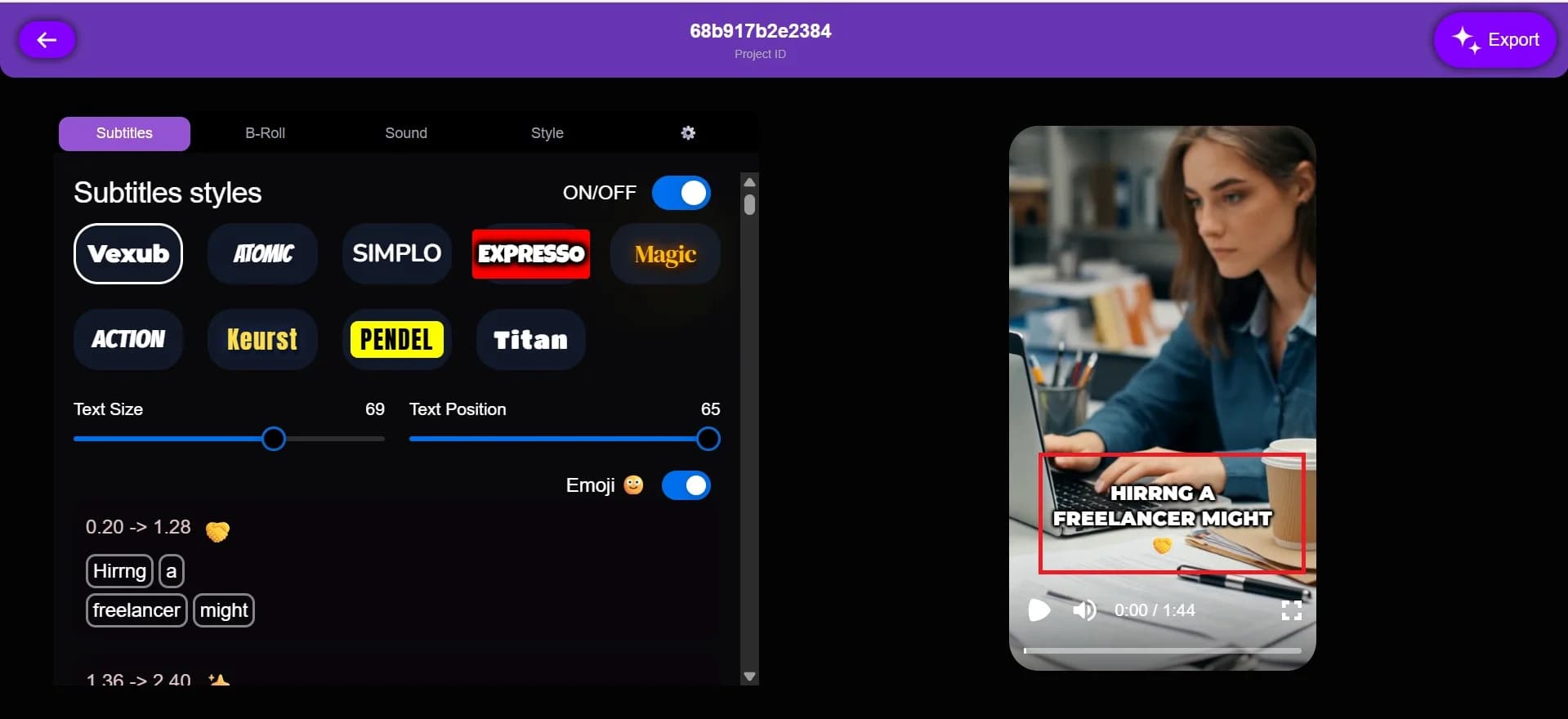
Then click on subtitles, check the duration of the video, and then click on the word you want to change. Like “Hirrng” change into “Hiring”
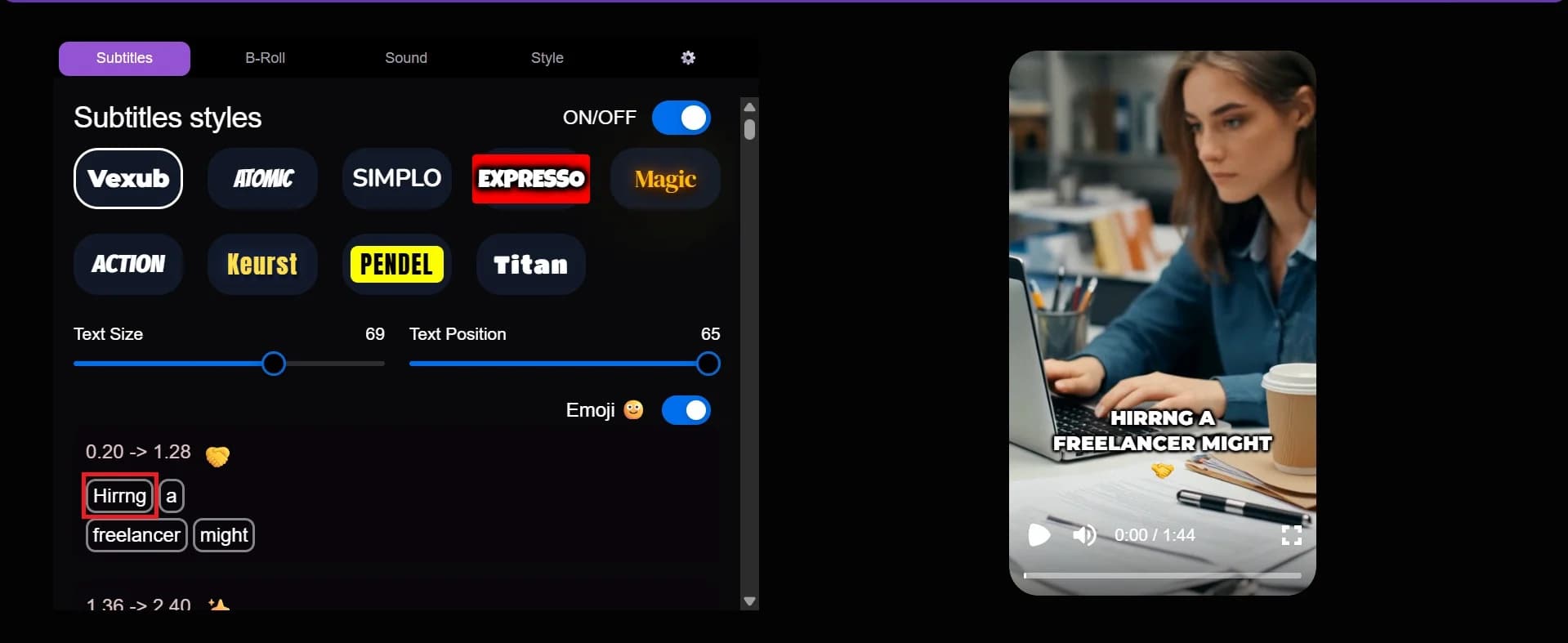
And after that, click on Enter from your keyboard.
Fix The Time
Ensure that the subtitle appears and disappears at the correct time. The subtitle bar can be pulled or added, or new start and end times can be entered manually.
Look Over The Video
Watch the entire video at least once to view all the subtitles and ensure they match the audio.
Save
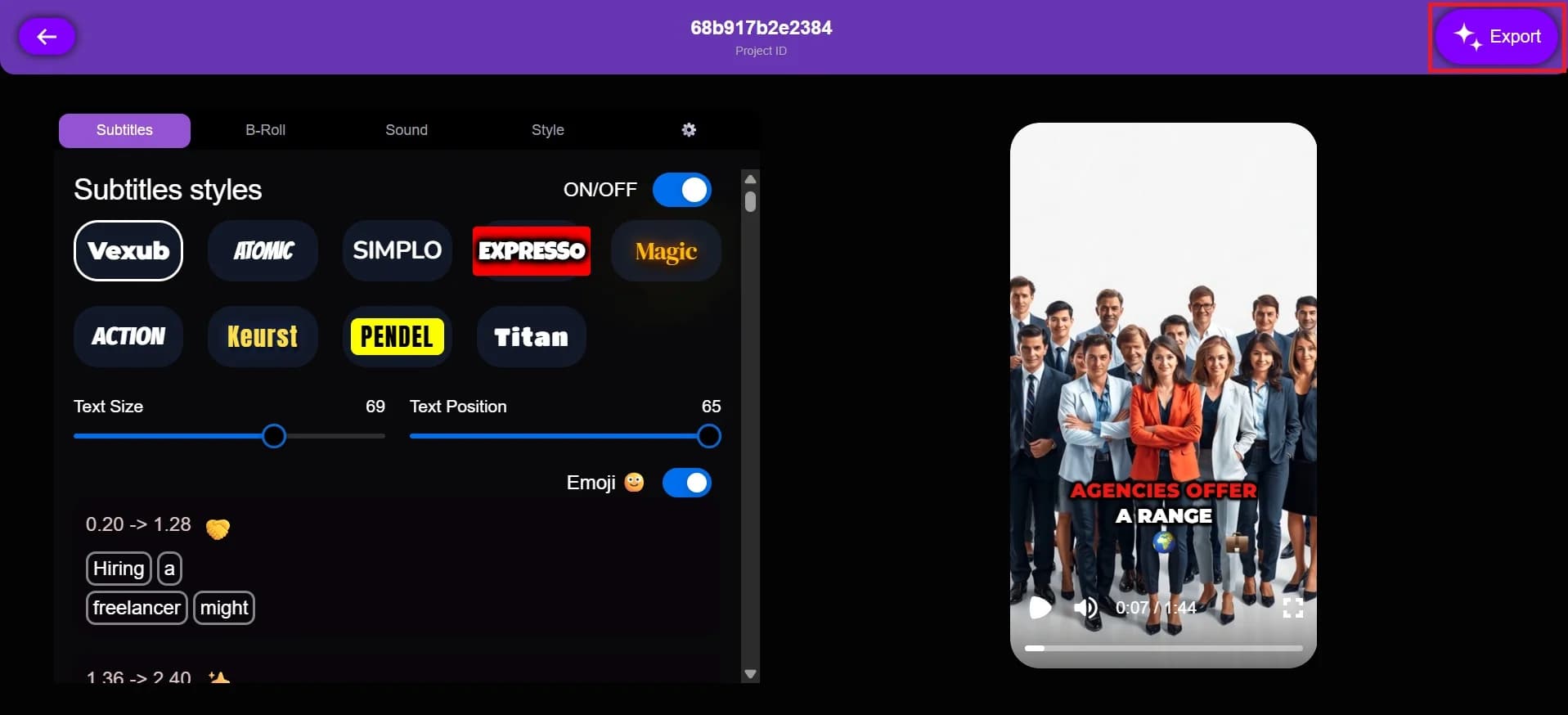
Once this is done, you can save or send out your changed subtitle video to get it on your computer.
For more on this topic, check out our guide on how to make money on TikTok with Vexub using AI subtitles, our article on the Rise of AI Impossible Recipes Thanks to Vexub, and our guide to make AI Videos Accessible: Subtitles & Captions.







