
Creating a custom image style on Vexub allows you to make your videos more unique and visually appealing. Whether you want a vertical or horizontal layout, or you wish to add a personal touch through custom prompts, Vexub makes the process simple and fast. Follow this step-by-step tutorial to create your own custom image style video.
Steps To Make Your Video
Step 1: Open Vexub And Begin
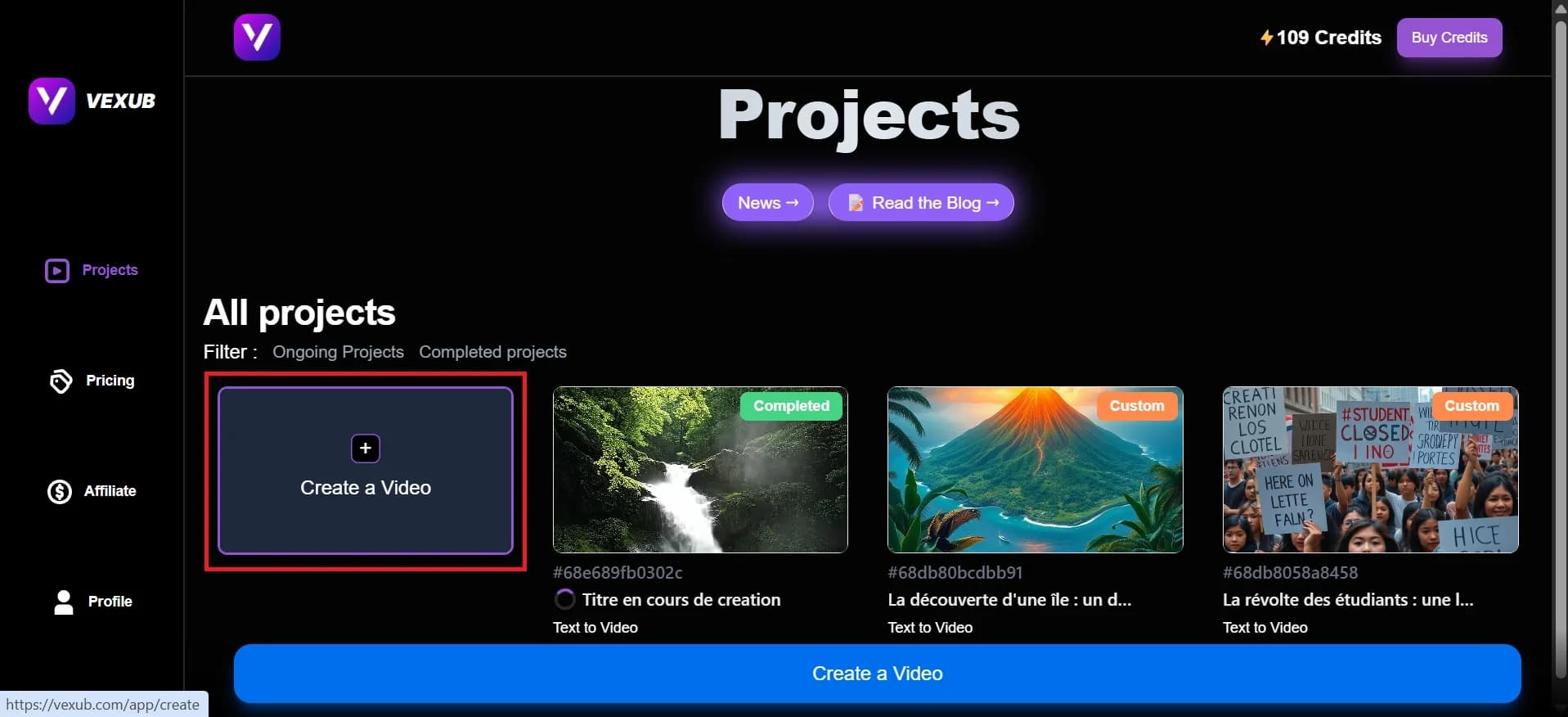
Open Vexub and select the option of Create a Video.
Step 2: Choose Your Format
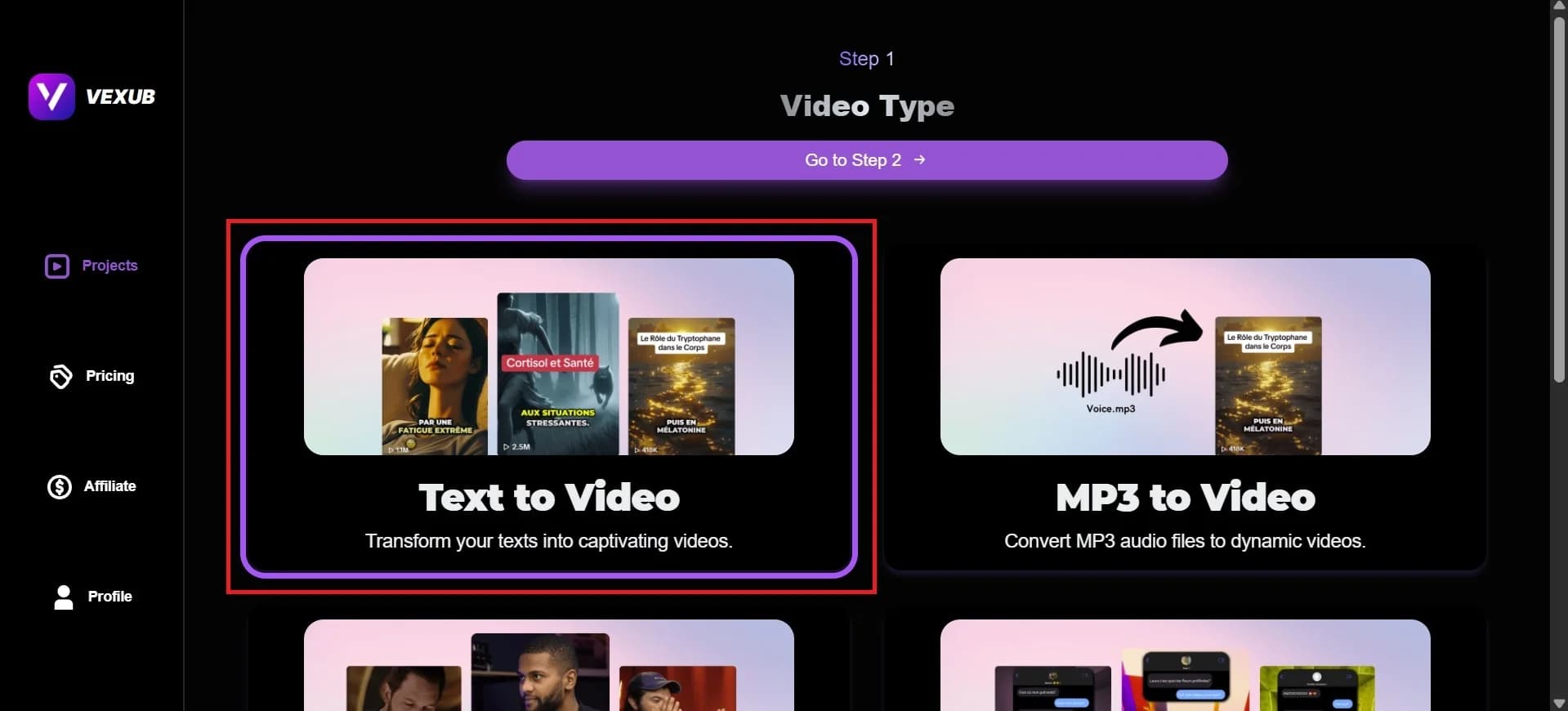
Choose Text to Video.
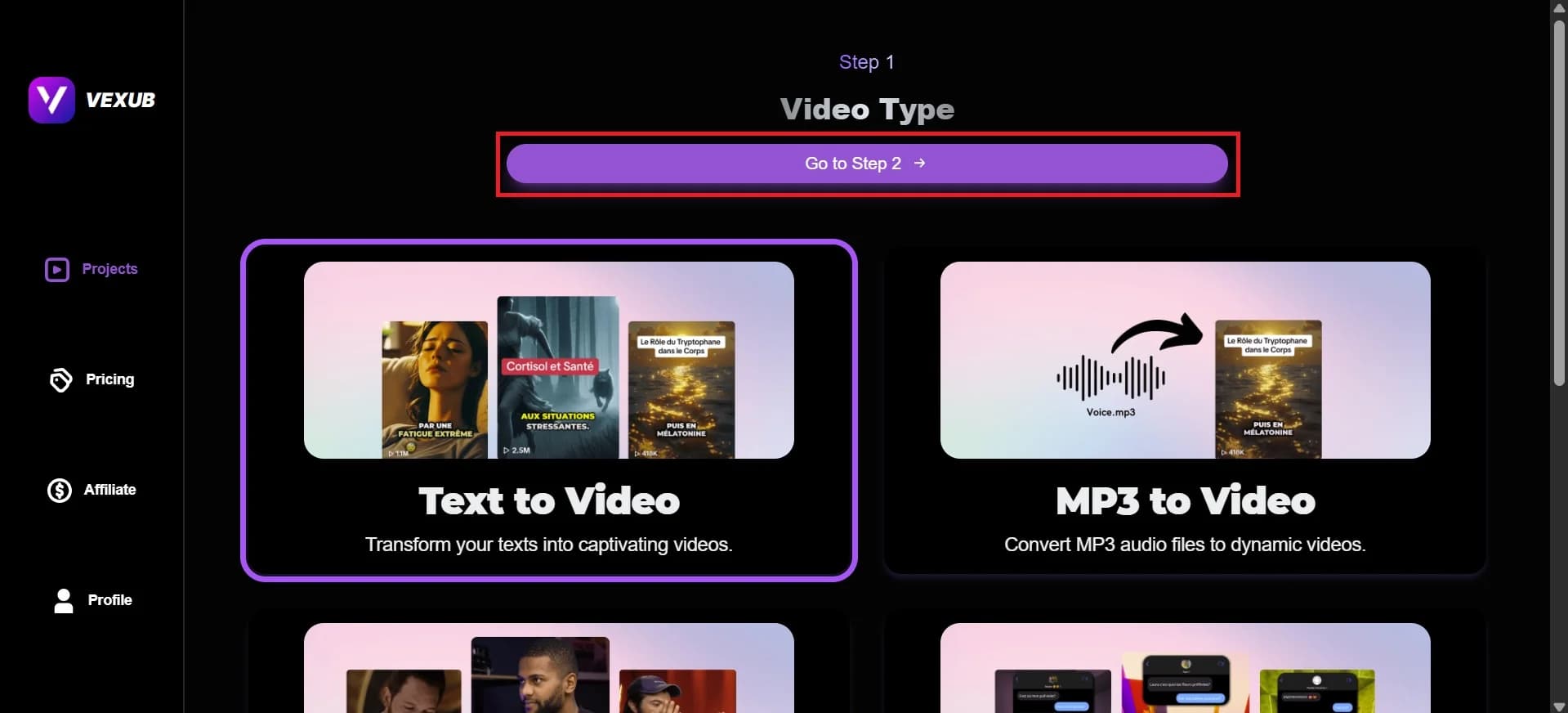
Then click on Go to Step 2.
Step 3: Pick Video Format
There are two types of format
Vertical Format
Horizontal Format
Pick your format.
Then click on Go to Step.
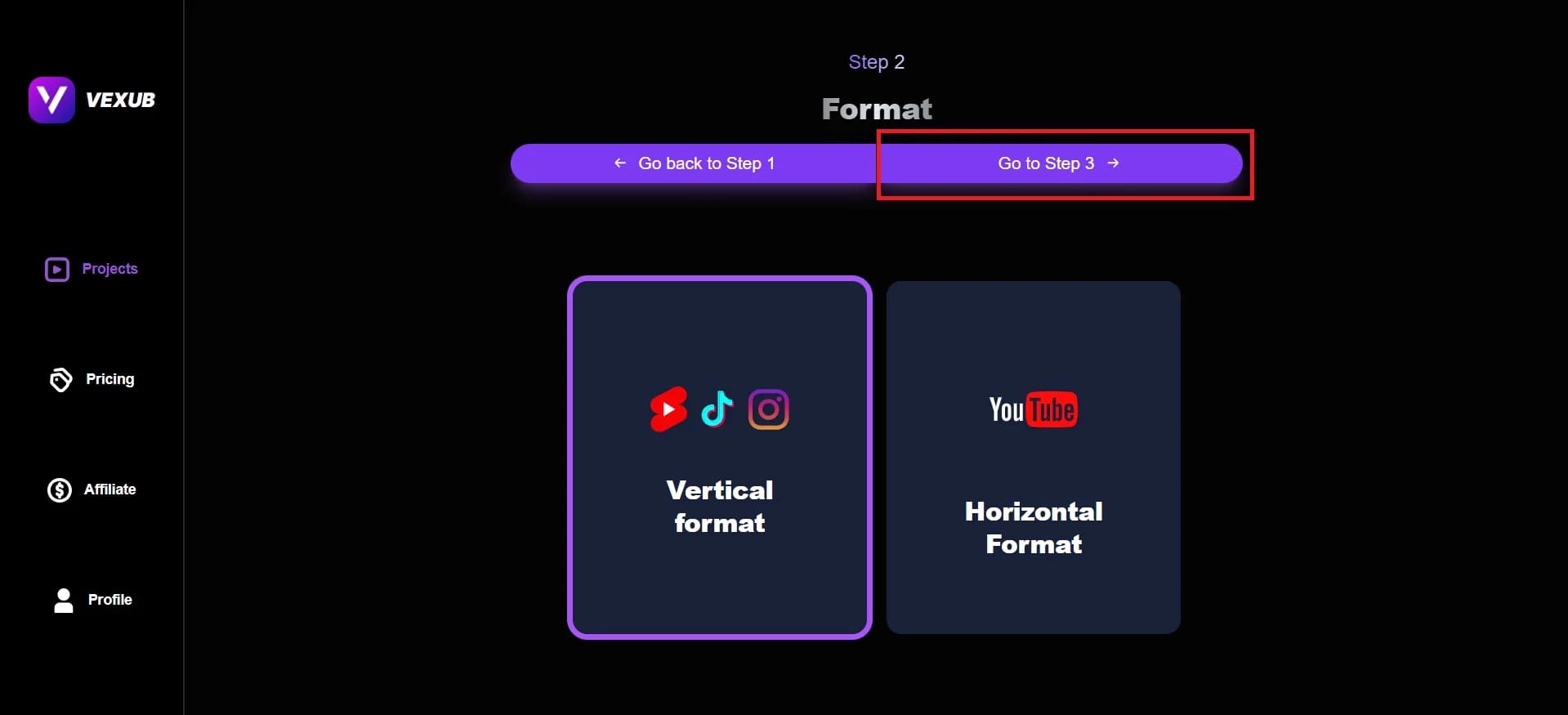
Step 4: Select A Voice
Scroll down and select a voice that you would like to use in your video.
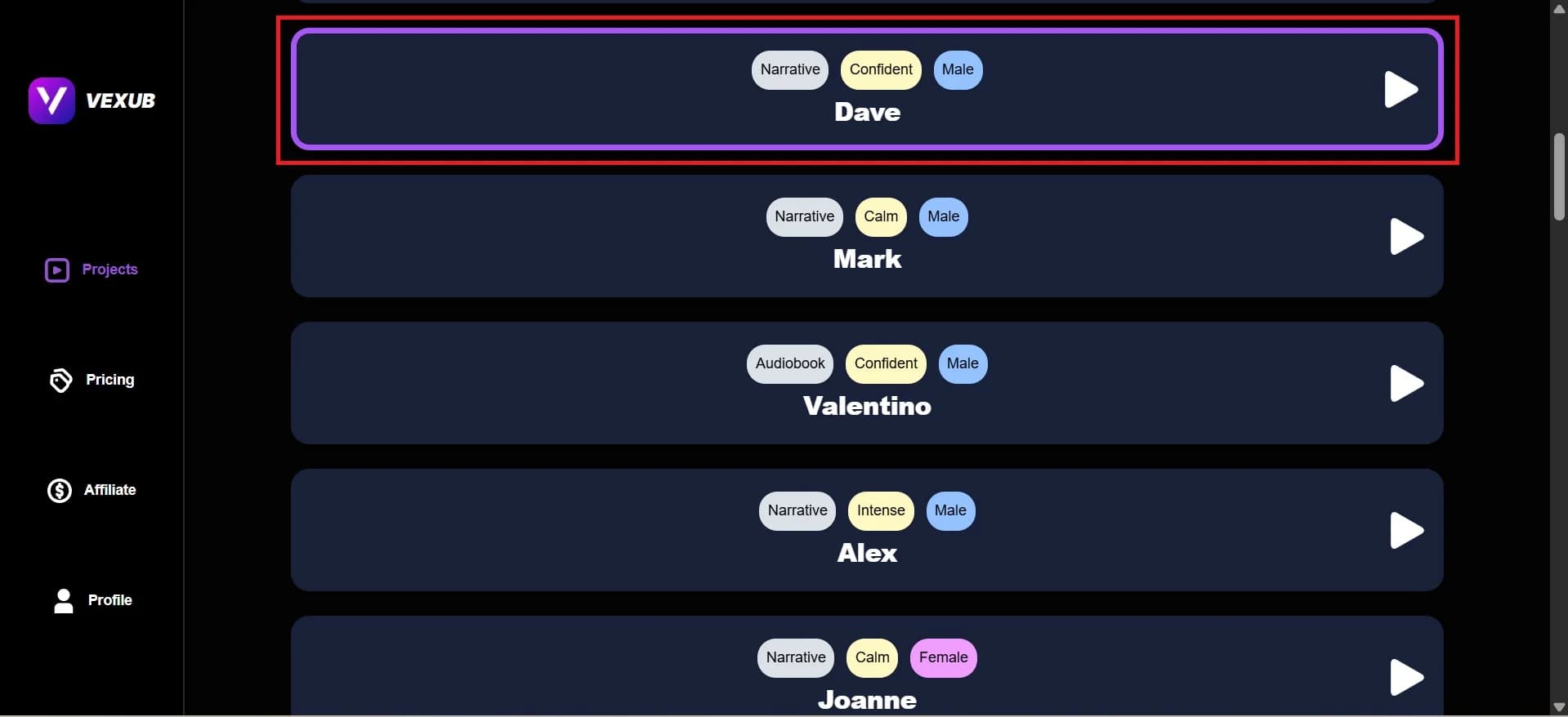
Then click "Go to Step 4."
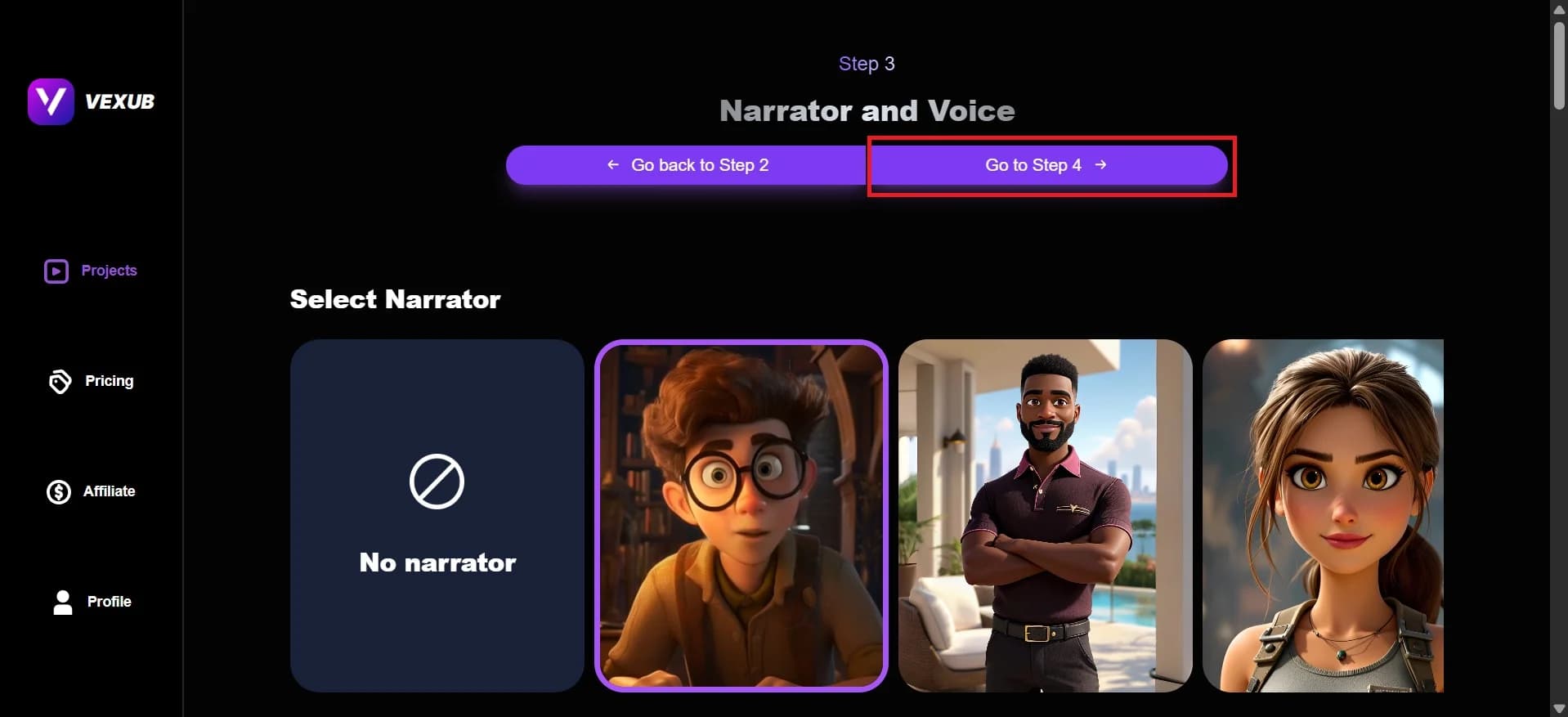
Step 5: Write Your Script Or Topic
Write a topic for your video and press the button Generate Script.
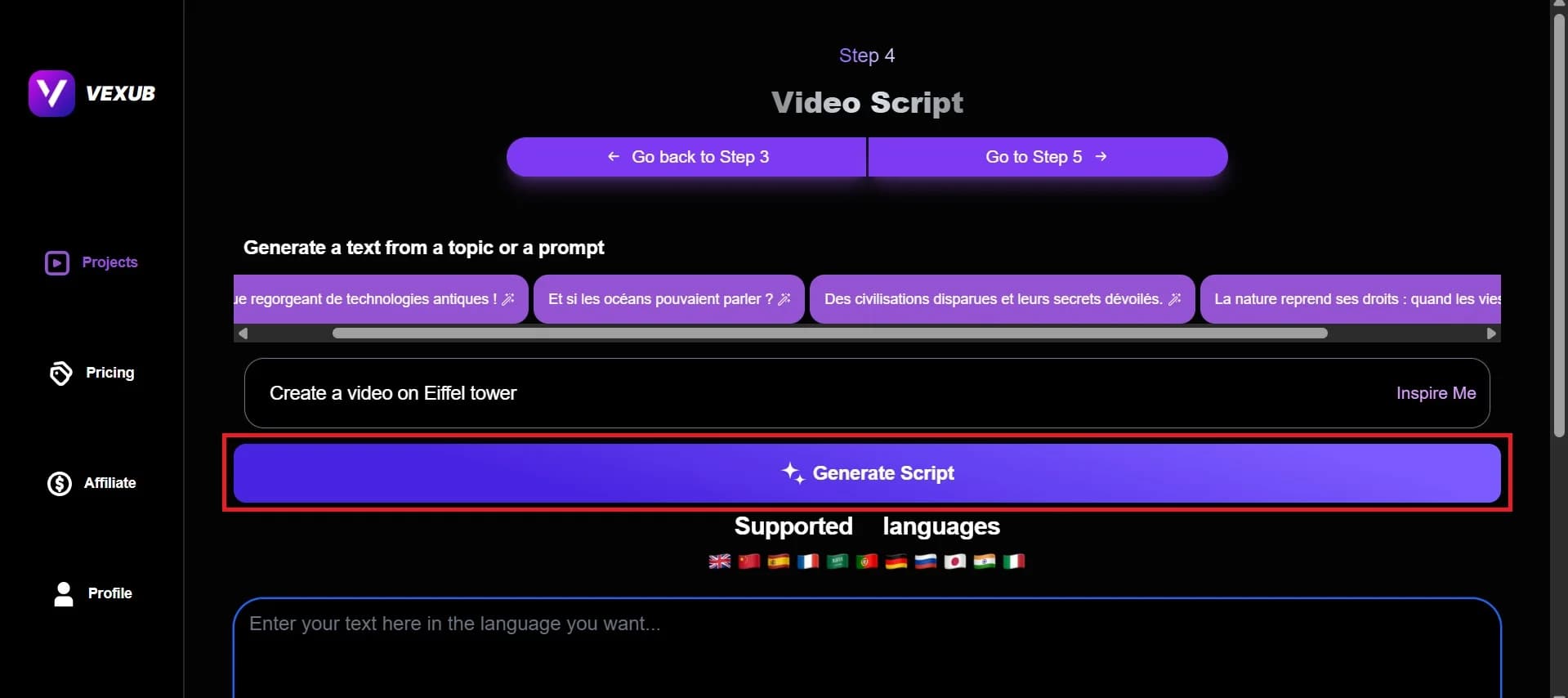
You are also allowed to write your own script and choose your language of choice.
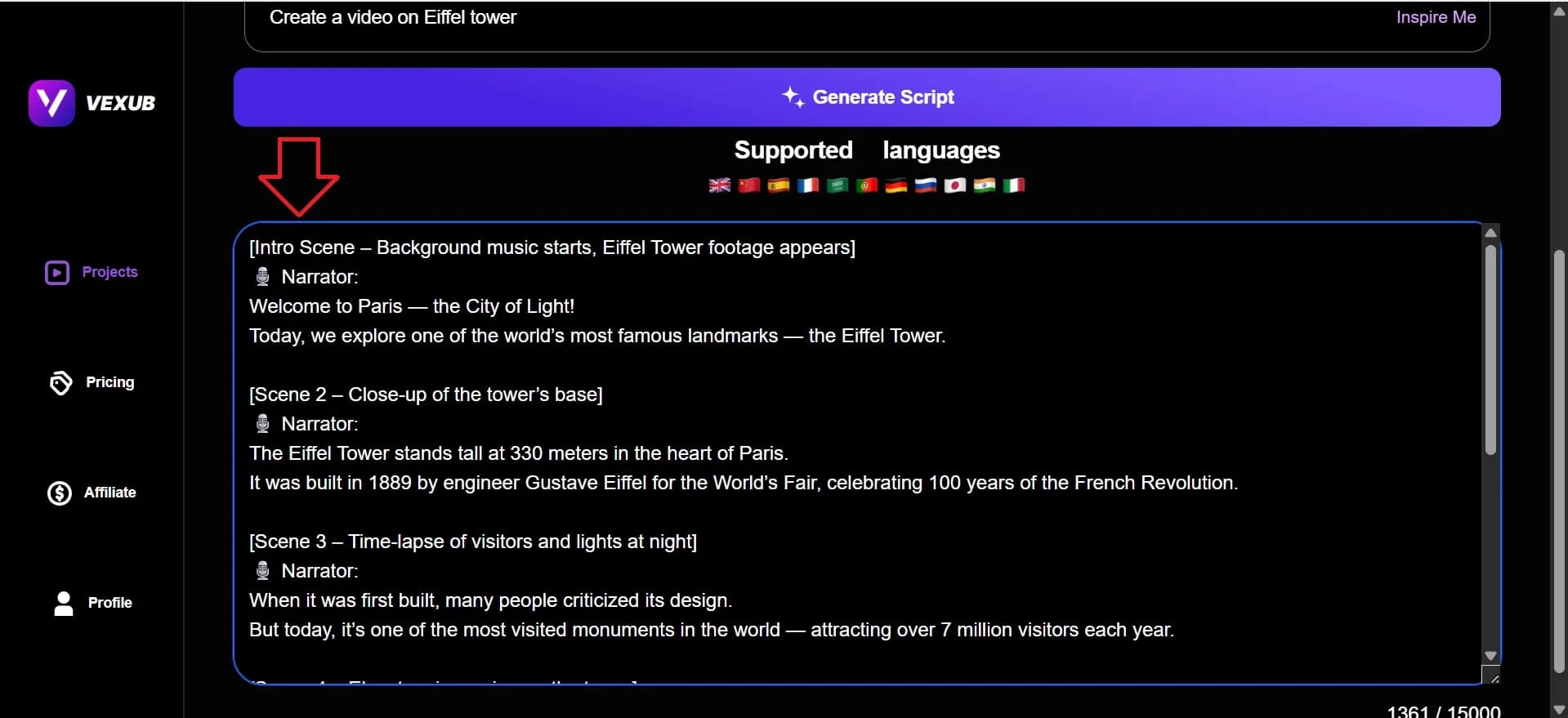
After that, Click Go to Step 5.
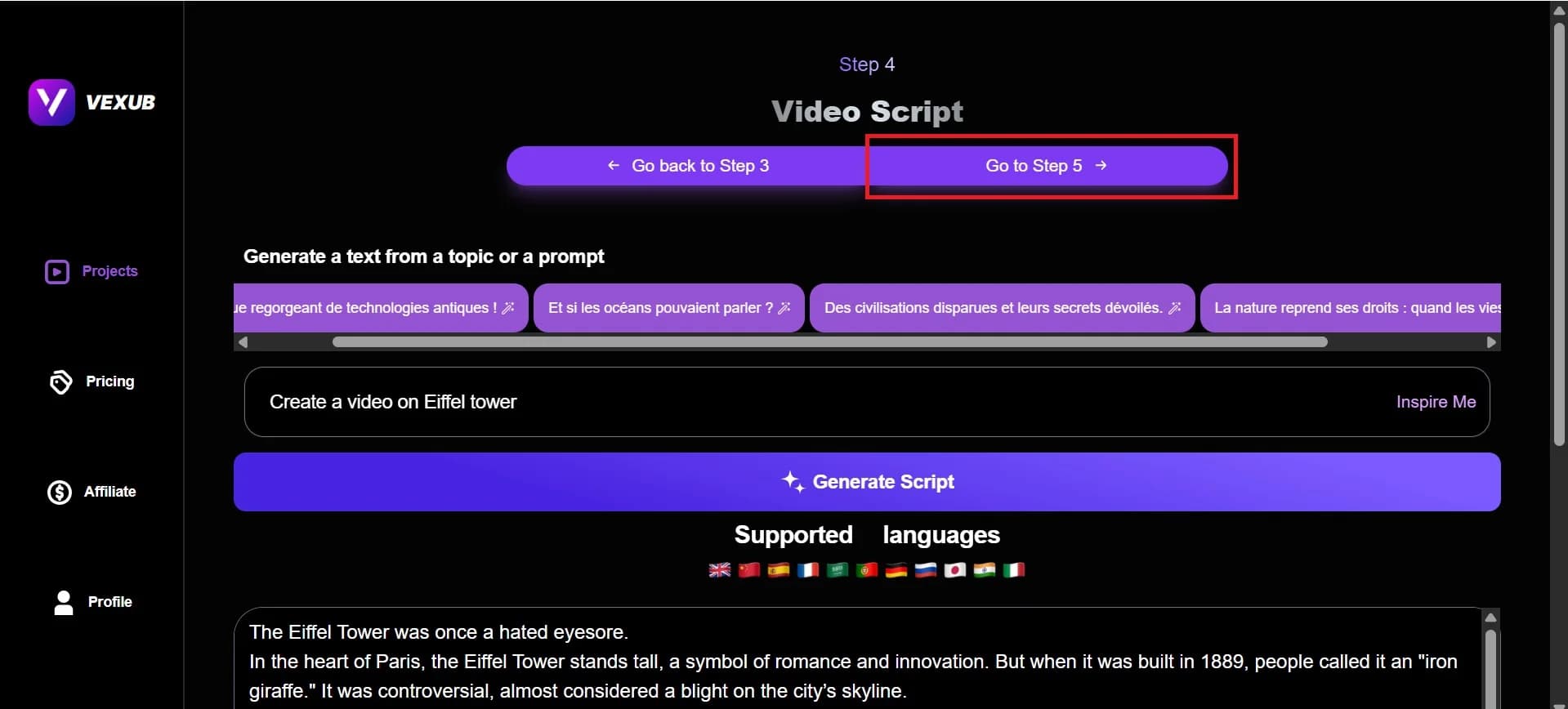
Step 6: Customize And Generate
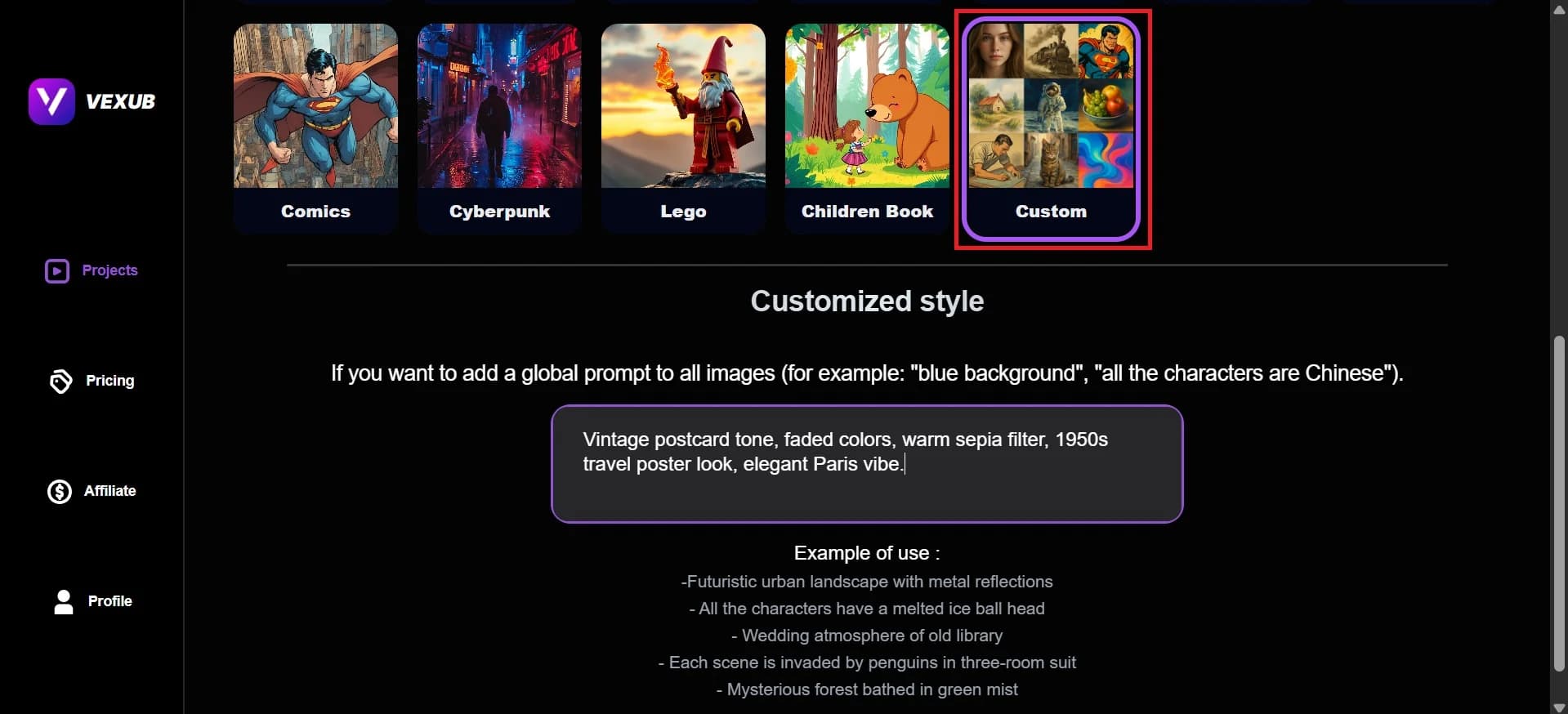
There are some styles available.

Scroll down and click on Custom,
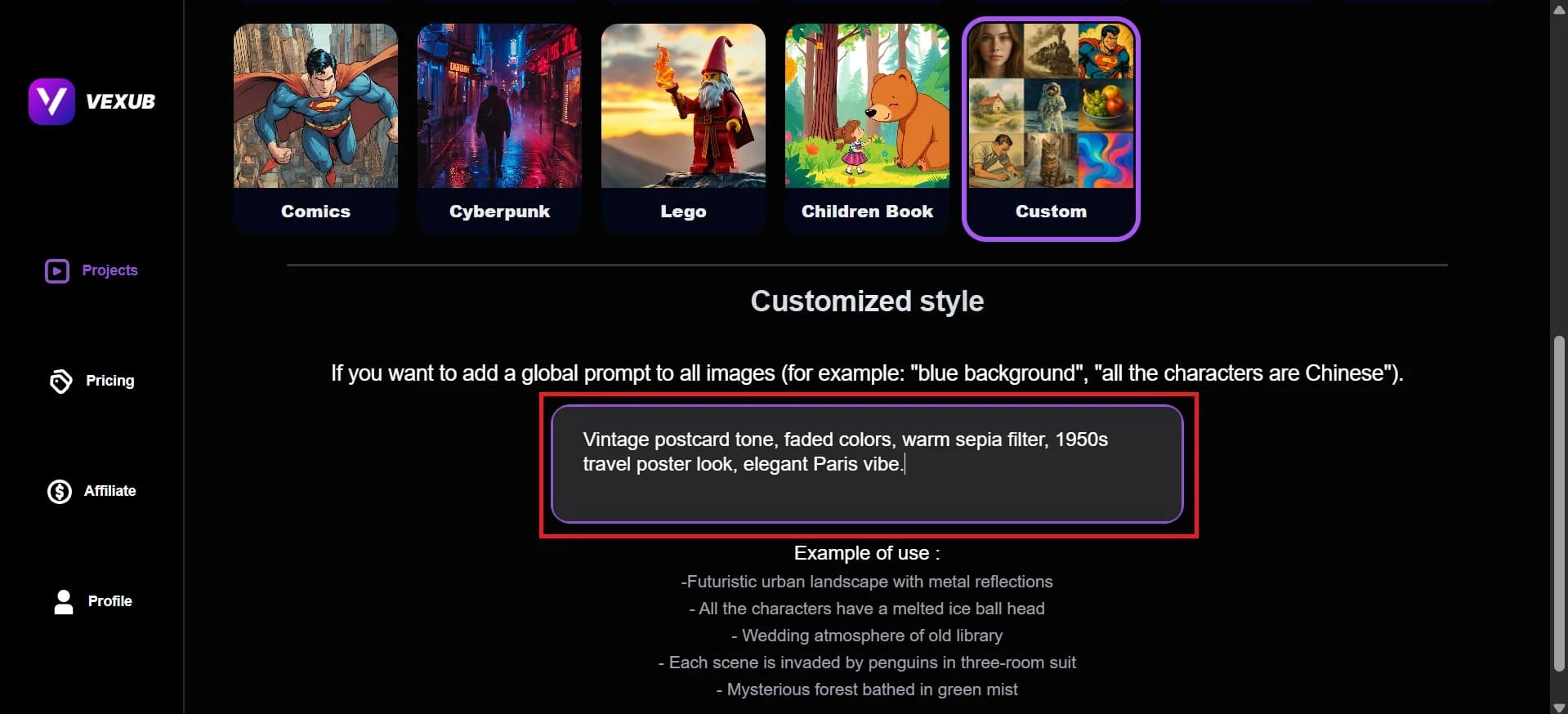
After that, write your prompt in the Customized Style
Then click on Start Generation.

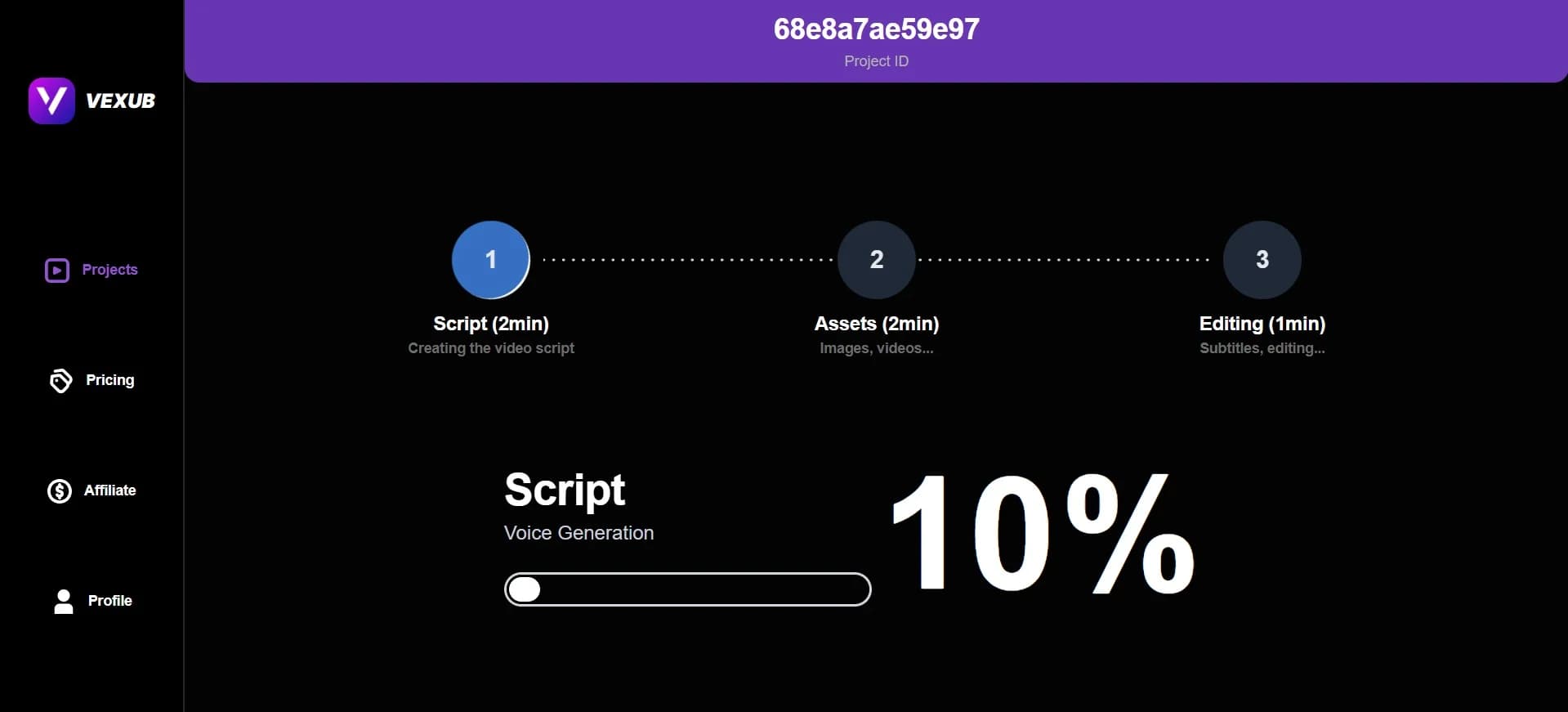
Wait for a few minutes. Your video is generating.
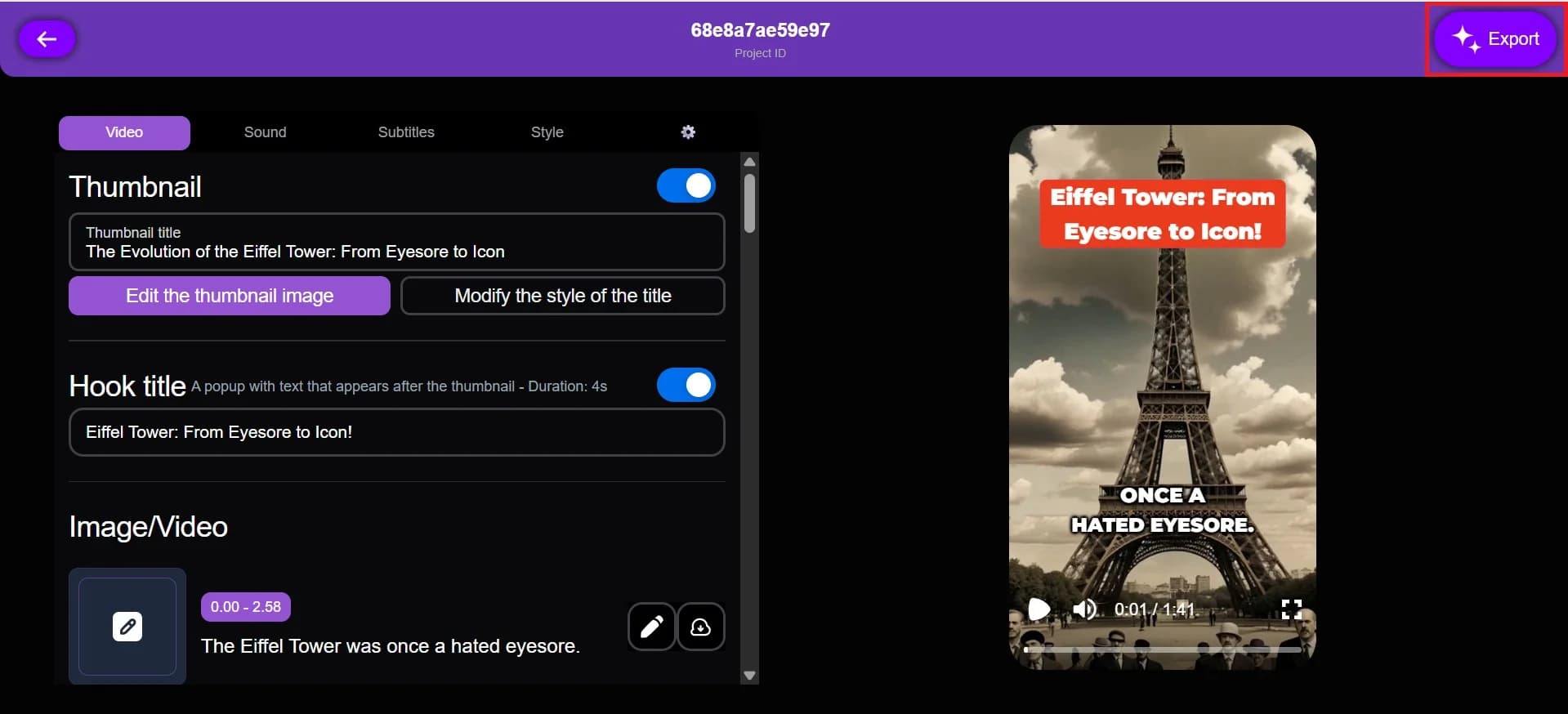
Once it's ready, click on Export.
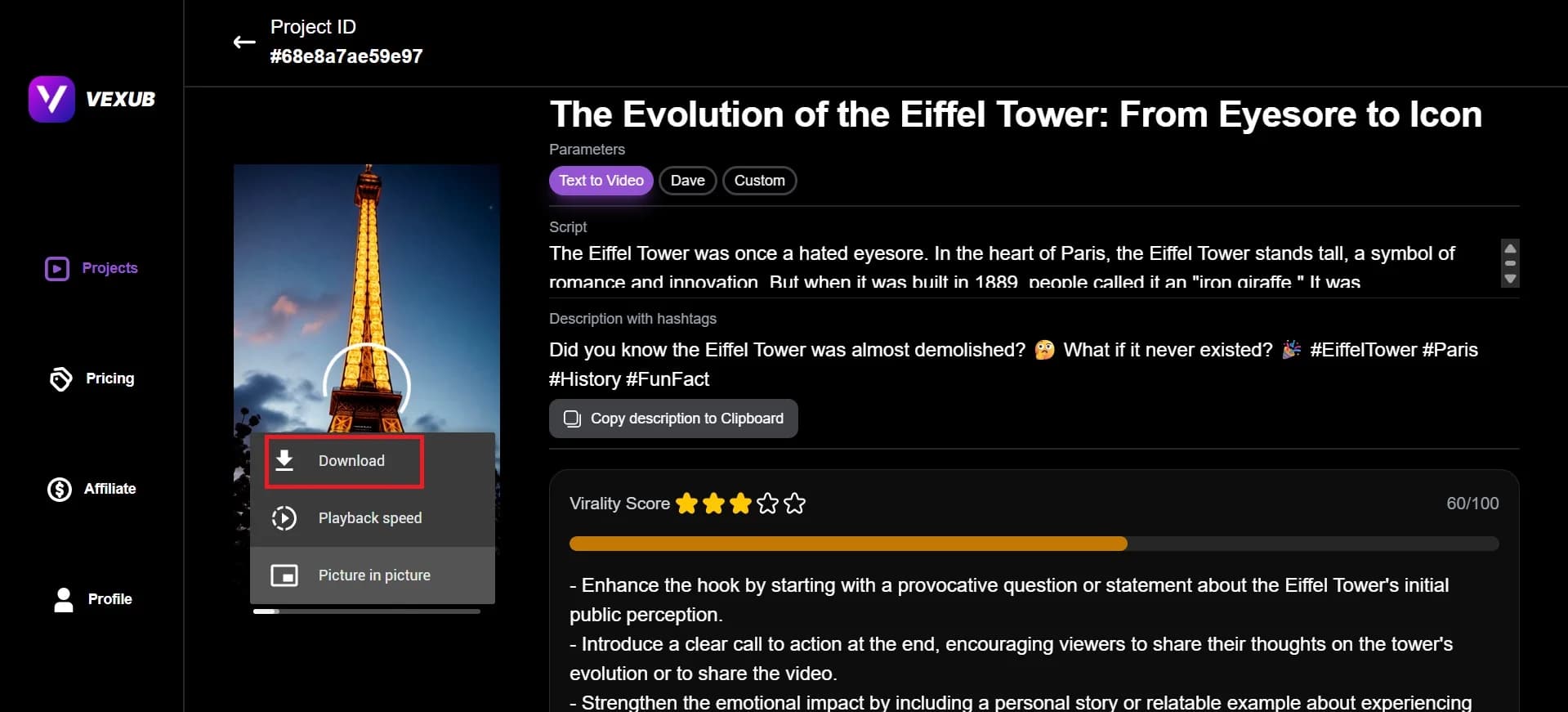
Once the saving is complete, download your video to the device.
For more on this topic, check out our guide on Customize AI Image Styles in Vexub Videos, our article on build a Unique, Consistent Visual Style with Vexub, and our guide to create lifelike human-style videos that turn your.







