

How to Change Music in Vexub (Step-by-Step Tutorial)z
Using this guide, you can learn how to add or remove music to your Vexub video project with the Sound tab. You will have to do the following steps:
1. Open Your Project
Open Vexub and select the project you would like to edit the sound for. Wait till the project page has loaded.

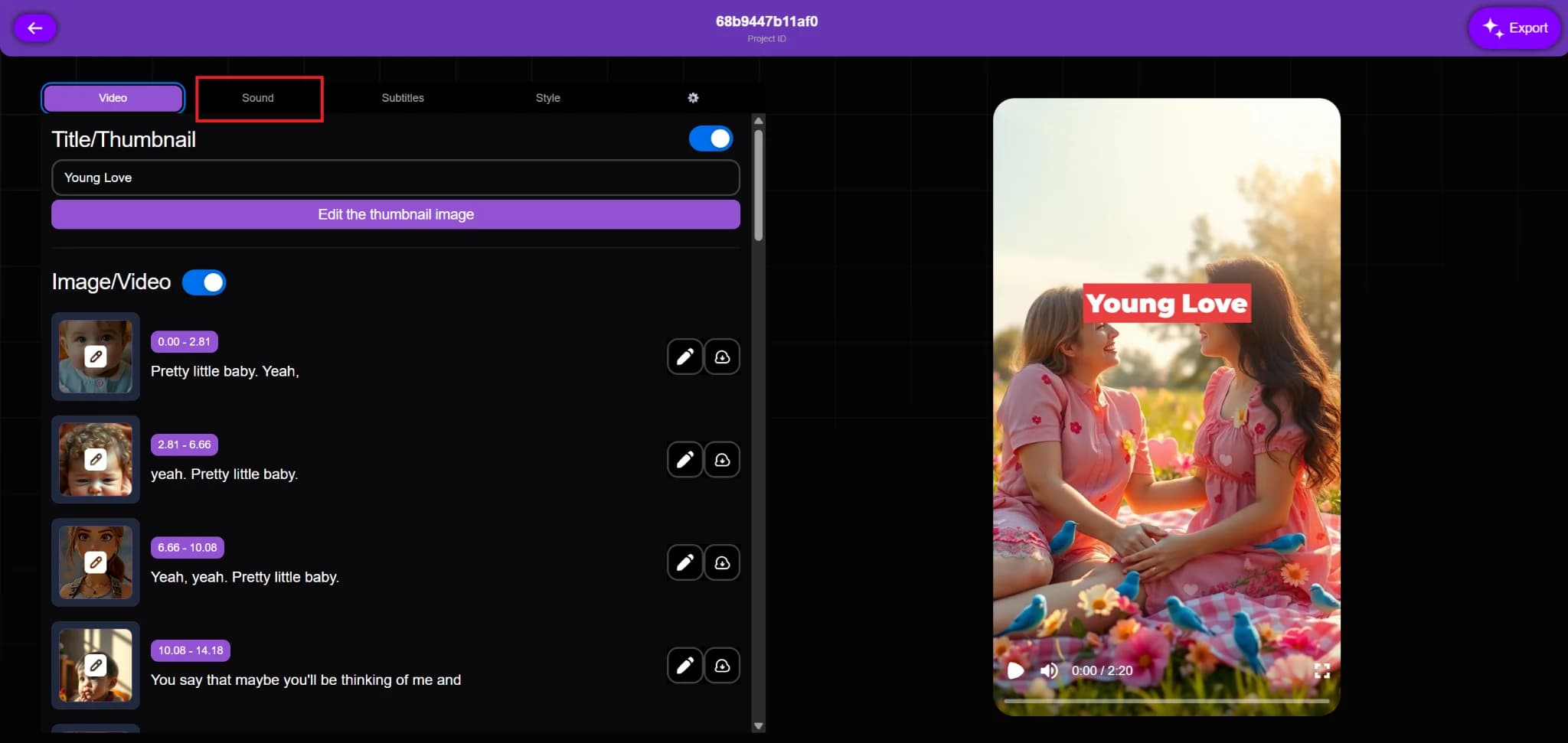
2. Go to the Sound Tab
At the top right of the editor, there is a Sound option. There will be a new panel with two main sections: Original File and Music.
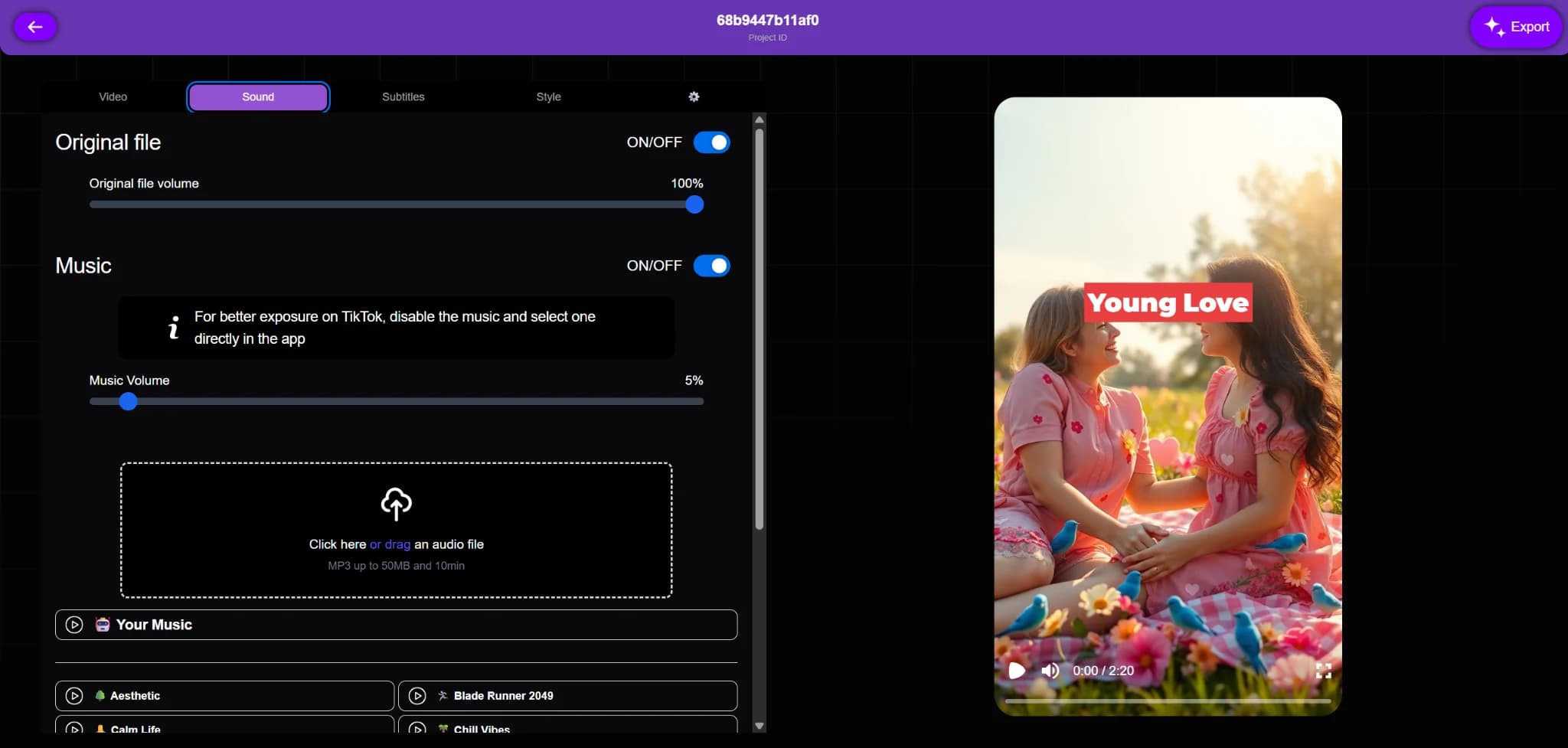
3. Adjust Original File Volume
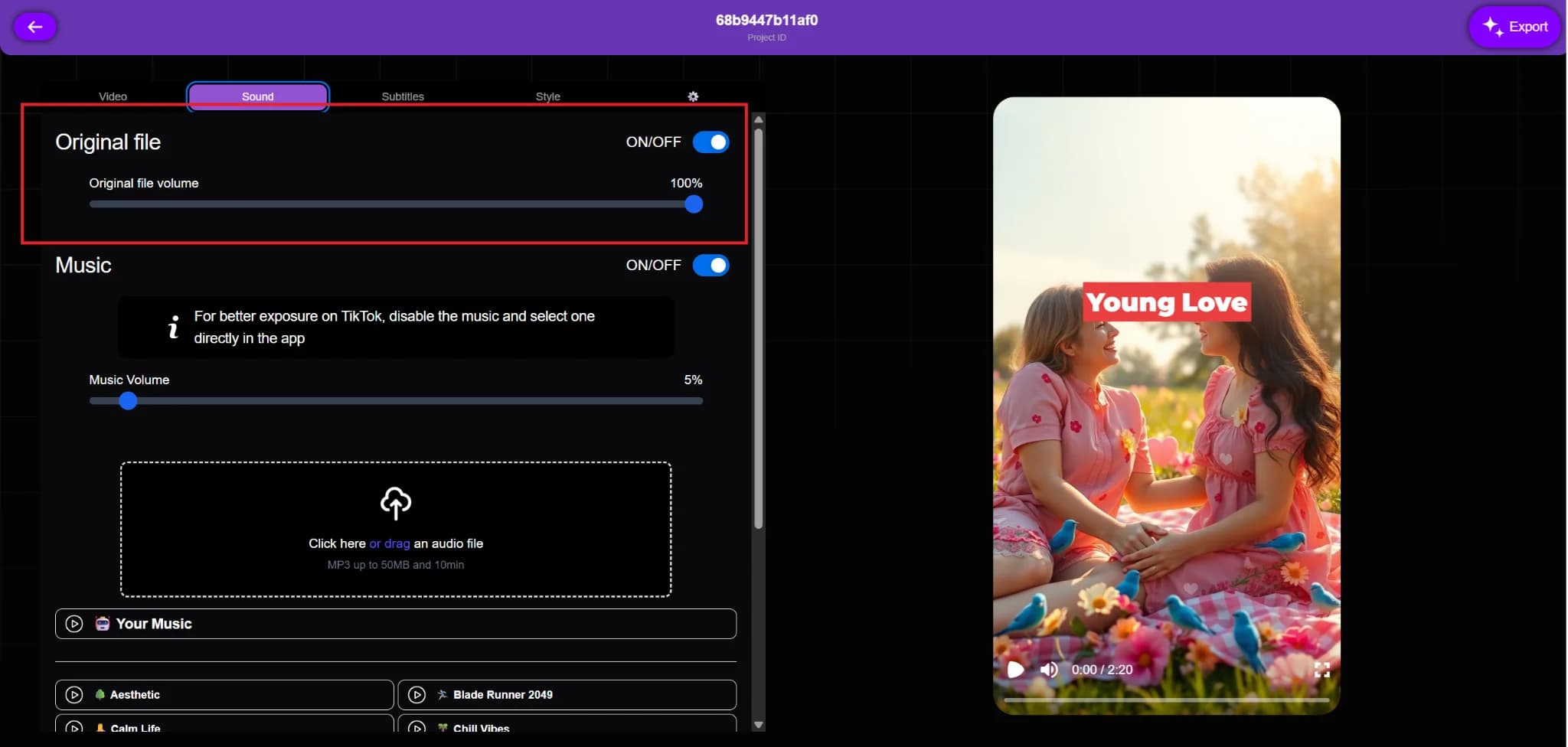
The Original File, switch to turn the original video sound on or off. Slide the Original File Volume bar to the desired level. For example, keep it at 100 percent when the music needs to be at full volume, or lower it when background music is needed to take over.
4. Control Music Settings
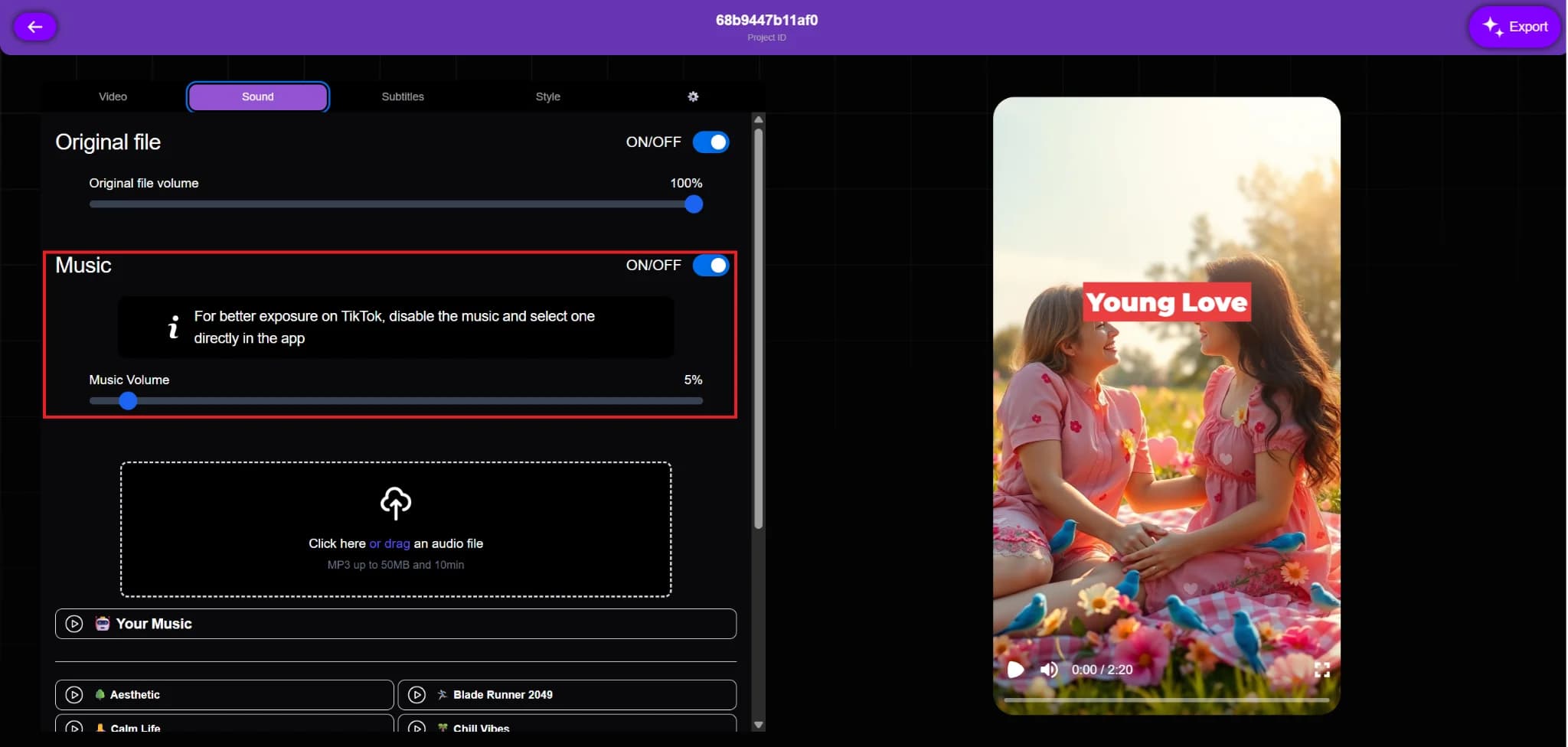
In the Music section, turn the music on or off. The background music level can be adjusted using the Music Volume bar. You should turn the music off at this point if you want to add TikTok songs later.
5. Add or Replace Music
You can either:
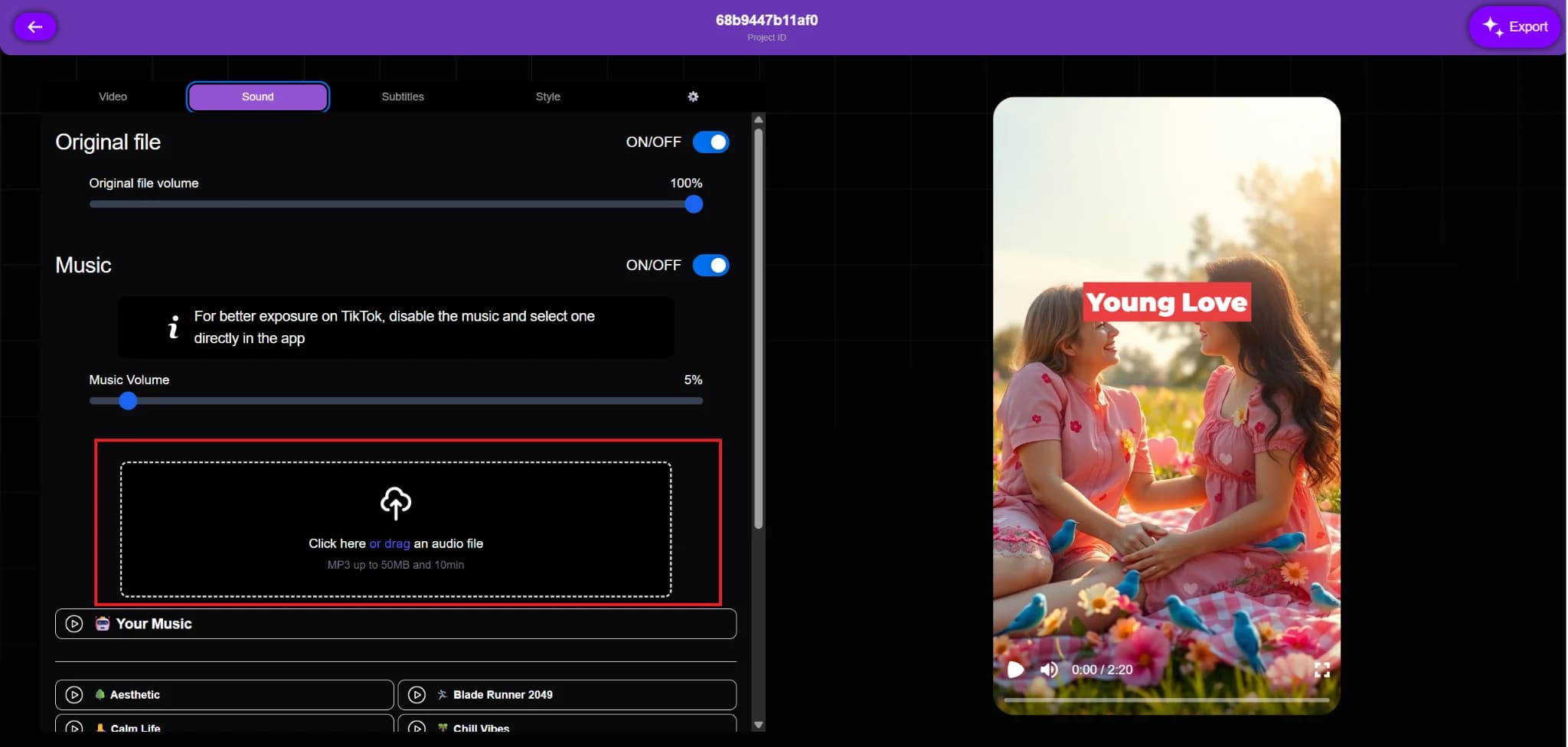
Upload Your Track: Click on the upload box and drag and drop an MP3 file (up to 50 MB and 10 minutes in length).
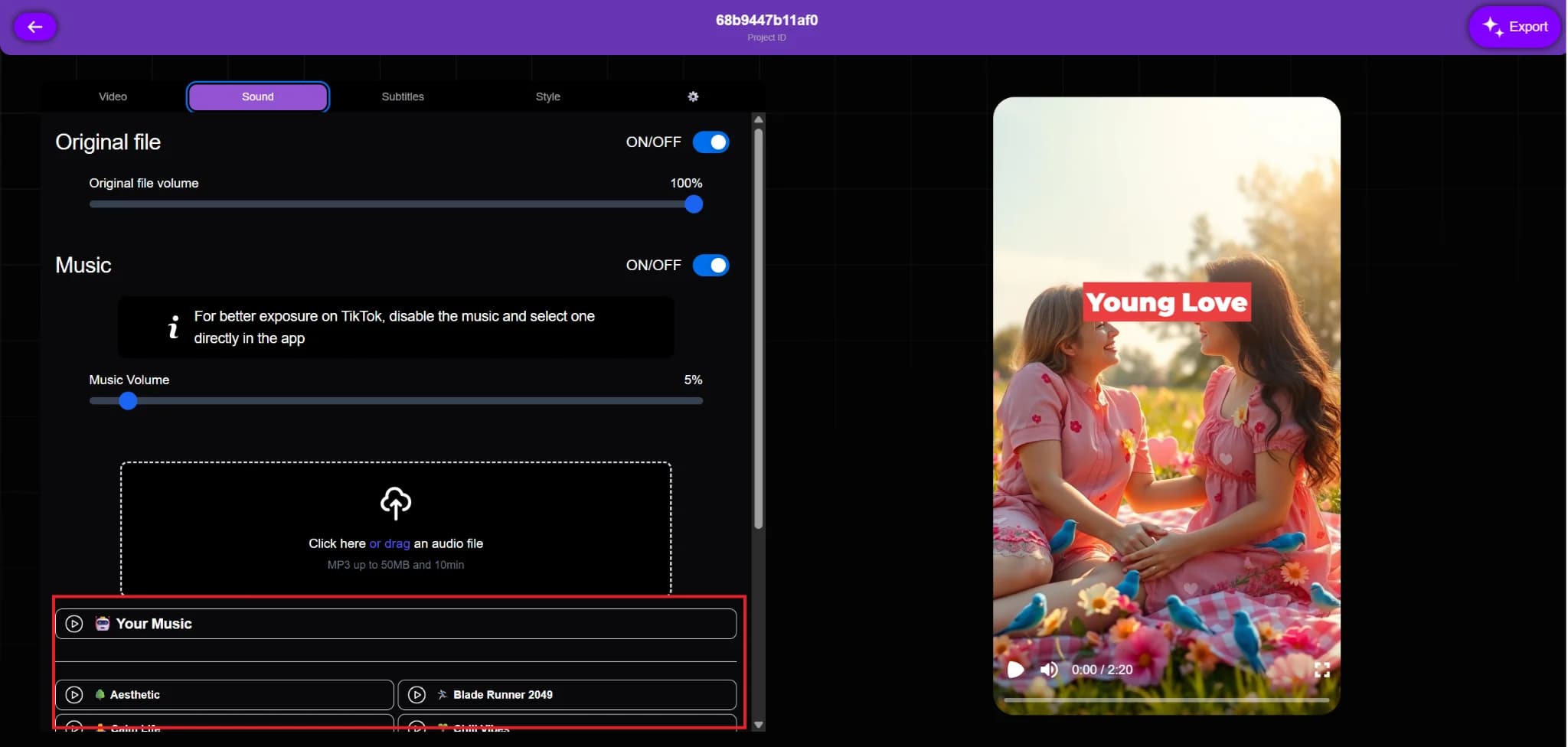
Use Vexub Library: Choose from the built-in music options, such as Aesthetic or Chill Vibe,s, and press play to listen before making a selection.
Save changes when done. Your project will now play with the new soundtrack.
For more on this topic, check out our guide on Vexub Music Library: Pick the Perfect Background Track, our article on how to Make Music Video Clips Like S. Alba, and our guide to the Rise of AI Impossible Recipes Thanks to Vexub.







