
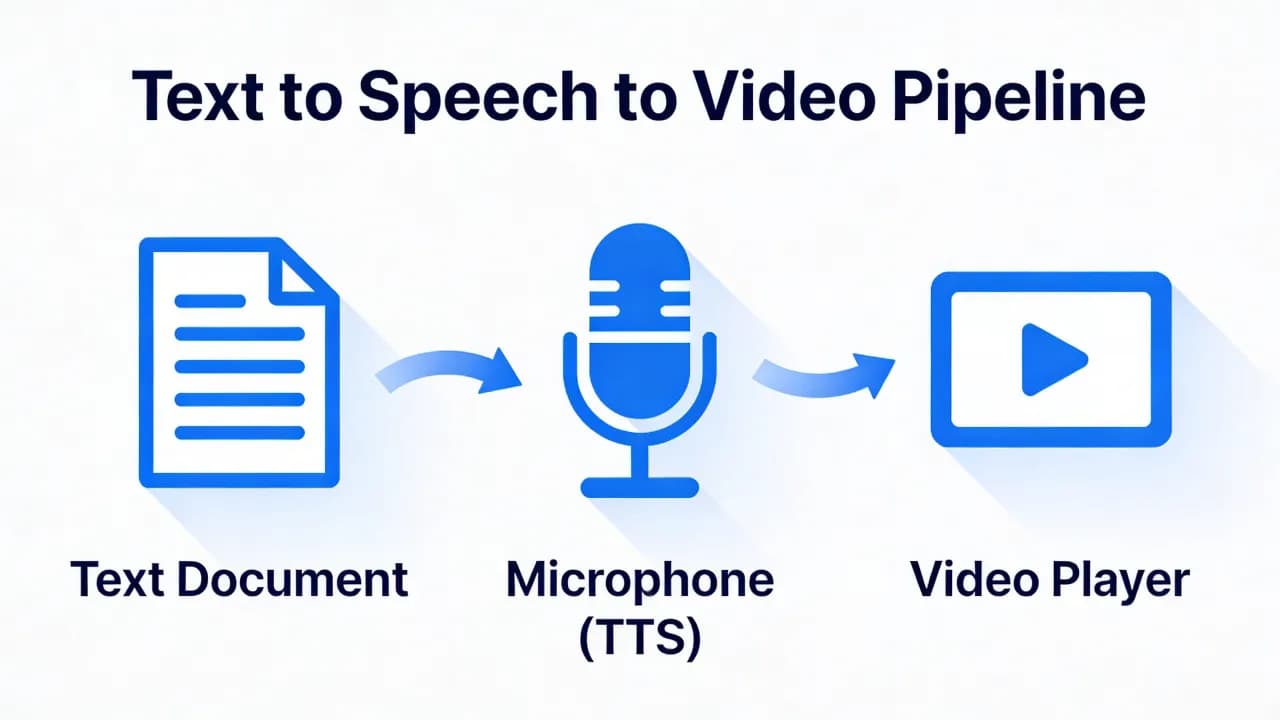
Adding narration to a video used to require a microphone, a quiet room, and the willingness to re-record until every sentence sounded right. Text-to-speech technology has eliminated those requirements. You write a script, select a voice, and generate broadcast-quality narration in minutes. The result is a polished audio track that you can drop into any video project.
This guide walks through the complete process: from writing an effective narration script to generating audio, synchronizing it with your visuals, and exporting a finished video. Whether you are creating YouTube explainers, product walkthroughs, or training videos, this workflow applies.
Step 1: Write a Narration-Ready Script
The script is the foundation. A well-written script produces natural-sounding TTS output. A poorly written script produces audio that sounds mechanical regardless of how advanced the voice model is.
Structure for Clarity
Organize your script into clear sections that match the visual segments of your video. Each section should cover one idea. Use transition phrases like "next," "now let's look at," or "moving on to" to signal topic changes. These transitions give the AI natural pause points and help viewers follow along.
Write for the Ear, Not the Eye
Written text and spoken text follow different rules. Sentences that read well on a page often sound awkward when spoken aloud. Keep these guidelines in mind:
Aim for 15-20 words per sentence. Longer sentences force the AI to maintain intonation across too many clauses, which can sound unnatural.
Use contractions. "It's" and "you'll" sound more conversational than "it is" and "you will." Formal language sounds stiff in narration.
Avoid parenthetical asides. Nested information that works in writing disrupts spoken flow. Move parenthetical details into separate sentences.
Spell out acronyms on first use. Write "search engine optimization, or SEO" rather than just "SEO" to ensure the AI pronounces it correctly and the viewer understands.
Read your script aloud. This remains the single best test. If you stumble while reading, rewrite the sentence.
Step 2: Choose the Right Voice
Voice selection affects how your audience perceives your content. A voice that matches your topic and audience feels invisible in the best way: viewers focus on the message rather than the delivery.
Consider the tone of your content. Instructional videos benefit from a clear, measured voice with moderate pacing. Marketing content often calls for a warmer, more energetic delivery. News-style content works best with a neutral, authoritative tone.
If you are unsure which generator to use, our comparison of the best AI voice generators in 2026 breaks down the top options by quality, pricing, and features.
Create videos like this with AI
Script, voiceover, images and subtitles — automated in minutes.
Step 3: Generate and Review the Audio
Once your script is finalized and you have selected a voice, generate the audio. Most TTS platforms return results in under 30 seconds for scripts of a few hundred words. Here is what to check in your review:
Pronunciation: Listen for mispronounced proper nouns, technical terms, or numbers. Most platforms let you add phonetic hints or pronunciation overrides.
Pacing: Ensure the narration speed feels appropriate for your content. Tutorial content usually works best at 0.9-1.0x speed. Marketing content can run slightly faster at 1.0-1.1x.
Pauses: Check that pauses between sections feel natural. If a transition feels rushed, add a period or ellipsis in the script to create a longer break.
Consistency: If you are generating narration for a multi-part series, ensure the voice settings remain identical across all segments.
Do not skip the review step. Even the best TTS models occasionally produce artifacts, mispronunciations, or pacing irregularities. A two-minute listen-through catches issues that would be distracting to viewers.
Step 4: Synchronize Audio with Your Video
The Timeline Approach
Import your generated audio into your video editor and place it on the timeline. Adjust the timing of visual elements, scene cuts, and text overlays to match the narration beats. This works well when your visuals are flexible, such as screen recordings, stock footage sequences, or motion graphics.
The Chapter Approach
For longer videos, generate narration in chapter segments rather than as a single continuous file. This gives you independent control over the timing of each section. If you need to revise one section of the script, you regenerate only that segment without affecting the rest.
Automated Sync Tools
Some platforms, including Vexub, automate the synchronization process. You provide the script and the video, and the tool generates narration, aligns it to the visual timeline, and handles pacing adjustments automatically. This eliminates the manual timeline editing step entirely.
Step 5: Add Captions for Maximum Impact
AI narration and captions are a natural pairing. Since you already have the script text, generating synchronized captions requires minimal additional effort. The combination of spoken narration and on-screen text engages both auditory and visual processing channels, which research shows improves retention by 20-30%.
For a detailed look at how captions affect your video metrics, read our article on how captions increase video engagement.
Step 6: Export and Optimize
When exporting your final video, pay attention to audio settings. Use AAC or MP3 audio encoding at a minimum of 192 kbps. Lower bitrates can introduce compression artifacts that degrade the clarity of the AI voice, especially on sibilant sounds.
For YouTube: Export at 48 kHz sample rate with AAC encoding. YouTube re-encodes audio, so providing high-quality source files ensures the best result.
For social media: Ensure your export settings match the platform's recommended specs. Most platforms re-encode aggressively, so a higher-quality source compensates for compression.
For web embedding: Consider providing both a video file and a separate audio track for accessibility. Screen readers can access the audio track independently.
Practical Tips from Production Experience
Batch your narration: If you produce multiple videos per week, write all scripts in one session, generate all audio in the next, and edit all videos in the third. This batching reduces context-switching overhead.
Keep a pronunciation guide: Maintain a document of phonetic overrides for brand names, product names, and technical terms that your TTS engine struggles with. Apply these consistently across all videos.
Version your scripts: Save the exact script text used for each video alongside the project files. When you update a video, you can diff the scripts to regenerate only the changed segments.
Test on multiple devices: AI voices can sound different through laptop speakers, headphones, and phone speakers. Preview your final video on at least two devices before publishing.
For more advice on making your narrated content as compelling as possible, check out our voiceover tips for engaging videos.







