
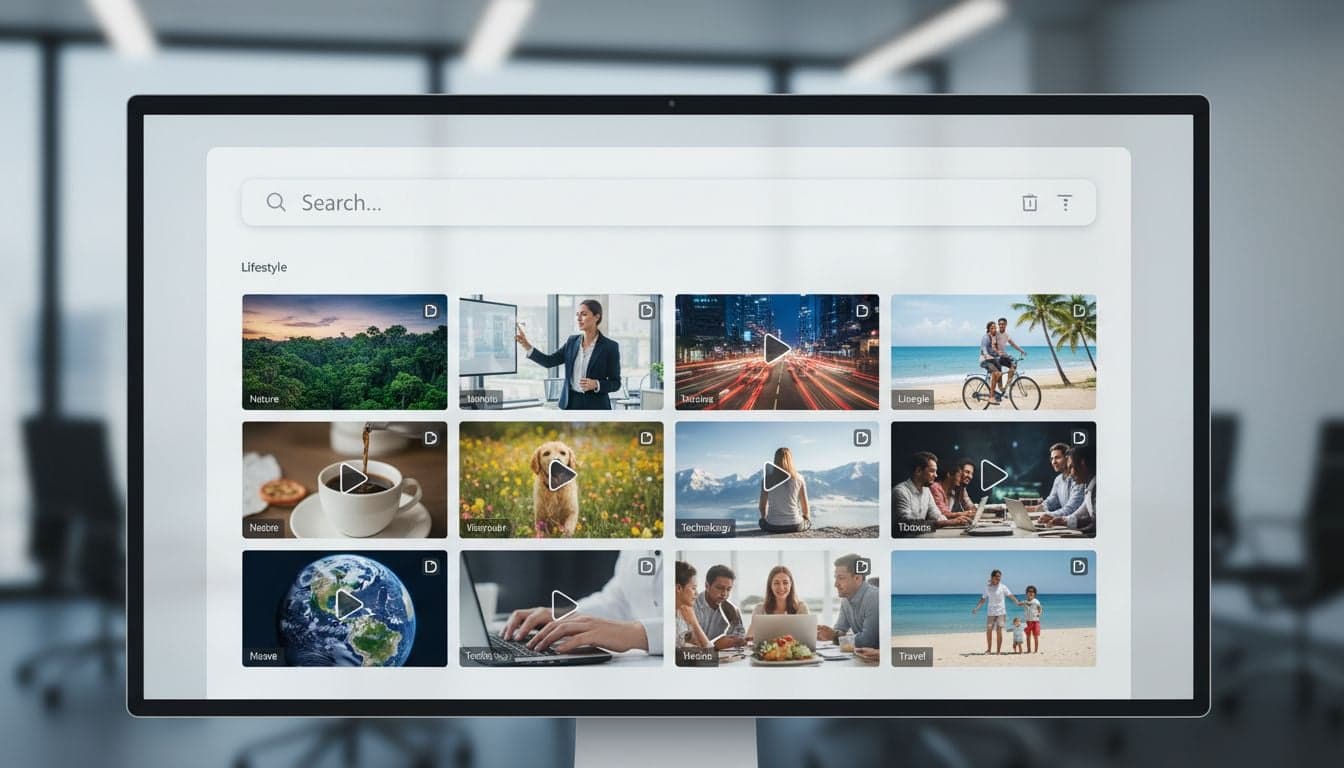
Stock footage transforms ordinary videos into professional productions. Vexub's integrated stock library gives you instant access to millions of high-quality clips without leaving the editor, eliminating the need for separate stock footage subscriptions or time-consuming downloads.
The Vexub stock footage search system is built directly into your video editing workflow. Search by keyword, preview clips in real-time, and drag them into your timeline with a single click. This guide shows you exactly how to find, evaluate, and integrate stock footage that elevates your content.
Whether you're creating a complete AI-generated video or enhancing existing footage, mastering the stock library search will cut your production time in half while improving visual quality.
Accessing the Vexub Stock Footage Library
The stock footage panel lives on the left side of your Vexub editor interface. Click the Media tab to reveal search options and browse categories. The library contains over 3 million clips sourced from professional stock providers, all cleared for commercial use.
You can access stock footage in two ways:
Direct search: Type keywords into the search bar for immediate results matching your query.
Category browsing: Explore pre-organized collections like Business, Nature, Technology, Lifestyle, and Abstract.
The search index updates daily with new footage, ensuring fresh options for trending topics and seasonal content.
Advanced Stock Video Search Techniques
Generic searches return thousands of results. Specific search strategies find exactly what you need in seconds. Here's how to refine your Vexub stock footage queries for maximum precision.
Use Specific Descriptive Keywords
Instead of searching office, try modern office team meeting overhead shot. The more descriptive your query, the more relevant your results. Include:
Action words: walking, typing, pouring, flying, rotating
Camera angles: aerial, close-up, wide shot, top-down, POV
Lighting conditions: golden hour, sunset, night, studio lit, natural light
Specific subjects: businessman in suit, young woman laughing, group of friends
Combining 3-5 keywords creates a sweet spot between specificity and available results.
Filter by Video Orientation
Vexub's stock library includes landscape (16:9), portrait (9:16), and square (1:1) formats. Select your target orientation before searching to eliminate irrelevant results. This matters especially for:
TikTok and Instagram Reels (portrait)
YouTube content (landscape)
Instagram feed posts (square)
The orientation filter appears above the search results grid. Click your preferred format to instantly narrow the library to compatible clips.
Search by Color and Mood
Some searches benefit from color-specific queries. Add color terms when visual consistency matters: blue ocean waves, golden wheat field, red sports car. Mood descriptors work similarly: peaceful forest, energetic city, dramatic storm clouds.
Create videos like this with AI
Script, voiceover, images and subtitles — automated in minutes.
Previewing and Evaluating Stock Footage
Never add a clip to your timeline without previewing it first. Vexub's preview system shows full-resolution playback with audio before you commit to using footage.
Hover over any search result thumbnail to see a 3-second auto-preview. For full evaluation, click the thumbnail to open the preview modal. This displays:
Full clip duration: Check the total length to ensure it covers your needed timeframe.
Resolution indicator: Most clips are 1080p or 4K. Higher resolutions give more flexibility for zooming and cropping.
Audio status: Some clips include ambient sound or music. The speaker icon shows audio availability.
Related clips: Similar footage appears below the preview for quick alternatives.
Watch the entire clip at least once. The most usable footage happens in the middle of many stock clips, not at the beginning or end.
Adding Stock Footage to Your Timeline
Once you've found the perfect clip, integration takes seconds. Vexub offers three methods to add stock footage to your project.
Drag and Drop Method
Click and hold on the stock footage thumbnail, then drag it directly onto your timeline. Drop it at the exact position where you want the clip to appear. This method gives precise placement control, especially useful when replacing existing pictures and videos in your sequence.
Quick Add Button
Click the Add to Timeline button in the preview modal. The clip automatically appends to the end of your current sequence. This works best when building videos from scratch in chronological order.
Replace Existing Clip
Right-click any clip already in your timeline and select Replace with Stock Footage. This opens the search panel with your timeline clip selected. Choose replacement footage and it inherits the original clip's duration and position. Your edits, transitions, and effects remain intact.
Optimizing Stock Footage Duration and Timing
Raw stock clips rarely fit perfectly into your video. Vexub's trim controls let you use exactly the portion you need without cluttering your timeline with unused footage.
After adding stock footage, click the clip in your timeline to reveal yellow trim handles at each end. Drag these handles to:
Shorten clips: Remove unwanted sections from the beginning or end.
Select specific moments: Isolate the 3-second section with perfect action from a 15-second clip.
Sync to audio: Match visual beats to your voiceover or background music.
The timeline preview updates in real-time as you trim, making it easy to find the exact frame where action peaks or movement flows smoothly.
Combining Multiple Stock Clips Effectively
Professional videos layer multiple stock footage sources to create dynamic sequences. Vexub handles multi-clip arrangements with automatic transitions and timing tools.
When stacking multiple stock clips in sequence, maintain visual coherence:
Match color temperatures: Don't jump from warm sunset footage to cool blue-toned clips without reason.
Maintain consistent motion direction: If subjects move left-to-right, keep that flow across cuts.
Vary shot types: Alternate between wide establishing shots, medium shots, and close-ups.
Keep individual clips short: 3-5 seconds per clip maintains viewer interest better than long static shots.
Add crossfade transitions between clips to smooth jarring cuts. Vexub's automatic transition feature applies consistent 0.5-second fades when you enable it in timeline settings.
Stock Footage Best Practices for Different Content Types
Different video formats require different stock footage approaches. Here's how to optimize your searches for common Vexub project types.
Educational and Tutorial Videos
Search for clear, well-lit footage that demonstrates concepts without distraction. Avoid busy backgrounds or excessive motion. Look for:
Clean workspace shots
Close-ups of hands working
Screen recordings of software interfaces
Simple animations of processes
Educational content benefits from consistent visual style across all stock clips. Choose footage from the same stock collection or photographer when possible.
Marketing and Promotional Content
High-energy clips with movement and emotion drive engagement. Prioritize footage showing:
People expressing positive emotions
Product usage in realistic scenarios
Time-lapse sequences of creation or growth
Aerial shots that establish scale or location
Marketing videos need variety to maintain attention. Plan for 8-12 different stock clips in a 60-second promotional video.
Social Media Short-Form Content
TikTok, Instagram Reels, and YouTube Shorts demand immediate visual impact. Search for stock footage with:
Action in the first 0.5 seconds
High contrast and vibrant colors
Vertical or square orientation
Clear focal points that work on mobile screens
Short-form content moves fast. Stock clips should rarely exceed 2-3 seconds before cutting to the next visual.
Common Stock Footage Search Mistakes to Avoid
Even experienced creators make these errors when searching Vexub's stock library. Avoiding them saves time and improves results.
Searching too broadly. Generic one-word searches like business or nature return thousands of unusable results. Add 2-3 qualifying words to every search.
Ignoring clip duration. Downloading a beautiful 3-second clip when you need 10 seconds of footage wastes time. Check duration before adding to timeline.
Mismatching aspect ratios. Vertical clips look terrible in horizontal videos and vice versa. Use the orientation filter religiously.
Overlooking audio. Stock footage with ambient sound can clash with your music or voiceover. Preview with audio enabled to catch conflicts.
Using recognizable locations. Footage of the Eiffel Tower or Statue of Liberty limits where your video can claim to be set. Generic city or nature shots offer more flexibility.
The Vexub stock library grows more powerful as you learn its search patterns and organizational logic. Spend 10 minutes exploring different search strategies before starting each major project. This upfront investment pays back in faster editing and better visual storytelling.







