
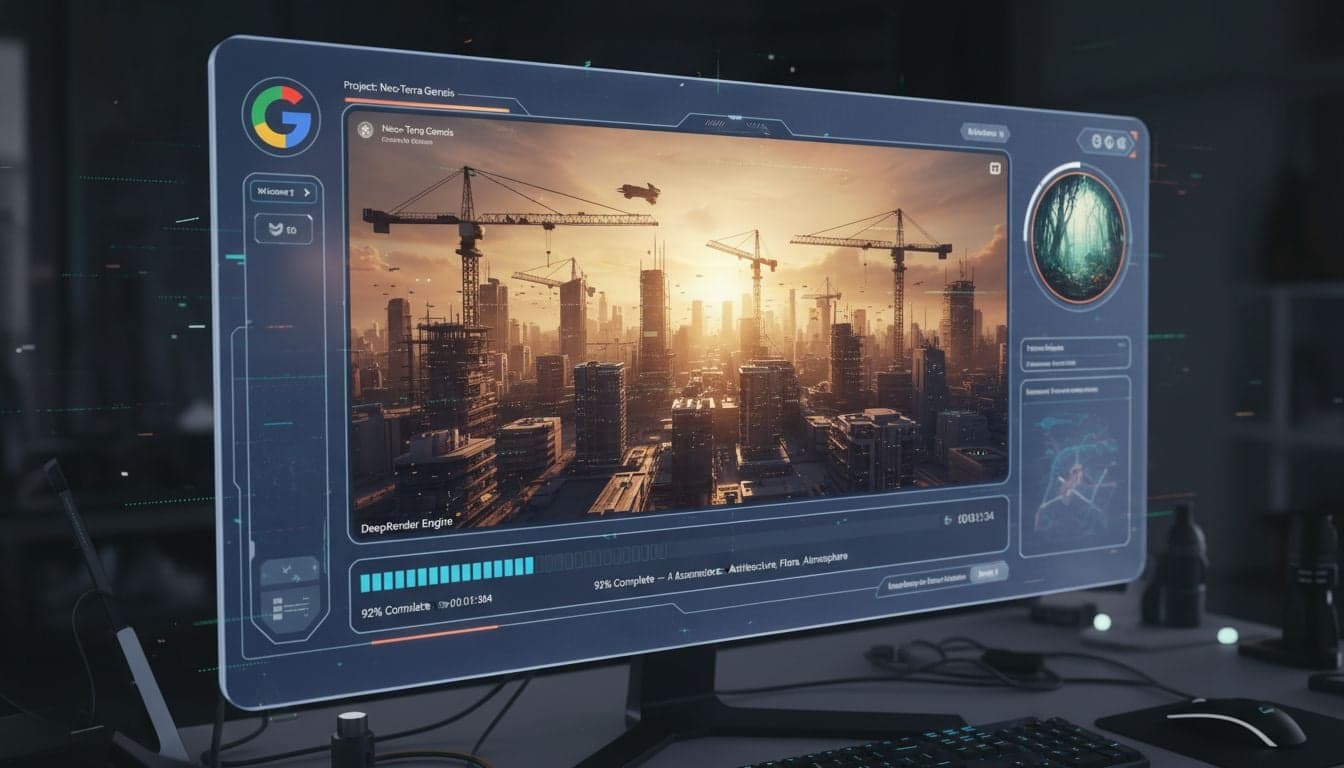
Google's VEO3 represents the cutting edge of photorealistic AI video generation, and Vexub brings this powerful technology directly into your content creation workflow. With VEO3 integration, you can generate cinema-quality videos from text prompts without leaving the Vexub platform.
This guide walks through everything you need to know about using VEO3 inside Vexub: from accessing the feature to crafting effective prompts and optimizing your output settings. Whether you're creating faceless YouTube content or producing professional marketing videos, VEO3 delivers unprecedented realism and control.
The VEO3 integration eliminates the complexity of switching between platforms and gives you access to advanced video generation capabilities alongside Vexub's existing AI tools for subtitles, voiceovers, and editing.
What Makes VEO3 Different
VEO3 stands apart from other AI video generators through its exceptional understanding of physics, lighting, and motion. Videos generated with VEO3 exhibit natural camera movements, realistic shadows, and fluid object interactions that previous models struggled to achieve.
Photorealistic quality: VEO3 produces videos nearly indistinguishable from footage shot with professional cameras.
Extended duration: Generate clips up to 60 seconds long with consistent quality throughout.
Advanced prompt understanding: VEO3 interprets complex scene descriptions, including camera angles, lighting conditions, and specific actions.
Temporal consistency: Objects and characters maintain their appearance across frames without morphing or distortion.
Physical accuracy: Simulates real-world physics for water, fabric, smoke, and other dynamic elements.
The Vexub implementation of VEO3 maintains all these capabilities while adding convenience features like template-based prompting and integrated editing tools.
Accessing VEO3 in Vexub
VEO3 integration is available to all Vexub users through the video generation interface. The feature appears as a dedicated generation option alongside our other AI video tools.
Locating the VEO3 Generator
Log into your Vexub account and navigate to the dashboard.
Click Create New Project and select AI Video Generator from the options.
In the generation method selector, choose VEO3 from the available models.
The VEO3 interface will load with a text prompt field and advanced settings panel.
For first-time users, we recommend checking out our VEO3 quick start guide which covers the basics in under five minutes.
Understanding Credit Usage
VEO3 generation consumes credits based on video duration and resolution settings. A standard 10-second clip at 1080p uses approximately 50 credits, while a 60-second video at 4K resolution may require 400-500 credits.
Your current credit balance appears in the top right corner of the generation interface. Vexub subscription plans include monthly credit allocations, and additional credits can be purchased as needed.
Crafting Effective VEO3 Prompts
Prompt quality directly impacts the realism and accuracy of your generated videos. VEO3 responds best to detailed descriptions that specify visual elements, motion, and atmospheric conditions.
Essential Prompt Components
Subject description: Clearly define what appears in the frame (person, object, scene).
Action or motion: Specify what happens during the clip (walking, rotating, exploding).
Camera behavior: Describe camera movement (pan left, zoom in, static wide shot).
Lighting and atmosphere: Define the lighting setup (golden hour, soft studio light, harsh shadows).
Style and quality markers: Include descriptors like 'cinematic,' 'photorealistic,' or 'documentary style.'
Prompt Examples That Work
Here are proven prompt structures that consistently produce high-quality VEO3 videos:
Notice how each prompt specifies the subject, action, camera movement, and lighting. This level of detail helps VEO3 generate exactly what you envision.
Create videos like this with AI
Script, voiceover, images and subtitles — automated in minutes.
Advanced Settings and Controls
Beyond the text prompt, Vexub's VEO3 interface provides granular control over technical parameters that affect your final output.
Resolution and Aspect Ratio
VEO3 supports multiple output formats optimized for different platforms:
16:9 landscape: Ideal for YouTube, traditional video platforms, and horizontal viewing (1920×1080, 3840×2160).
9:16 portrait: Optimized for TikTok, Instagram Reels, YouTube Shorts, and mobile-first content (1080×1920).
1:1 square: Works well for Instagram feed posts and universal social media sharing (1080×1080).
4:5 vertical: Alternative portrait format for Instagram and Facebook feed content (1080×1350).
Select your aspect ratio before generating, as changing it afterward requires regeneration. For creators building faceless content strategies, portrait and square formats typically deliver better engagement metrics.
Duration Settings
VEO3 in Vexub allows duration control from 5 seconds to 60 seconds. Shorter durations (5-15 seconds) generally produce more consistent results and consume fewer credits, making them ideal for testing prompts.
Longer videos (30-60 seconds) work best when the prompt describes a continuous action or scene rather than multiple distinct events. Breaking complex sequences into shorter clips often yields better results than attempting to capture everything in a single 60-second generation.
Style Intensity and Realism Controls
The style intensity slider adjusts how literally VEO3 interprets your prompt descriptors. Higher values emphasize stylistic elements like 'cinematic' or 'dramatic,' while lower values prioritize photorealism.
Low intensity (1-3): Maximum realism, minimal artistic interpretation, best for product videos and realistic scenes.
Medium intensity (4-6): Balanced approach, suitable for most content types and general use.
High intensity (7-10): Pronounced stylistic effects, ideal for creative projects and artistic videos.
Generation Process and Timing
After configuring your settings and entering your prompt, click Generate to begin the VEO3 rendering process. Generation time varies based on duration and resolution:
10-second 1080p video: 2-4 minutes
30-second 1080p video: 6-10 minutes
60-second 4K video: 15-25 minutes
Vexub displays a progress bar and estimated completion time during generation. You can navigate away from the page and return later—the system will notify you when your video is ready.
Queue Management
If you submit multiple VEO3 generations simultaneously, they enter a processing queue. Your account dashboard shows all pending, processing, and completed videos with their current status.
Pro and Enterprise subscribers receive priority queue placement, reducing average wait times by 40-60% during peak usage periods.
Reviewing and Refining Output
Once generation completes, Vexub displays your video in the preview player with options to download, edit, or regenerate.
Quality Assessment Checklist
Visual consistency: Check that objects maintain their shape and appearance throughout the clip.
Motion smoothness: Verify that camera movements and object actions flow naturally without jerks or stutters.
Lighting coherence: Ensure shadows and highlights remain consistent with the described lighting setup.
Prompt accuracy: Confirm the video matches your described subject, action, and atmosphere.
Technical quality: Look for artifacts, blurriness, or distortions, particularly at edges and in fine details.
When to Regenerate
If your initial output doesn't meet expectations, regenerating with prompt adjustments often produces better results than attempting to fix issues in post-processing. Common reasons to regenerate include:
Subject appears different from description
Camera movement doesn't match the specified action
Lighting or atmosphere significantly differs from prompt
Visible artifacts or quality issues in key areas
Before regenerating, review your prompt for clarity and specificity. Adding descriptive details or adjusting style intensity frequently resolves issues without changing the core concept.
Integrating VEO3 with Vexub Editing Tools
The real power of VEO3 in Vexub emerges when you combine AI-generated video with our full suite of editing capabilities. Generated clips serve as base footage that you can enhance with subtitles, voiceovers, transitions, and effects.
Adding AI Voiceovers
After generating your VEO3 video, click Add Voiceover to access Vexub's text-to-speech engine. Select from over 200 voices in 40+ languages, then enter your script. The system synchronizes the voiceover with your video automatically.
For content creators producing educational or storytelling content, combining VEO3 visuals with professional AI voices creates polished videos without recording equipment or voice talent.
Subtitle and Caption Integration
Vexub's automatic subtitle generator works seamlessly with VEO3 content. Upload a voiceover or audio track, and the system generates synchronized captions with customizable styling.
Choose from 15+ subtitle styles optimized for social media platforms
Adjust timing, font, color, and positioning to match your brand
Export with burned-in subtitles or as separate caption files
Studies show videos with captions receive 40% more engagement on social platforms, making this integration valuable for maximizing reach.
Optimization Tips for Different Use Cases
VEO3's versatility supports diverse content types, but each requires slightly different approaches for optimal results.
Product and Commercial Videos
For product showcases and commercial content, emphasize lighting quality and controlled camera movements in your prompts. Specify 'studio lighting,' 'clean background,' and 'slow rotation' for professional-looking results.
Resolution matters significantly for product videos—always generate at 4K when possible to ensure fine details like textures and reflections appear crisp.
Social Media and Short-Form Content
When creating content for TikTok, Instagram Reels, or YouTube Shorts, use the 9:16 portrait aspect ratio and keep durations between 5-15 seconds. VEO3 excels at punchy, visually striking clips that capture attention immediately.
Include descriptors like 'dynamic,' 'energetic,' or 'fast-paced' in prompts for social content. These keywords encourage VEO3 to generate more engaging motion and composition.
Educational and Explainer Videos
Educational content benefits from clear, uncluttered compositions with deliberate camera movements. Prompts should emphasize 'clean composition,' 'clear focus,' and 'smooth camera movements.'
Generate multiple short clips illustrating different concepts rather than one long video attempting to cover everything. This approach allows you to sequence clips deliberately and add explanatory voiceovers between segments.
Atmospheric and B-Roll Footage
VEO3 generates exceptional atmospheric footage for backgrounds, transitions, and establishing shots. Prompts describing natural phenomena, weather conditions, or ambient environments consistently produce usable B-roll.
When generating B-roll, include phrases like 'no people,' 'ambient,' and 'establishing shot' to focus VEO3 on environment rather than subjects or actions.
Troubleshooting Common Issues
Even with well-crafted prompts, occasional issues arise. Here's how to address the most common VEO3 generation challenges:
Inconsistent Object Appearance
If objects change appearance mid-clip, your prompt may lack specific descriptive details. Add precise descriptions of colors, textures, and defining characteristics. Instead of 'a red car,' write 'a bright cherry red sports car with black accents and chrome trim.'
Unnatural Motion or Physics
When motion looks artificial or physics seem wrong, add grounding descriptors like 'realistic physics,' 'natural movement,' or 'accurate gravity.' For specific motions like water or fabric, reference real-world behavior: 'water flowing naturally with realistic splashes and ripples.'
Lighting Problems
Inconsistent or incorrect lighting often stems from vague prompt language. Specify exact lighting setups: 'three-point studio lighting,' 'soft golden hour sunlight from the right,' or 'harsh overhead fluorescent light creating strong shadows.'
Camera Movement Issues
If camera movements feel jerky or don't match your description, be more specific about speed and style. Replace 'pan right' with 'slow, smooth pan right at constant speed' or 'quick whip pan to the right with slight motion blur.'
Maximizing Value from VEO3 Credits
Strategic approach to VEO3 usage helps you generate more content within your credit allocation:
Test at lower resolutions: Generate initial versions at 1080p to validate prompts before committing credits to 4K renders.
Reuse successful prompts: Save prompts that produce excellent results and adapt them for new projects with minor modifications.
Batch similar content: Generate multiple variations of similar scenes in one session to take advantage of prompt optimization learning.
Combine with other Vexub tools: Extend short VEO3 clips with transitions, text overlays, and effects rather than generating longer videos.
The most successful creators treat VEO3 as one tool within Vexub's complete workflow rather than relying on it exclusively. Mixing AI-generated video techniques with smart editing produces professional results while managing credit consumption.
Future Updates and Feature Roadmap
Vexub continuously enhances VEO3 integration based on user feedback and Google's VEO3 improvements. Upcoming features on our roadmap include:
Image-to-video conversion using VEO3 for animating static images
Video-to-video transformation applying VEO3 effects to existing footage
Prompt templates library with proven configurations for common use cases
Batch generation interface for creating multiple variations simultaneously
Advanced motion control allowing frame-by-frame direction specification
VEO3 represents the frontier of AI video generation, and Vexub's integration makes this cutting-edge technology accessible to creators at every level. By combining VEO3's photorealistic generation with Vexub's comprehensive editing suite, you gain complete control over professional video production without technical barriers or expensive equipment.







