
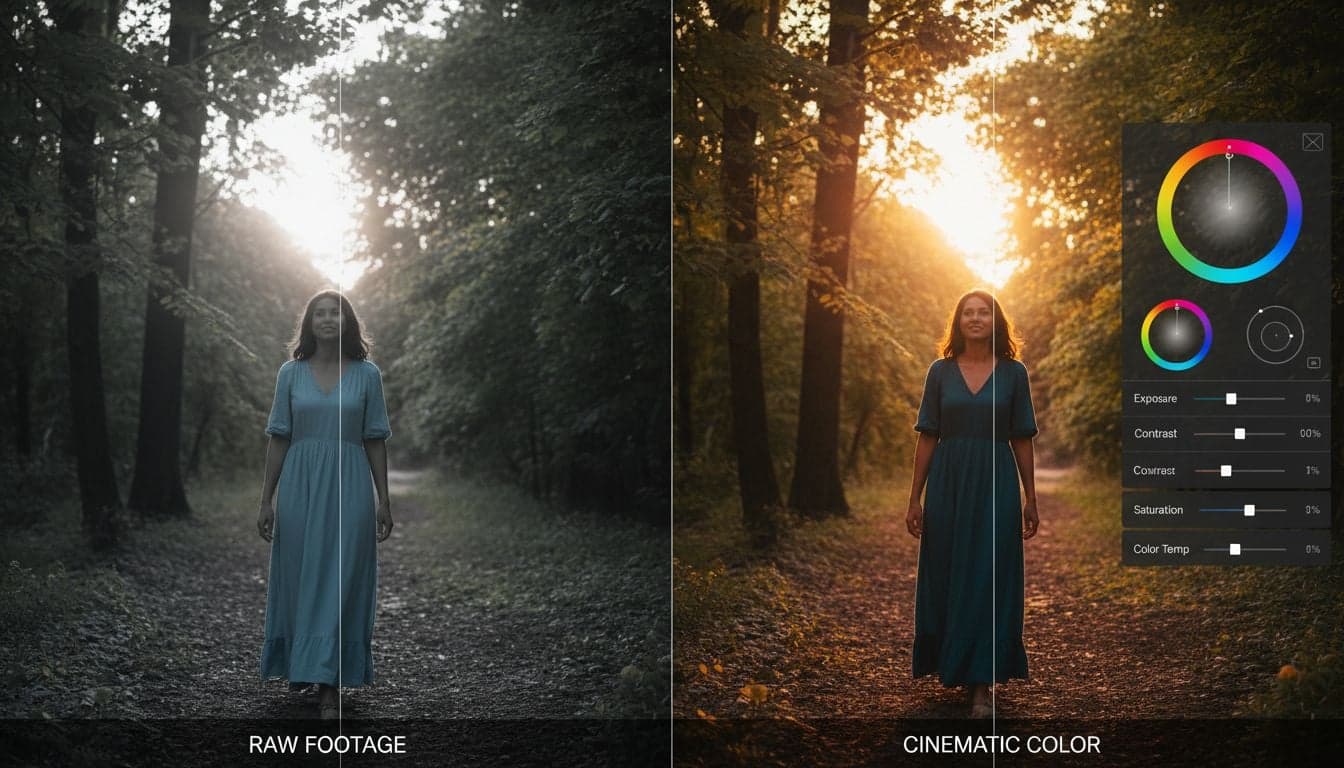
AI-generated videos have reached impressive quality levels, but raw output rarely matches the polished look of professional content. The difference between amateur AI videos and cinematic results often comes down to one crucial step: color grading.
Color grading transforms flat, generic AI video output into visually stunning content that captures attention and builds credibility. While AI tools handle the heavy lifting of video generation, post-production color work remains your competitive advantage—and it's more accessible than you might think.
This guide breaks down practical color grading techniques specifically for AI-generated videos, from basic correction to advanced cinematic looks that make your content stand out.
Understanding Color Grading vs. Color Correction
Before diving into techniques, grasp the distinction between these two essential processes:
Color correction fixes technical issues—white balance problems, exposure inconsistencies, and color casts that make footage look unnatural. This foundational step ensures your video displays colors accurately and maintains consistency across clips.
Color grading comes after correction and creates a specific mood or aesthetic. This creative process involves applying color palettes, adjusting contrast curves, and building the visual tone that supports your story.
AI-generated videos often need both. Generation algorithms sometimes produce inconsistent color temperatures between scenes or overly saturated elements that need correction before you can apply creative grades.
Essential Color Grading Concepts
The Three-Way Color Wheel System
Professional color grading divides the image into three tonal ranges:
Shadows: The darkest parts of your image. Adding blue or teal to shadows creates the popular cinematic look while preventing them from appearing muddy.
Midtones: The middle values where most detail lives. Midtone adjustments affect skin tones and general color balance most noticeably.
Highlights: The brightest areas. Warming highlights while cooling shadows creates visual depth and the classic orange-and-teal aesthetic.
This three-way approach gives you precise control without affecting the entire image uniformly, which often produces unnatural results.
Color Temperature and Mood
Temperature dramatically influences emotional response:
Warm tones (orange, yellow, red) convey comfort, energy, or danger depending on saturation and context.
Cool tones (blue, cyan, purple) suggest calm, professionalism, or isolation.
Neutral tones communicate objectivity and realism, though they risk appearing flat without careful contrast work.
AI videos often default to neutral temperatures. Pushing intentional color temperature creates instant visual interest and communicates mood before viewers consciously register it.
Step-by-Step Color Grading Workflow for AI Videos
Step 1: Technical Correction First
Start by fixing any technical issues in your AI-generated footage:
Check white balance across all clips. AI generation sometimes produces slight color casts—neutralize these first.
Match exposure levels between scenes. Even small brightness inconsistencies break viewer immersion.
Adjust contrast to recover detail in shadows and highlights without clipping.
Reduce any artificial oversaturation that AI tools sometimes introduce, especially in skies and foliage.
Use your editing software's scopes (waveform, vectorscope, histogram) rather than eyeballing. Monitors vary in calibration, but scopes provide objective measurements.
Step 2: Create Your Primary Grade
The primary grade establishes overall color balance and contrast:
Adjust contrast curves to create separation between tonal ranges. A slight S-curve (lifting shadows, lowering highlights) adds dimension without looking overdone.
Set your black and white points to ensure you're using the full tonal range. AI videos sometimes lack true blacks, resulting in washed-out images.
Apply global saturation adjustments cautiously—15-20% desaturation often creates a more professional look than AI's default vibrant output.
This foundation ensures consistency before you add creative color choices.
Create videos like this with AI
Script, voiceover, images and subtitles — automated in minutes.
Step 3: Apply Creative Color Grades
Now build your desired aesthetic using targeted color adjustments:
For the classic cinematic orange-teal look:
Add warmth (orange/yellow) to midtones and highlights, emphasizing skin tones.
Push shadows toward cyan/teal to create color contrast.
Reduce overall saturation by 10-15% to avoid the look appearing cartoonish.
Add a subtle vignette to draw eyes toward the center.
The key is subtlety. Professional grading enhances without overwhelming—viewers should feel the mood, not consciously notice the color work.
Step 4: Secondary Color Corrections
Secondary corrections target specific colors or image areas:
Use HSL qualifiers to select and adjust individual color ranges. For example, if AI-generated skin tones lean too orange, isolate and desaturate just that hue range.
Apply power windows (masks) to adjust specific screen areas. Brightening a subject's face while keeping the background darker guides viewer attention naturally.
Many AI videos need selective sky replacement or enhancement. Isolate the sky using luminance keys and apply separate grading—warming sunsets or deepening blue tones for dramatic effect.
Software and Tools for Color Grading AI Videos
Professional Options
DaVinci Resolve (free version available) remains the industry standard for color grading. Its node-based workflow handles complex grades efficiently, and the free tier includes professional-grade tools.
Adobe Premiere Pro with Lumetri Color provides powerful grading within a familiar editing environment. Integration with After Effects enables advanced motion graphics alongside color work.
Final Cut Pro offers streamlined color grading with excellent performance on Mac systems. The magnetic timeline speeds up editing while color wheels provide precise control.
Accessible Alternatives
For creators just starting with color grading:
CapCut: Free mobile and desktop app with surprisingly capable color tools and preset filters you can customize.
Filmora: User-friendly interface with color matching features that help maintain consistency across AI-generated clips.
VSCO (mobile): Quick grades for social media content with film-inspired presets.
Start with presets, then adjust individual parameters to understand how each control affects your image. This builds intuition faster than starting from scratch.
Common Color Grading Mistakes with AI Videos
Over-Grading and Saturation
The most frequent error: pushing adjustments too far. AI videos already tend toward high saturation—adding aggressive grades creates a hyper-processed look that screams amateur.
Professional colorists often work in 10% increments, constantly toggling before-and-after views to ensure changes enhance rather than dominate.
Ignoring Skin Tones
Skin tone preservation requires special attention. While creative grades push shadows blue and highlights warm, skin tones must remain within natural ranges or viewers immediately sense something wrong.
Use vectorscope to check that skin tones fall along the designated flesh tone line. When applying creative grades, mask faces separately if needed to maintain natural appearance.
Inconsistent Grading Across Clips
AI-generated videos often combine clips from different generation runs, each with slightly different color characteristics. Grading each clip independently creates jarring transitions.
Solution: Apply a master grade to your entire timeline first, then make scene-specific adjustments. Most editing software allows you to copy color adjustments between clips—use this to maintain consistency.
Advanced Techniques for Cinematic AI Videos
Film Grain and Texture
Adding subtle film grain counterintuitively makes AI videos look more professional. Digital AI output appears too clean—grain adds organic texture that suggests real camera footage.
Apply grain at 1-3% intensity after color grading. Match grain size to your desired film stock aesthetic: larger grain for vintage 16mm looks, finer grain for modern cinema.
Selective Sharpening and Softening
Combine color grading with selective sharpening to guide viewer attention. Sharpen your subject while slightly softening backgrounds—this simulates shallow depth-of-field and emphasizes your focal point.
Many AI tools generate uniformly sharp images. Breaking this uniformity through selective adjustments creates visual hierarchy that professional cinematographers build naturally through lens choice and camera settings.
LUT Application and Customization
Look-Up Tables (LUTs) apply complex color transformations instantly. Professional LUT packs provide starting points for specific genres—horror, sci-fi, documentary, wedding, etc.
Never apply LUTs at 100% opacity. Start at 50-70% and adjust to taste. Combine multiple LUTs at reduced opacity for unique looks, or use LUTs as inspiration for manual grades you build yourself.
Create custom LUTs from your best manual grades, then apply them to future projects for consistent branding across your content.
Optimizing Color Grades for Different Platforms
Social media platforms compress and process uploaded videos differently, affecting your carefully crafted grades:
Instagram and TikTok heavily compress videos and boost saturation. Reduce your initial saturation by 10-15% to compensate—what looks slightly muted on your timeline appears vibrant after platform processing.
YouTube preserves color fidelity better but displays differently across devices. Test your graded videos on both desktop and mobile before publishing.
Twitter/X applies aggressive compression. Avoid subtle gradient work that will band noticeably—stick with bolder, higher-contrast grades.
Export test clips and upload privately to each platform, then adjust your master grade based on how the final result appears.
Integrating Color Grading into Your AI Video Workflow
Color grading elevates AI-generated content from serviceable to professional. The techniques outlined here work whether you're creating faceless YouTube content or polishing AI videos for social media.
Start with technical corrections, build a consistent primary grade, then add creative touches that support your content's emotional goals. When you master color grading for AI video post-production, your content immediately stands apart from the growing sea of unprocessed AI-generated material.
The AI handles creation—professional color work is where you add the human touch that transforms generated footage into compelling visual stories. Platforms like Vexub streamline the generation process, giving you more time to focus on post-production refinement that truly differentiates your content.







