
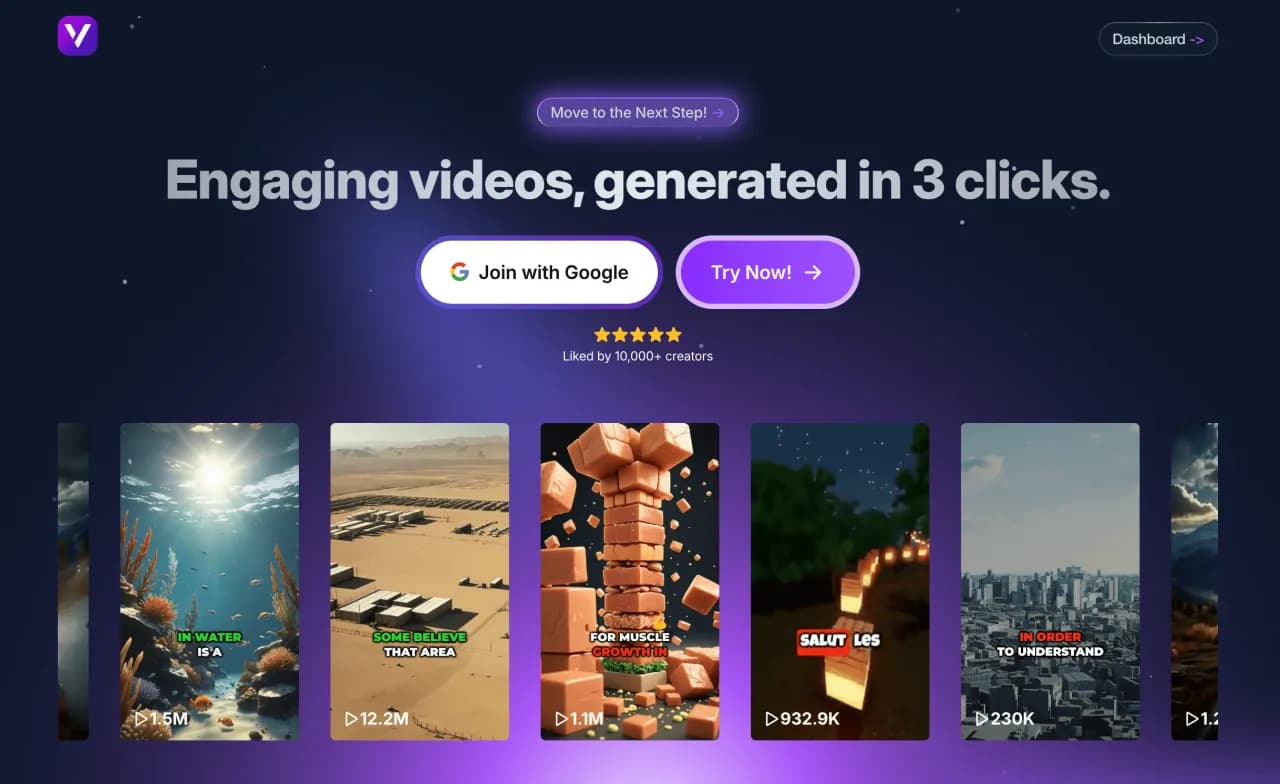
Create a Text to Video on Vexub
Step 1: Create a project
Start by going to your Vexub workspace, then click on the Project tab. This is where you can create your first video. Press the Create a video button to start. A new page will open with the first step, which is choosing the type of video you want to make. You’ll see several options depending on your needs, but for this guide, we’ll focus on the Text to Video mode. This feature allows you to easily turn any text into a complete video, without complicated editing or external software. Once you’ve selected the right type of video, click on Next step to continue.
Step 2: Choose the format
The second step lets you choose the format of your video. You can pick a vertical format, ideal for platforms like TikTok, Instagram, or YouTube Shorts, or a horizontal format, perfect for longer YouTube videos. The format you choose is important because it determines how your content is displayed and adapted to each platform. Take a moment to decide where you plan to post your video, then move on to the next step.
Step 3: Choose the voice and the Star
This step brings your video to life. You can select the voice that will narrate your text and an animated character, called a Star, who will appear on screen. If you have the Basic plan, you’ll have access to three Stars. With the higher plan, four more Stars become available, giving you even more creative options. For the voice, Vexub offers 31 different ones with natural and varied tones. You can even use your own cloned voice if you want a more personal result. Once you’ve made your choices, click on Next step to continue.
Step 4: Create your script
This is one of the most important steps in the creation process. The script is the text your voice will read and the foundation of your entire video. Vexub makes this step easy by offering two options: you can either choose one of the automatically suggested scripts or write your own text from scratch. Once your prompt is entered, Vexub generates the complete script for you without needing any external tools like ChatGPT. You can then read it, edit it, or adjust the tone and style until it feels perfect. When you’re happy with it, go to the next step.

Step 5: Choose the image style
This step lets you define the visual style of your video. Vexub offers more than 20 different image styles to set the mood and tone you want. You can choose between realistic, cartoon, futuristic, minimalist, or artistic styles depending on your message. Each style changes how your video looks and feels, so don’t hesitate to try several options before deciding. Once you’ve chosen your style, move on to video generation.
Step 6: Generation and customization
Once generation starts, Vexub automatically creates your full video in just a few minutes. The platform combines your text, voice, subtitles, background music, and selected visuals. When the video is ready, you’ll have access to the customization tool, which lets you refine your result. This tool has four tabs: Video, Sound, Subtitles, and Style. You can tweak every detail, change the background music, adjust playback speed, fix subtitles, or modify colors and overall design to match your visual identity.

Step 7: Export Your Video
When you are happy with your video, it’s time to export it. You can download it from Vexub in high quality. You will also get the thumbnail that was created for you. Your video will be ready to post on social media or YouTube. In just a few easy steps, you will have a professional video. It will include voice, visuals, music, and subtitles. All of this is done without needing complex editing or technical skills.
For more on this topic, check out our guide on Master Text Overlays in Vexub Agent Videos, our article on Vexub Text-to-Video: From Script to Final Cut, and our guide to create Viral SMS Story Videos with Vexub.







