
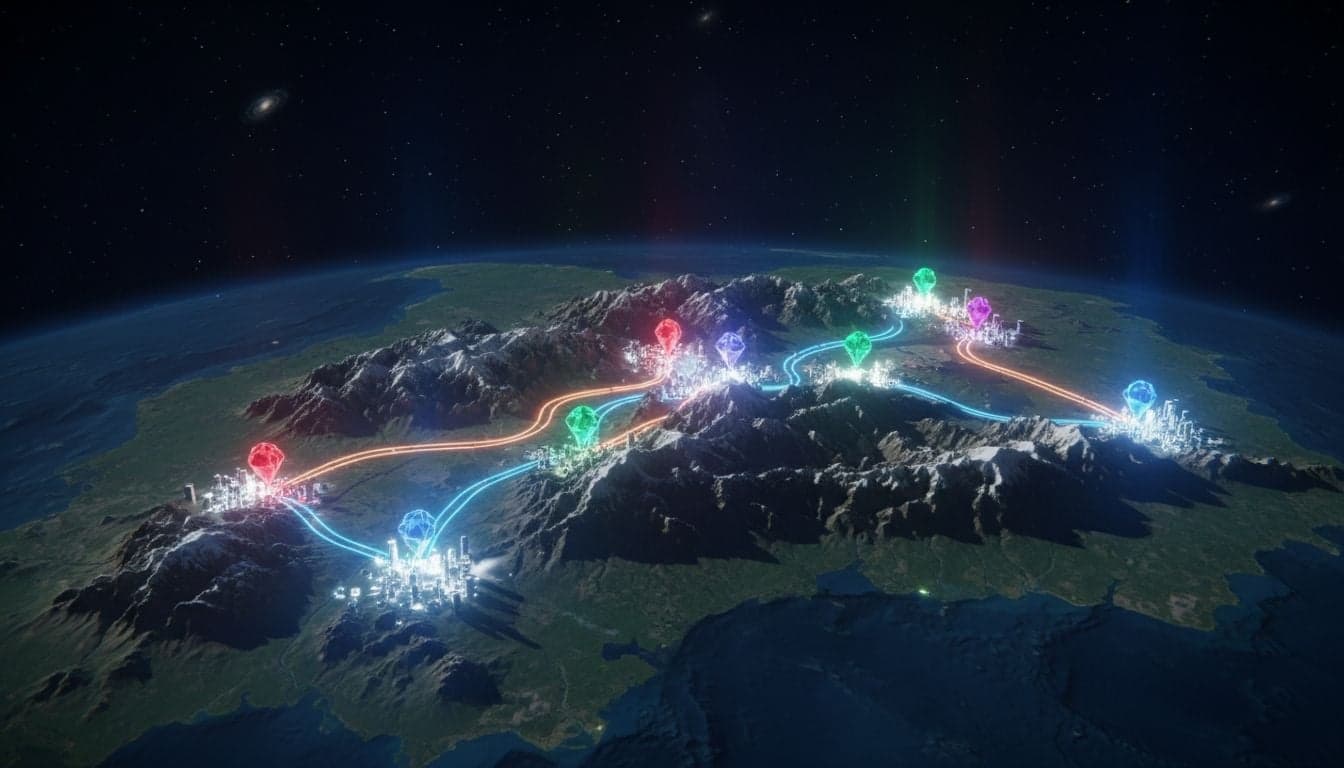
Map animations transform static routes into compelling visual stories. Whether you're documenting a cross-country road trip, explaining historical migrations, or creating educational geography content, animated maps capture attention and communicate spatial information instantly.
Vexub's map animation feature lets you create professional travel map videos without complex animation software or geographic expertise. The tool generates smooth, branded map animations that work perfectly for YouTube, TikTok, Instagram Reels, and educational presentations.
This tutorial shows you exactly how to use Vexub's map animations to create engaging geographic content that stands out on social media and educational platforms.
Why Animated Map Videos Perform Well
Map animations solve a fundamental content challenge: showing movement and geographic context in a visually engaging way. Static maps require viewers to imagine the journey, but animated maps create an immersive experience.
The format works exceptionally well for faceless content creators. You can build entire channels around travel stories, historical events, or geographic facts without appearing on camera. Many successful faceless YouTube channels use map animations as their primary visual element.
Immediate comprehension: Viewers understand routes and distances instantly without reading descriptions.
Universal appeal: Geographic content transcends language barriers and works across demographics.
High retention: Movement keeps viewers engaged longer than static images.
Educational value: Perfect for history, geography, travel, and news content.
Scalable production: Create dozens of videos using the same template with different routes.
Travel content creators use map animations to visualize trips. History channels use them to show military campaigns or trade routes. News channels use them to explain current events with geographic context.
Getting Started with Vexub Map Animations
Vexub's map animation feature lives within the Agent Video workflow. You'll create your map animation as part of a complete video project that can include voiceovers, music, and additional visual elements.
Accessing the Map Animation Tool
Open Vexub and navigate to the Agent Video section from your dashboard.
Start a new project or open an existing Agent Video project.
In the scene editor, look for the Map Animation option in the visual elements panel.
Select your map style from the available options (we'll cover styles in detail below).
The interface provides a clean workspace where you'll define your route, customize appearance, and preview your animation before rendering.
Understanding Map Animation Components
Every Vexub map animation contains three core components:
Route points: The locations your animation will connect, shown as pins or markers.
Path animation: The animated line that traces between points, creating the journey effect.
Map background: The base map style that provides geographic context.
You control timing, colors, labels, and animation speed for each component independently, giving you complete creative control over the final result.
Create videos like this with AI
Script, voiceover, images and subtitles — automated in minutes.
Creating Your First Map Animation
Let's walk through creating a simple travel route animation from New York to Los Angeles. This example demonstrates the core workflow you'll use for any map animation project.
Step 1: Define Your Route Points
Click the Add Point button to start building your route. For each location:
Enter the city name, address, or coordinates in the search field.
The map preview zooms to show your selected location.
Adjust the marker position if needed by dragging the pin.
Add a label (optional) that will appear during the animation.
Set the duration the animation should pause at this point (typically 1-3 seconds).
For our New York to Los Angeles example, you might add intermediate stops in Chicago, Denver, and Las Vegas to create a more interesting journey. Each point becomes a keyframe in your animation.
Step 2: Customize Path Appearance
The animated path is what viewers watch as your journey unfolds. Vexub offers several customization options:
Line color: Choose colors that match your brand or content theme. Red works well for historical content, blue for travel, green for environmental topics.
Line thickness: Thicker lines are more visible on mobile devices. Test at 3-5 pixels for most content.
Animation style: Select from smooth draw (classic), pulsing (energetic), or dotted trail (technical).
Speed: Adjust how fast the line draws between points. Slower creates anticipation, faster maintains energy.
Preview your animation after each change to ensure it feels right for your content style. The animation should complement your narration timing if you're adding voiceover.
Step 3: Select Map Style
Vexub provides multiple map background styles optimized for different content types:
Standard: Clean, modern look with roads and labels. Best for contemporary travel content.
Satellite: Real imagery showing terrain and landscapes. Perfect for nature and geography content.
Dark mode: Sleek appearance with muted colors. Ideal for tech or cinematic content.
Vintage: Aged paper aesthetic. Excellent for historical narratives and exploration stories.
Minimalist: Simple outlines without labels. Works well when you want focus on the route itself.
The map style significantly impacts your video's mood. A travel-focused YouTube channel might use satellite view to showcase landscapes, while a history channel benefits from the vintage aesthetic.
Step 4: Add Labels and Markers
Location labels help viewers understand your route without constant narration. Configure labels for maximum clarity:
Enable or disable labels for each point individually.
Choose label timing: appear with marker, fade in after arrival, or stay visible throughout.
Select font size appropriate for your target platform (larger for mobile viewing).
Add custom text to labels beyond city names (distances, dates, or facts).
Marker styles let you differentiate between start points, waypoints, and destinations. Use different colors or icons to show different types of stops (airports, hotels, landmarks).
Advanced Map Animation Techniques
Once you master basic route animations, these advanced techniques help you create more sophisticated geographic content.
Multi-Path Animations
Show multiple journeys on the same map by creating separate paths with different colors. This works brilliantly for:
Comparing different routes or transportation methods
Showing parallel storylines in historical narratives
Demonstrating migration patterns or trade routes
Creating before-and-after geographic comparisons
Add each path as a separate layer, then control timing so they animate sequentially or simultaneously based on your storytelling needs.
Zoom and Pan Effects
Dynamic camera movement adds cinematic quality to map animations. Vexub lets you define camera behavior between route points:
Auto-zoom: Automatically frames each segment optimally.
Manual keyframes: Set specific zoom levels and center points for dramatic reveals.
Follow mode: Camera tracks the animated path smoothly.
Overview-detail: Start zoomed out to show full route, then zoom into specific segments.
Strategic camera movement guides viewer attention and creates visual variety that maintains engagement throughout longer animations.
Integrating Maps with Other Visual Elements
Map animations become more powerful when combined with other Vexub features. Layer your map animation with:
Text overlays showing statistics, dates, or facts synchronized with route progress
Split-screen layouts placing maps alongside photos or video clips
Transition effects that zoom from map overview into location-specific imagery
Custom graphics like compasses, distance markers, or timeline elements
This multimedia approach transforms simple map animations into professional documentary-style content that competes with traditionally produced videos.
Optimizing Map Animations for Different Platforms
Each social platform has distinct requirements for map animation content. Optimize your Vexub projects accordingly.
YouTube Long-Form Content
YouTube videos allow longer, more detailed map animations. Structure your content with:
30-60 second map animations within 8-15 minute videos
Detailed labels and supplementary information since viewers watch on larger screens
Multiple map segments showing different aspects of your topic
B-roll footage interspersed with map animations for visual variety
Export at 1080p or 4K resolution. YouTube's algorithm favors longer watch times, so map animations that clearly explain complex geographic topics perform well.
TikTok and Instagram Reels
Short-form platforms demand faster, punchier map animations:
Complete animations in 15-30 seconds maximum
Fewer route points (3-5) to maintain pace
Larger text and markers for mobile visibility
Bold colors and high contrast for small screens
Hook viewers in the first 2 seconds with dramatic zoom or unusual route
Vertical 9:16 format works best. Frame your maps to look good in portrait orientation by focusing on north-south routes or adjusting camera positioning.
Educational and Presentation Content
When creating map animations for education or business:
Prioritize clarity over style—use high-contrast colors and clear labels
Add data visualizations or statistics alongside route information
Slow animation speed to allow audience comprehension
Include scale indicators and compass roses for geographic accuracy
Export as MP4 for easy embedding in presentations, learning management systems, or corporate communications.
Map Animation Content Ideas
Map animations work for countless content types. Here are proven concepts that generate views and engagement:
Travel and Adventure Content
Epic road trips: Animate famous routes like Route 66, Pacific Coast Highway, or cross-country adventures.
World tours: Show multi-country itineraries or round-the-world trips.
Before-and-after travel: Compare routes from different time periods showing infrastructure changes.
Transportation comparisons: Show the same journey by car, train, and plane with different colored paths.
Historical and Educational Content
Historical journeys: Animate famous expeditions, military campaigns, or exploration routes.
Migration patterns: Show population movements, diaspora stories, or refugee routes.
Trade routes: Illustrate historical commerce paths like the Silk Road or spice routes.
Event timelines: Map the geographic progression of historical events or cultural movements.
News and Current Events
Storm tracking: Animate hurricane paths or weather system movements.
Geopolitical analysis: Show border changes, territorial disputes, or diplomatic relationships.
Economic flows: Visualize trade relationships, supply chains, or resource distribution.
Sports coverage: Map team tours, championship venues, or athlete career paths.
Troubleshooting Common Map Animation Issues
Even with Vexub's intuitive interface, you might encounter these common challenges. Here's how to solve them quickly.
Animation Feels Too Fast or Slow
If your path animation doesn't match your narration timing:
Adjust the global animation speed using the speed slider (0.5x to 2x).
Set individual segment durations by clicking between route points.
Add pause points where you want the animation to hold before continuing.
Use the preview function to test timing before final render.
Most animations work best at 0.8x to 1.2x normal speed. Slower creates dramatic tension, faster maintains energy for action-oriented content.
Map Doesn't Show Enough Geographic Context
When viewers can't orient themselves on your map:
Zoom out slightly to include recognizable landmarks or borders
Enable country/state boundaries in map settings
Add reference points (major cities) even if they're not part of your route
Use the overview-zoom technique: start wide, then zoom to detail
Colors Don't Match Your Brand
Customize every visual element to maintain brand consistency:
Upload your brand color hex codes into Vexub's color picker.
Create a custom map style template you can reuse across projects.
Adjust background map colors using the styling panel.
Save your settings as a preset for future map animations.
Combining Maps with Voiceover and Music
Map animations become complete stories when you add audio elements. Vexub's integrated workflow makes this seamless.
Add AI voiceover to narrate your journey as the map animation plays. Time your script so geographic references align with the animated path reaching those locations. This synchronization creates a professional, polished result.
Background music sets the mood. Choose upbeat tracks for adventure content, dramatic scores for historical narratives, or ambient sounds for contemplative travel stories. Vexub's music library includes tracks optimized for different map animation styles.
For detailed instructions on adding and timing audio, check our comprehensive Agent Video tutorial which covers all audio features.
Exporting and Publishing Your Map Animation
When your map animation looks perfect in the preview, it's time to render and share.
Export Settings
Resolution: 1080p for most platforms, 4K for YouTube premium content
Format: MP4 with H.264 codec for universal compatibility
Frame rate: 30fps standard, 60fps for ultra-smooth animation
Aspect ratio: 16:9 for YouTube, 9:16 for TikTok/Reels, 1:1 for Instagram feed
Vexub optimizes render settings automatically based on your selected platform, but you can customize any parameter for specific requirements.
Platform-Specific Optimization
Before uploading, verify your map animation meets platform requirements:
Add captions or subtitles for accessibility and autoplay views (80% of social media is watched without sound).
Create a compelling thumbnail featuring your map route if the platform allows custom thumbnails.
Write descriptions that include geographic keywords for searchability.
Add timestamps in YouTube descriptions marking route milestones.
Scaling Map Animation Content Production
Once you've created your first successful map animation, scale your production to build a content library or consistent posting schedule.
Create template projects for different route types. Save your color schemes, timing preferences, and style choices so new projects start with your proven settings. This cuts production time from hours to minutes.
Batch similar content together. If you're creating state capital tours, animate all 50 states in one session. If you're covering historical battles, research and script multiple conflicts before starting animation work.
The efficiency of AI-powered map animation lets solo creators produce content volume that previously required entire production teams. Many successful channels post 3-5 map animation videos weekly using Vexub's streamlined workflow.
For more strategies on building a content business with AI video tools, explore our guide on faceless YouTube channel creation which includes monetization tactics and growth strategies.
Start Creating Map Animations Today
Map animations transform abstract geographic information into engaging visual stories. Vexub removes the technical barriers that previously made this content format accessible only to professional studios with expensive software and specialized skills.
The tool works for beginners creating their first travel video and experienced creators producing daily content for established channels. No animation experience required—if you can plan a route, you can create professional map animations.
Your first map animation project teaches you the interface. Your tenth project produces content faster than you thought possible. By your fiftieth, you'll have developed a signature style that audiences recognize instantly.
Geographic storytelling resonates across cultures and languages. The maps you create today could reach millions of viewers worldwide, educating, entertaining, and inspiring them with stories told through the universal language of place and movement.







