
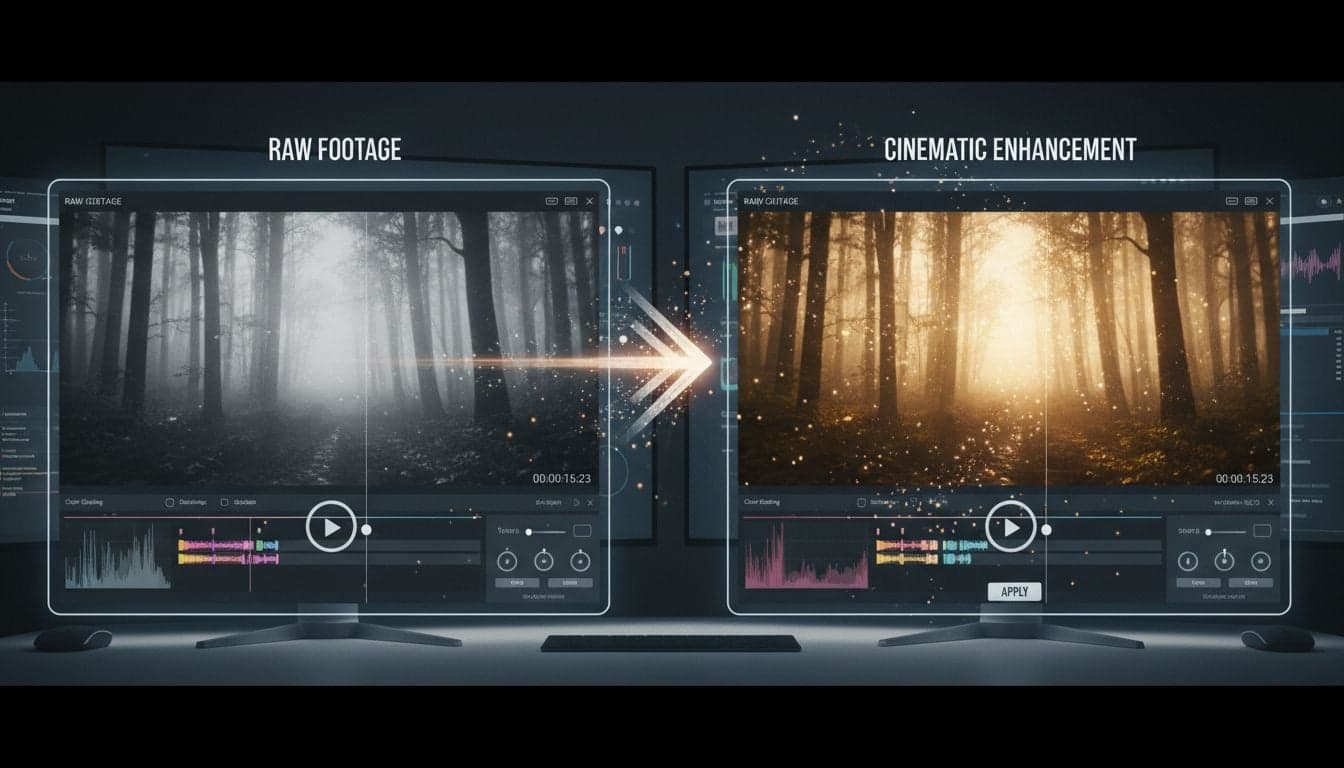
You've recorded footage, but the raw MP4 files lack the visual impact you need. Vexub's MP4 enhancement mode solves this by applying AI-powered visual transformations to your existing videos, turning ordinary footage into stunning content that captures attention.
This tutorial walks you through the complete process of enhancing MP4 videos with Vexub's AI mode, from uploading your footage to exporting professional-quality results. You'll learn which enhancement styles work best for different content types and how to maximize quality while maintaining your original video's intent.
The MP4 enhancement workflow takes minutes instead of hours of manual editing, making it perfect for content creators who need to produce consistent, high-quality videos at scale.
Understanding Vexub MP4 Enhancement Mode
Vexub MP4 mode analyzes your existing video footage and applies AI-driven visual enhancements that transform the aesthetic while preserving the core content. Unlike basic filters or color correction, this mode uses advanced AI models to reimagine your footage with entirely new visual styles.
The enhancement process maintains your original video's timing, motion, and composition while applying sophisticated visual treatments. This means your carefully planned shots and sequences remain intact while gaining professional-grade visual appeal.
Style diversity: Choose from dozens of AI visual styles ranging from photorealistic to artistic interpretations.
Quality preservation: The AI upscales and enhances details rather than degrading them through processing.
Content recognition: Smart algorithms identify subjects, backgrounds, and motion to apply enhancements appropriately.
Batch processing: Upload multiple MP4 files and apply consistent styles across your entire content library.
Preparing Your MP4 Files for Enhancement
The quality of your enhancement results depends significantly on your source footage. Start with the highest resolution MP4 files available—1080p or 4K source material produces superior results compared to lower resolutions.
Clean your footage before upload. Remove unnecessary sections, stabilize shaky camera work, and ensure proper exposure. These preprocessing steps give the AI enhancement algorithms better material to work with, resulting in cleaner final output.
Optimal Source Video Characteristics
Resolution: 1080p minimum, 4K preferred for maximum enhancement quality.
Frame rate: 24fps, 30fps, or 60fps—consistent frame rates produce smoother AI processing.
Lighting: Well-lit footage enhances better than underexposed or overexposed clips.
Stability: Stabilized footage allows AI to focus on enhancement rather than motion artifacts.
File size: Vexub handles files up to 500MB efficiently; compress larger files without quality loss before upload.
For detailed guidance on preparing your video files, check out our comprehensive guide on improving MP4 video quality before enhancement.
Step-by-Step MP4 Enhancement Process
Log into your Vexub account and navigate to the MP4 enhancement mode from the main dashboard. The interface presents a clean upload area where you'll drag and drop your prepared MP4 files.
Uploading Your Video
Click the Upload MP4 button or drag files directly into the upload zone.
Wait for the upload progress bar to complete—processing begins automatically after upload.
Preview your uploaded video to confirm it transferred correctly.
Verify the detected duration, resolution, and frame rate match your source file.
Once uploaded, the platform analyzes your video to recommend compatible enhancement styles based on your content type. These intelligent suggestions save time by highlighting styles that work best with your specific footage.
Selecting Enhancement Styles
Browse the style gallery to find visual treatments that match your creative vision. Each style includes preview thumbnails showing how it transforms different types of content.
Cinematic styles: Film-grade color grading and depth effects for dramatic storytelling.
Artistic filters: Painterly, sketch, and illustration effects that transform footage into art.
Photorealistic enhancement: Upscaling, sharpening, and color correction that improves without changing aesthetic.
Genre-specific: Horror, sci-fi, vintage, and other specialized visual treatments.
Social media optimized: High-contrast, saturated styles designed for mobile viewing.
Click on any style to preview a sample transformation. The preview renders a few frames from your video with the selected style applied, giving you an accurate representation of the final result.
Create videos like this with AI
Script, voiceover, images and subtitles — automated in minutes.
Advanced Enhancement Settings
Beyond basic style selection, Vexub MP4 mode offers granular control over the enhancement process. These advanced settings let you fine-tune results for specific use cases.
Intensity Controls
The enhancement intensity slider determines how strongly the AI style is applied to your footage. Lower settings create subtle improvements while maintaining the original look. Higher settings produce dramatic transformations that significantly alter the visual aesthetic.
Start at 50% intensity for most projects. Preview the result, then adjust up or down based on your needs. Documentary and educational content typically benefits from 30-60% intensity, while creative and artistic projects often use 70-100%.
Frame-by-Frame Consistency
Temporal consistency ensures smooth transitions between frames, preventing the flickering effect that plagues some AI video tools. Vexub's algorithms analyze frame relationships to maintain visual coherence throughout your video.
Standard mode: Balances processing speed with consistency—suitable for most content.
High consistency: Maximum frame-to-frame smoothness—ideal for slow motion or detailed close-ups.
Creative variation: Allows slight frame differences for artistic, dreamlike effects.
Resolution and Quality Output
Choose your export resolution based on distribution platform. Vexub can upscale your enhanced video beyond the original resolution while maintaining or improving quality through AI interpolation.
Select 1080p for YouTube, Instagram, and TikTok. Choose 4K for premium content, client deliverables, or when you want maximum flexibility in post-production. The platform estimates processing time and file size for each resolution option before you commit.
Processing and Preview Workflow
After configuring your enhancement settings, click Start Enhancement to begin processing. The platform queues your job and provides real-time progress updates as the AI works through your video.
Processing time varies based on video length, resolution, and selected style complexity. A 60-second 1080p video typically processes in 3-8 minutes. Longer videos or 4K resolution take proportionally more time but still deliver results faster than manual editing would require.
Quality Check Before Export
Once processing completes, Vexub generates a preview player where you can scrub through your enhanced video. Review the entire clip carefully, paying attention to:
Style consistency: Verify the enhancement looks uniform throughout the video.
Subject preservation: Confirm faces, text, and important details remain clear and recognizable.
Motion smoothness: Check that camera movements and subject motion flow naturally without artifacts.
Color accuracy: Ensure skin tones, product colors, and other critical elements look correct.
If the preview doesn't meet your standards, adjust the enhancement settings and reprocess. Vexub saves your upload, so you can experiment with different styles and intensities without re-uploading the source file each time.
Exporting Enhanced Videos
Satisfied with your preview? Click Export Video to render the final high-quality file. Vexub offers multiple export formats optimized for different platforms and purposes.
MP4 (H.264): Universal compatibility—works everywhere, moderate file size.
MP4 (H.265): Smaller file size with same quality—ideal for storage and mobile delivery.
WebM: Web-optimized format for embedded videos and progressive web apps.
MOV: Professional editing format for further work in editing software.
Select your preferred codec and resolution, then start the export. The platform compresses and optimizes your enhanced video for the chosen format, maintaining maximum quality while creating manageable file sizes.
Download begins automatically when export completes. The file appears in your Vexub media library where you can access it anytime, share direct links, or download again if needed.
Practical Use Cases and Examples
MP4 enhancement mode excels in specific scenarios where you have existing footage that needs visual improvement or creative transformation.
Repurposing Older Content
Breathe new life into archive footage by applying modern visual treatments. Educational institutions enhance historical videos, while businesses update product demonstrations without reshooting. The AI enhancement makes dated footage feel contemporary and engaging.
Social Media Content Optimization
Transform simple smartphone footage into scroll-stopping social media posts. Apply high-contrast, saturated styles that perform well on Instagram and TikTok. The enhancement compensates for poor lighting or basic camera quality, elevating amateur footage to professional standards.
Content creators use this workflow to maintain consistent visual branding across all posts, even when shooting conditions vary. For comprehensive strategies, explore our guide on creating faceless videos that go viral using similar AI enhancement techniques.
Client Deliverables and Commercial Projects
Videographers enhance raw footage before delivering to clients, adding value without additional shooting time. Apply cinematic color grading that would normally require expensive software and specialized skills. The AI handles the heavy lifting while you focus on creative decisions.
Combining MP4 Mode with Other Vexub Features
The most powerful workflows combine MP4 enhancement with Vexub's other AI capabilities. Enhanced videos serve as starting points for more complex projects.
After enhancing your MP4, add AI-generated voiceovers to create complete video essays or tutorials. Layer in animated subtitles for social media optimization. The platform handles all these steps in one integrated workflow, eliminating the need for multiple tools.
For advanced automation possibilities, learn how to build complete video projects in our Vexub Agent Video complete tutorial which demonstrates combining multiple AI modes for maximum efficiency.
Troubleshooting Common Enhancement Issues
Occasionally, enhanced videos may exhibit artifacts or unexpected visual results. Understanding common issues helps you diagnose and resolve problems quickly.
Flickering or Temporal Inconsistency
If your enhanced video shows frame-to-frame flickering, increase the temporal consistency setting and reprocess. This issue typically occurs with fast motion or rapid cuts, which the higher consistency mode handles better.
Loss of Important Details
Some aggressive artistic styles may obscure text, faces, or fine details. Reduce enhancement intensity or switch to a photorealistic style that preserves detail while improving overall quality. Preview different sections of your video to identify problem areas before full export.
Color Shifts or Incorrect Tones
Certain enhancement styles dramatically alter color palettes. If accurate color reproduction matters—product videos, food content, educational material—choose styles specifically labeled for color accuracy or photorealistic enhancement.
Processing Failures or Long Queue Times
Complex videos with lots of motion, special effects, or unusual aspect ratios sometimes fail processing. Simplify your source video: remove effects, export as standard 16:9 ratio, and ensure clean encoding. If issues persist, contact Vexub support with your project details.
Maximizing Results with MP4 Enhancement
Master the MP4 enhancement workflow by experimenting with different styles and settings. Build a personal library of enhancement presets that work well for your content type, allowing you to apply consistent visual branding across all your videos.
Combine enhanced MP4s with original footage in editing software for dynamic contrast effects. Use enhanced versions for B-roll while keeping talking head segments in their original style. This hybrid approach creates visual interest while maintaining authenticity where it matters.
Track which enhancement styles generate the best engagement on your distribution platforms. Social media analytics reveal whether dramatic artistic styles or subtle photorealistic improvements resonate more with your audience. Refine your enhancement strategy based on actual performance data rather than assumptions.
The MP4 enhancement mode transforms Vexub from a video creation tool into a complete post-production platform. Whether improving existing content or exploring creative visual treatments, this feature delivers professional results without the learning curve of traditional editing software.







