
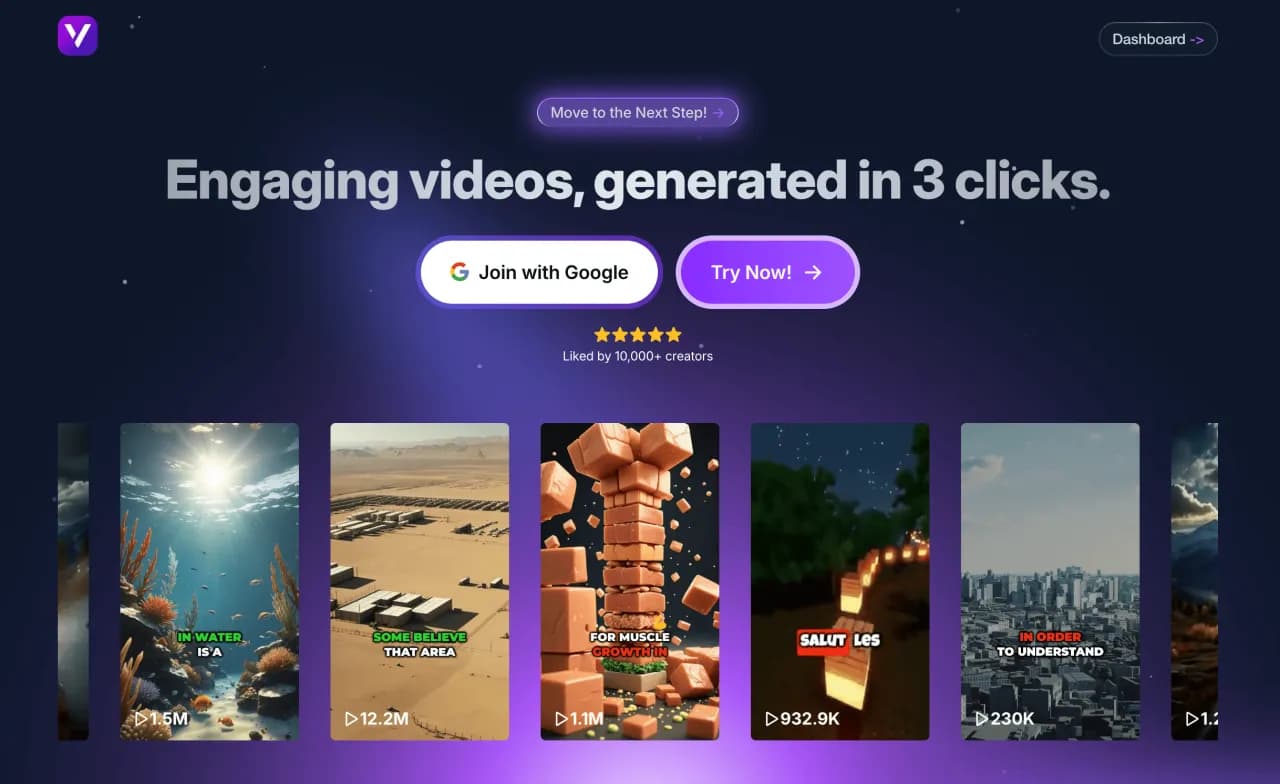
How to Easily Create an SMS Video on Vexub from Start to Finish
Create a Text-to-Video Project on Vexub
Step 1: Create a project
Connect to your Vexub workspace and open the Project tab. This is where every video project starts. Click on Create a Video to launch a new project.
A new page opens with the first setup step: choosing your video type. Vexub offers multiple formats depending on your goal, such as narration videos, story videos, or the SMS video format.
For this guide, select SMS Video mode. This option is designed to help you create a realistic text-message conversation video without needing to use any editing tools or video software. Once your choice is made, click Next Step to continue.
Step 2: Voice of the sender
This is the step where you select the voice of the main character — the person who will send the messages.
You’ll have access to several professional voice options, each with a different tone, accent, and energy. You can listen to short previews of each voice to choose the one that fits your story best.
Once you’ve made your choice, click Next Step to confirm.
Step 3: Voice of the recipient
Here, you choose the voice of the second character — the one who will receive and reply to the messages.
Just like in the previous step, Vexub lets you pick from multiple voice options. You can mix different tones to create contrast between the two characters and make the conversation sound more real and engaging.
Once both voices are selected, move to the next step.
Step 4: Background video
This step lets you choose the video that will play in the background while the SMS conversation appears.
Vexub offers 9 popular background styles, including gameplay clips like Minecraft, GTA, and Subway Surfer. These visuals keep viewers’ attention while your messages unfold on the screen.
You can preview each background before validating your choice. Once done, click Next Step to continue.
Step 5: Customization
Now it’s time to personalize your video’s appearance.
Choose one of the six available SMS interface styles, such as WhatsApp, Messenger, or iMessage. Each design changes the look of the chat bubbles, colors, and overall aesthetic.
You can also customize the sender and recipient profiles by adding a name and photo, making your story more immersive.
If your video tells a specific story or includes fictional characters, this step helps you visually define who’s speaking.
Step 6: Create the conversation
This is where your story comes to life.
Vexub provides a pre-made example to help you get started, but you can also write your own messages manually. Use the Send and Receive buttons to simulate a real conversation.
If you want to start over, use the Delete All button to clear the chat instantly.
You can also use Vexub’s AI to generate a full conversation automatically. Just describe your scenario (for example: “a creepy late-night message exchange” or “a romantic misunderstanding”) and the AI will create a realistic dialogue for you.
This feature saves time while keeping the tone natural and engaging. Once the conversation looks exactly how you want, click on Generate Video to move forward.
Step 7: Customization after generation
When the generation is complete, Vexub automatically synchronizes the voices, messages, background, and music to form a coherent video.
You can then fine-tune the result using the built-in customization panel, which includes four tabs:
Video: Adjust speed, transitions, or text display effects.
Sound: Modify voice volume, background music, and ambient effects.
Subtitles: Add or edit subtitles for accessibility or stylistic purposes.
Style: Change colors, message bubbles, or overall layout to refine the visual identity.
This final touch lets you transform a simple automated video into something professional and unique.
Step 8: Export your video
Once you’re satisfied with the final version, click on Export.
Vexub will process your video in high quality, ready for sharing. You can choose your export resolution depending on your platform: vertical format for TikTok or Instagram, horizontal for YouTube, or square for general social media use.
A thumbnail is automatically generated based on the key frames of your video, so you don’t need to create one manually.
After export, your video is available to download or publish directly on your platforms.
For more on this topic, check out our guide on how to Easily Create a AI Subtitling Video (MP4 to, our article on how to Easily Create a Text to Video on Vexub from, and our guide to how to Easily Create a VEO3 Video on Vexub from Start.







