
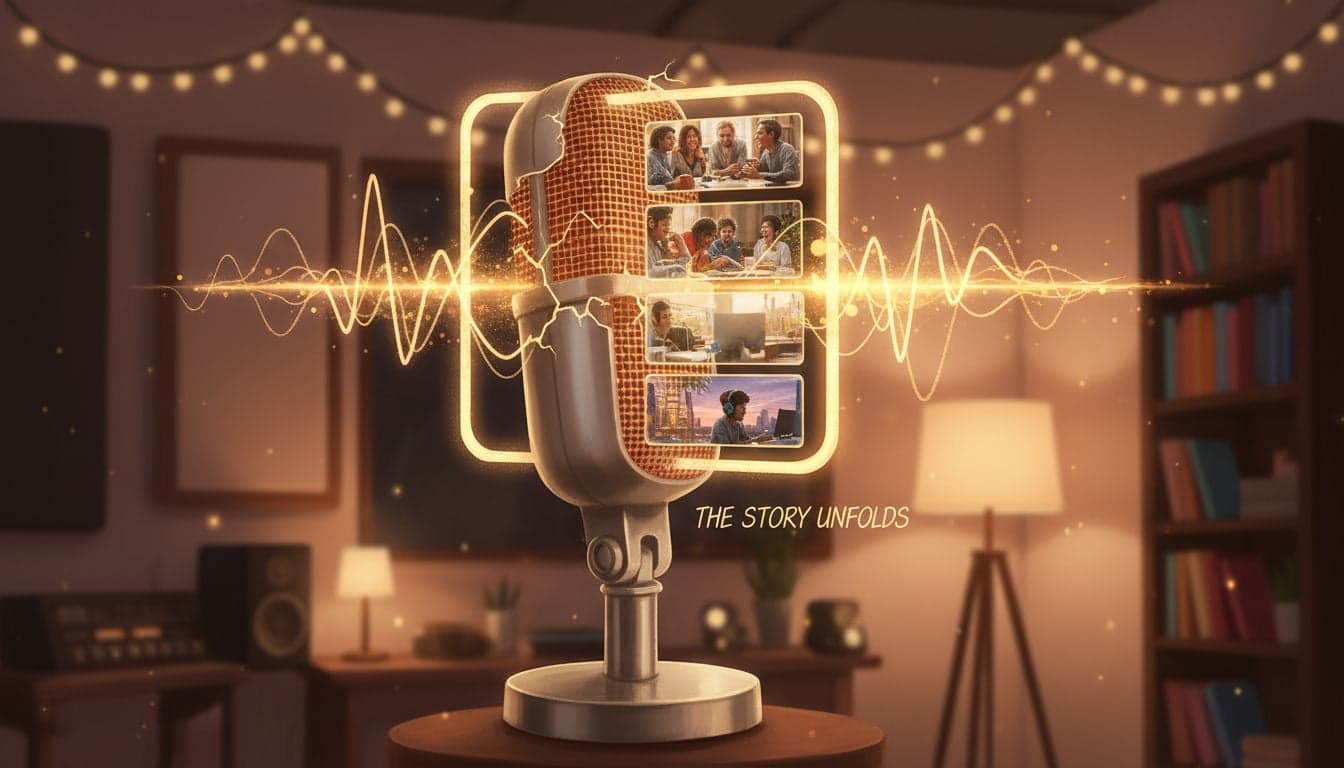
Podcast episodes locked in MP3 format reach only audio listeners. Converting them to video opens doors to YouTube, TikTok, Instagram, and every platform where visual content dominates. Vexub's MP3 mode transforms audio files into full videos with AI-generated visuals, captions, and animations in minutes.
The numbers tell the story: video podcasts on YouTube get 2-3x more engagement than audio-only versions on traditional podcast platforms. Viewers watch longer, share more frequently, and subscribe at higher rates. Your existing audio content becomes a growth engine when paired with the right visuals.
This tutorial walks through the complete process of using Vexub's MP3-to-video feature to convert podcast episodes, interviews, audio lessons, or any MP3 file into professionally designed videos that capture attention and drive results.
Why Convert MP3 Podcasts to Video Format
Audio-only content limits your distribution channels. Platforms like YouTube, TikTok, Instagram, and Facebook prioritize video in their algorithms. Converting your MP3 files to video format multiplies your content's reach without creating new material from scratch.
Platform expansion: YouTube hosts over 2 billion logged-in users monthly. Your podcast gains access to this massive audience when converted to video.
Algorithm advantage: Social platforms boost video content in feeds and recommendations. MP3-to-video conversion gives your audio the algorithmic lift it needs.
Engagement metrics: Videos with captions and visuals hold viewer attention 80% longer than audio-only content on mobile devices.
Discoverability boost: Video thumbnails appear in search results, suggested content, and social feeds. Audio files remain hidden in podcast directories.
The converting MP3 files to video process also creates opportunities for repurposing content across multiple formats. One podcast episode becomes a full YouTube video, multiple short-form clips for TikTok, Instagram Stories, and promotional snippets.
Setting Up Your Vexub MP3-to-Video Project
Vexub's MP3 mode streamlines the conversion process with an intuitive interface designed specifically for audio-to-video transformation. The setup takes under two minutes once you understand the workflow.
Uploading Your MP3 File
Navigate to your Vexub dashboard and select 'Create New Project.' Choose the MP3 mode from the creation options. The platform accepts MP3 files up to 2 hours in length with file sizes under 500MB.
Click the 'Upload Audio' button in the project creation screen
Select your podcast MP3 file from your computer or cloud storage
Wait for the upload progress bar to complete (typically 15-45 seconds)
Review the audio duration and file name displayed in the interface
The platform automatically detects audio quality, duration, and language. For podcasts with multiple speakers, Vexub's AI identifies speaker changes and adjusts visual pacing accordingly.
Configuring Visual Settings
MP3 mode offers extensive visual customization without requiring design skills. The AI generates images, animations, and effects based on your audio content and preferences.
Background selection: Static images, gradient animations, AI-generated scenes matching your content, or custom uploaded backgrounds
Visual pacing: Set how frequently visuals change (every 5, 10, 15, or 30 seconds) based on your content style
Animation intensity: Subtle, moderate, or dynamic motion effects that keep viewers engaged without distraction
Brand elements: Upload your logo, set brand colors, and include custom watermarks for consistent branding
For podcast content, the 'Podcast Studio' visual style performs best, showing waveform animations synchronized to your audio peaks and valleys. Educational content benefits from 'Minimal Focus' style that emphasizes captions over background elements.
Adding Captions and Subtitles to MP3 Videos
Captions transform audio-only content into accessible, engaging video. Studies show 85% of social media video views happen with sound off, making captions essential for audience retention.
Vexub automatically transcribes your MP3 file using advanced speech recognition that achieves 95%+ accuracy for clear audio. The transcription appears in the caption editor where you can review and adjust before finalizing.
Automatic Transcription Process
After uploading your MP3, click 'Generate Captions' in the project settings
The AI transcribes your audio in real-time, typically processing 1 minute of audio in 10-15 seconds
Review the generated transcript in the caption editor panel
Click any caption line to edit text, adjust timing, or split long sentences
The platform supports 40+ languages for transcription. Select your podcast language from the dropdown menu before generating captions for optimal accuracy.
Caption Styling for Maximum Engagement
Visual presentation of captions impacts viewer retention as much as the content itself. Vexub offers 20+ caption styles optimized for different platforms and content types.
Font selection: Choose from 50+ fonts including bold sans-serifs for mobile readability and modern typefaces for desktop viewing
Color schemes: High-contrast combinations that ensure readability across all background types
Position options: Bottom, middle, or top placement with automatic safe zone detection for platform requirements
Animation effects: Word-by-word highlighting, fade-ins, or static display based on content pacing
For podcast content, bottom-positioned captions with word-highlighting perform 40% better than static center-screen captions. The highlighting guides viewer attention and improves comprehension for longer-form content.
Create videos like this with AI
Script, voiceover, images and subtitles — automated in minutes.
Optimizing Audio Quality Before Conversion
Input audio quality directly affects output video engagement. Listeners tolerate mediocre audio on podcast platforms but expect higher standards when consuming video content.
Before uploading your MP3 to Vexub, apply these pre-processing steps to ensure professional results. Each improvement takes minutes but significantly impacts viewer retention.
Audio Normalization and Leveling
Volume consistency: Use audio editing software to normalize peak levels to -3dB for consistent loudness throughout
Remove silence: Trim extended pauses longer than 2 seconds to maintain video pacing
Noise reduction: Apply light noise reduction to eliminate background hum or room tone
Compression: Light compression (3:1 ratio) smooths volume differences between speakers and segments
These adjustments prevent the common issue where viewers constantly adjust volume or abandon videos due to inconsistent audio. Vexub's AI works with any audio quality, but higher input quality produces more engaging output.
Customizing Visuals for Different Podcast Formats
Different podcast formats require distinct visual approaches. Interview shows, solo commentary, educational content, and storytelling each benefit from specific visual treatments that enhance rather than distract from the audio.
Interview and Conversation Podcasts
Multi-speaker content performs best with visuals that indicate speaker changes. Vexub's MP3 mode detects speaker transitions and can automatically switch visual elements when different voices appear.
Enable 'Speaker Detection' in advanced settings during project setup
Upload speaker photos or use AI-generated avatars for each voice
Set visual transition timing to match average speaker turn length
Preview the first 30 seconds to verify speaker detection accuracy
For interview-style podcasts, the 'Dynamic Conversation' visual template shows speaker indicators, animated waveforms for the active speaker, and smooth transitions that maintain viewer orientation throughout the episode.
Solo Commentary and Educational Content
Single-speaker podcasts benefit from visuals that illustrate key concepts and maintain visual interest during longer explanations. The AI generates relevant images based on your audio content automatically.
Topic-based visuals: AI analyzes your audio transcript and generates images matching discussed topics every 15-30 seconds
Text overlays: Key points from your speech appear as on-screen text to reinforce main ideas
Progress indicators: Chapter markers or progress bars help viewers understand episode structure
Call-to-action moments: Highlight subscribe prompts, website links, or social handles at strategic moments
Exporting and Publishing Your MP3-to-Video Creation
Once you've configured visuals, captions, and audio settings, Vexub processes your video in the cloud. Export settings determine video quality, file size, and platform compatibility.
Resolution and Format Selection
Choose export settings based on your primary distribution platform. Each platform has optimal specifications for quality and compatibility.
YouTube podcasts: Export at 1920x1080 (Full HD) with H.264 codec at 8-12 Mbps bitrate
TikTok and Instagram Reels: Vertical 1080x1920 format with H.264 codec at 6-8 Mbps for mobile optimization
LinkedIn and Twitter: Square 1080x1080 format performs best, with captions burned-in for autoplay
Facebook: 1920x1080 landscape or 1080x1080 square, both with high-contrast captions
The best video format for social media guide provides detailed specifications for each platform's current requirements and recommended settings for maximum reach.
Video Processing and Download
Vexub processes videos on high-performance cloud servers, typically converting 1 minute of audio to video in 30-45 seconds. Longer podcasts take proportionally more time but process faster than real-time playback.
Click 'Export Video' after finalizing all settings and previewing your creation
Select your desired resolution and format from the export options
Monitor the processing progress bar in your project dashboard
Download the completed video file when processing reaches 100%
The platform stores your exported video for 30 days, allowing re-downloads without re-processing. For podcast series, save export settings as templates to maintain consistency across episodes.
Advanced MP3 Mode Features and Techniques
Beyond basic audio-to-video conversion, Vexub's MP3 mode includes advanced features that professional content creators use to maximize engagement and production efficiency.
Batch Processing Multiple Episodes
Process entire podcast seasons simultaneously using batch upload and template application. This feature saves hours when converting back catalogs or maintaining regular publishing schedules.
Template creation: Save your visual settings, caption styles, and export preferences as a reusable template
Bulk upload: Upload up to 50 MP3 files in a single batch operation
Automatic processing: Apply saved templates to all uploaded files with one click
Scheduled exports: Set videos to process during off-peak hours for faster completion
AI-Enhanced Audio Improvements
Vexub includes audio enhancement tools that improve MP3 quality during the conversion process. These AI-powered improvements happen automatically but can be customized for specific needs.
Background noise removal: AI identifies and reduces ambient noise, room echo, and microphone handling sounds
Voice clarity enhancement: Boost voice frequencies for improved intelligibility without artificial sound
Volume normalization: Automatically balance volume levels across the entire episode
Silence trimming: Remove extended pauses while preserving natural speech rhythm
These enhancements particularly benefit older podcast episodes recorded with less sophisticated equipment. The AI improvements bring legacy content up to current quality standards without manual audio editing.
Maximizing Engagement with MP3-to-Video Content
Converting MP3 to video opens new distribution channels, but maximizing engagement requires strategic implementation. Successful podcast video creators follow specific patterns for thumbnails, titles, and publishing schedules.
Create custom thumbnails featuring high-contrast text highlighting the episode's main topic. Videos with custom thumbnails get 40% more clicks than auto-generated frames. Include your podcast branding consistently across all episode thumbnails for channel recognition.
Publish video versions of podcast episodes 24-48 hours after the audio release. This staggered approach serves existing audio subscribers first while giving video viewers fresh content. Cross-promote both versions to build audiences on multiple platforms simultaneously.
Vexub's MP3 mode transforms static audio content into dynamic video that competes for attention across every major platform. The conversion process takes minutes but multiplies content reach by exposing podcasts to billions of users who consume video exclusively. Start with your highest-performing audio episodes, convert them to video, and measure the engagement difference.AI video creation strategies expand these concepts further for creators building comprehensive content systems.







