
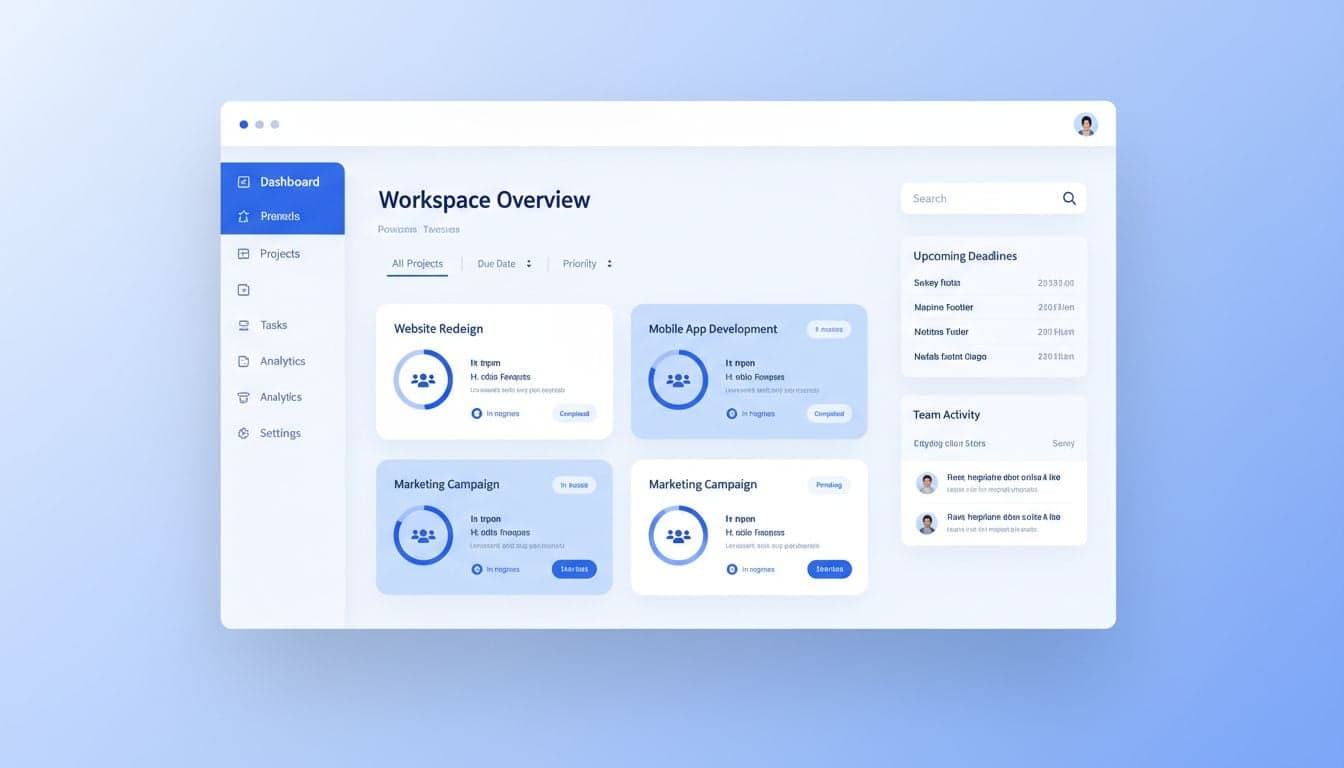
The Vexub dashboard serves as your command center for AI-powered video creation. Understanding how to navigate this interface efficiently transforms your content production workflow from chaotic to streamlined.
This comprehensive guide walks you through every section of the Vexub dashboard, from creating your first project to managing dozens of video workflows simultaneously. You'll learn navigation shortcuts, project organization strategies, and workspace features that professional creators use daily.
Whether you're managing a single faceless YouTube channel or coordinating multiple social media accounts, mastering the Vexub dashboard gives you complete control over your video production pipeline.
Dashboard Overview: Your Video Production Hub
When you first log into Vexub, the dashboard presents a clean, intuitive interface designed for rapid project creation and management. The main navigation sits on the left sidebar, providing instant access to all core features.
The dashboard displays your recent projects in a grid or list view, showing thumbnail previews, creation dates, and project status at a glance. This visual organization helps you quickly locate active projects without scrolling through endless menus.
Projects tab: Your primary workspace where all video projects appear with preview thumbnails and status indicators.
Create button: Prominent placement in the top-right corner enables instant project initiation from any dashboard view.
Search and filter: Located above the project grid, these tools help you find specific projects across large libraries.
Account settings: Access subscription details, usage statistics, and profile configuration from the user menu.
The dashboard updates in real-time as your AI agents process videos, displaying progress bars and completion notifications without requiring manual refreshes. This live feedback loop keeps you informed about project status without constant checking.
Creating and Managing Vexub Projects
Projects form the organizational foundation of your Vexub workspace. Each project represents a single video creation task, containing all associated assets, scripts, and rendering settings.
Starting a new project takes seconds. Click the Create button, select your preferred video generation method (Agent, Text-to-Video, or other modes), and configure your initial parameters. The system immediately creates a project entry visible in your dashboard.
Project Card Information
Each project card displays essential information for quick identification and status monitoring:
Thumbnail preview: Visual representation of your video's first frame or cover image.
Project name: Auto-generated or custom title for easy recognition.
Creation timestamp: Exact date and time the project was initiated.
Status indicator: Shows whether the project is processing, completed, or encountered errors.
Duration: Video length displayed once rendering completes.
Quick actions menu: Three-dot menu providing access to duplicate, rename, or delete functions.
Hovering over a project card reveals additional options, including direct download links and sharing capabilities. This hover interface reduces visual clutter while maintaining full functionality.
Project Organization Strategies
As your project library grows, implementing organizational strategies becomes essential. Vexub supports several approaches to keep your workspace manageable:
Naming conventions: Rename projects with descriptive titles that include dates, platforms, or series identifiers. Example: 'YT-Horror-EP01-2026-03-27' instantly communicates content type and publication schedule.
Regular cleanup: Archive or delete completed projects that you've downloaded and published. Maintaining a lean project list improves load times and reduces cognitive overhead.
Batch operations: Process similar videos consecutively to leverage template settings and streamline your workflow.
Draft preservation: Keep one template project for each content series, duplicating it when starting new episodes to maintain consistent settings.
Create videos like this with AI
Script, voiceover, images and subtitles — automated in minutes.
Workspace Navigation Features
The Vexub workspace includes several navigation features designed to accelerate your video production workflow. Understanding these tools helps you move between projects and features without friction.
Search Functionality
The search bar at the top of the projects page accepts multiple query types. Search by project name, creation date range, or even specific keywords from your video scripts. The search algorithm returns results instantly, highlighting matching terms for quick scanning.
Advanced users leverage search operators for precise filtering. Combine date ranges with content type to isolate specific project batches, useful when managing content calendars across multiple platforms.
View Modes
Toggle between grid and list views using the icons above your project library. Grid view maximizes visual recognition through thumbnail previews, ideal for image-heavy content like faceless horror videos or educational series.
List view displays more metadata per row, showing detailed information about processing status, file sizes, and modification dates. Content creators managing high volumes typically prefer list view for its information density.
Sorting Options
Sort projects by creation date, last modified, project name, or duration. The default chronological order works for most users, but switching to alphabetical sorting helps when referencing older content or managing series with numeric identifiers.
The system remembers your sorting preference across sessions, eliminating the need to reconfigure your view each time you log in.
Project Details and Settings Panel
Clicking any project card opens the detailed project view, where you can review, edit, and download your generated video. This panel provides comprehensive control over every aspect of your project.
The left section displays your video preview with standard playback controls. The timeline scrubber lets you navigate to specific frames, useful for quality checking transitions or subtitle timing.
Video controls: Play, pause, and volume adjustment with keyboard shortcuts for rapid navigation.
Quality selector: Switch between preview and full-resolution playback depending on your connection speed.
Frame-by-frame stepping: Use arrow keys to advance or rewind by individual frames for precise inspection.
The right panel contains all editable parameters and export options. Modifications here update your project settings without requiring complete regeneration in most cases.
Advanced Dashboard Features
Beyond basic project management, the Vexub dashboard includes professional features that support complex production workflows.
Batch Download and Export
Select multiple completed projects using the checkbox interface, then access batch download options from the toolbar that appears. This feature saves considerable time when publishing content across multiple platforms simultaneously.
Export settings apply uniformly to all selected projects, ensuring consistent formatting for platform-specific requirements. Set your preferred resolution, codec, and file naming pattern once, then process entire content batches in a single operation.
Project Duplication
The duplicate function creates exact copies of existing projects, preserving all settings, scripts, and media selections. This proves invaluable when producing series content or A/B testing different visual styles for the same script.
Duplicated projects appear immediately in your dashboard with '(Copy)' appended to the original name. Rename these copies to reflect their purpose, then modify specific parameters while keeping the foundational settings intact.
Usage Analytics
Access detailed usage statistics from your account menu to track video generation consumption, storage utilization, and subscription limits. These metrics help you plan content production schedules and identify when plan upgrades become necessary.
The analytics dashboard breaks down usage by project type, showing which creation modes consume the most resources. This information guides workflow optimization and helps you maximize value from your subscription tier.
Integration with Vexub Video Creation Tools
The dashboard seamlessly connects to all Vexub creation modes, maintaining consistent navigation while you move between different video generation methods. Each creation tool opens within the dashboard interface, preserving access to your project library and settings.
When using the Vexub Agent video creation feature, the dashboard tracks agent progress in real-time, displaying current processing stages and estimated completion times. This transparency helps you plan your workflow around generation timelines.
Text-to-Video projects show script previews directly in the project card, letting you verify content without opening the full editor. This quick-reference capability accelerates content review when managing multiple video series.
Workspace Customization and Preferences
Tailor your Vexub dashboard to match your specific workflow requirements through the settings panel. These customization options persist across devices and sessions, creating a consistent experience whether you're working from your desktop or mobile device.
Display Preferences
Adjust thumbnail sizes, card spacing, and information density to match your screen size and personal preferences. Creators using ultrawide monitors often increase thumbnail size for better visual scanning, while those on laptops prefer compact layouts that display more projects per screen.
Toggle project metadata visibility to show or hide specific information fields. If you don't need creation timestamps or file sizes cluttering your view, disable those elements for a cleaner interface.
Notification Settings
Configure how Vexub alerts you about project completions, processing errors, or subscription updates. Choose between in-dashboard notifications, email alerts, or both depending on how actively you monitor your workspace.
Set notification preferences for different project types separately. Urgent client work might warrant immediate email notifications, while experimental projects can generate passive dashboard updates you check periodically.
Default Project Settings
Establish baseline parameters that apply automatically to new projects. If you consistently create videos in the same resolution, aspect ratio, or style, saving these as defaults eliminates repetitive configuration steps.
Default settings remain editable on a per-project basis, providing a starting point that you can override whenever specific content requires different parameters.
Troubleshooting Common Dashboard Issues
Occasionally, you might encounter dashboard behavior that differs from expectations. Understanding common issues and their solutions keeps your workflow running smoothly.
Missing projects: Check your search and filter settings, which might inadvertently hide projects. Reset filters to 'Show All' to restore full project visibility.
Slow loading: Large project libraries can impact dashboard performance. Archive completed projects periodically to maintain optimal speed.
Synchronization delays: If recently created projects don't appear immediately, refresh your browser or clear cached data to force a sync.
Thumbnail generation: Some video formats require processing time before thumbnails display. Check back in a few minutes if previews show placeholder images.
For persistent issues that standard troubleshooting doesn't resolve, the Vexub support team provides assistance through the help menu accessible from any dashboard page.
Maximizing Dashboard Efficiency
Professional content creators develop dashboard habits that compound efficiency over time. These practices transform the interface from a simple project manager into a production acceleration tool.
Start each session by reviewing project status updates rather than immediately creating new content. This quick audit reveals completed videos ready for download, identifies any processing errors requiring attention, and helps you prioritize tasks based on current project states.
Use keyboard shortcuts extensively once you've memorized the essential combinations. Creating new projects, toggling view modes, and navigating between pages becomes nearly instantaneous compared to mouse-based interaction.
Establish a regular archiving schedule, perhaps weekly or monthly depending on your production volume. Removing finished projects keeps your active workspace focused on current priorities while maintaining historical access through archive functions.
The Vexub dashboard evolves with your needs, supporting everything from your first experimental video to managing professional content production at scale. Mastering this interface unlocks the full potential of AI-powered video creation, letting you focus on creative decisions rather than technical navigation.







