
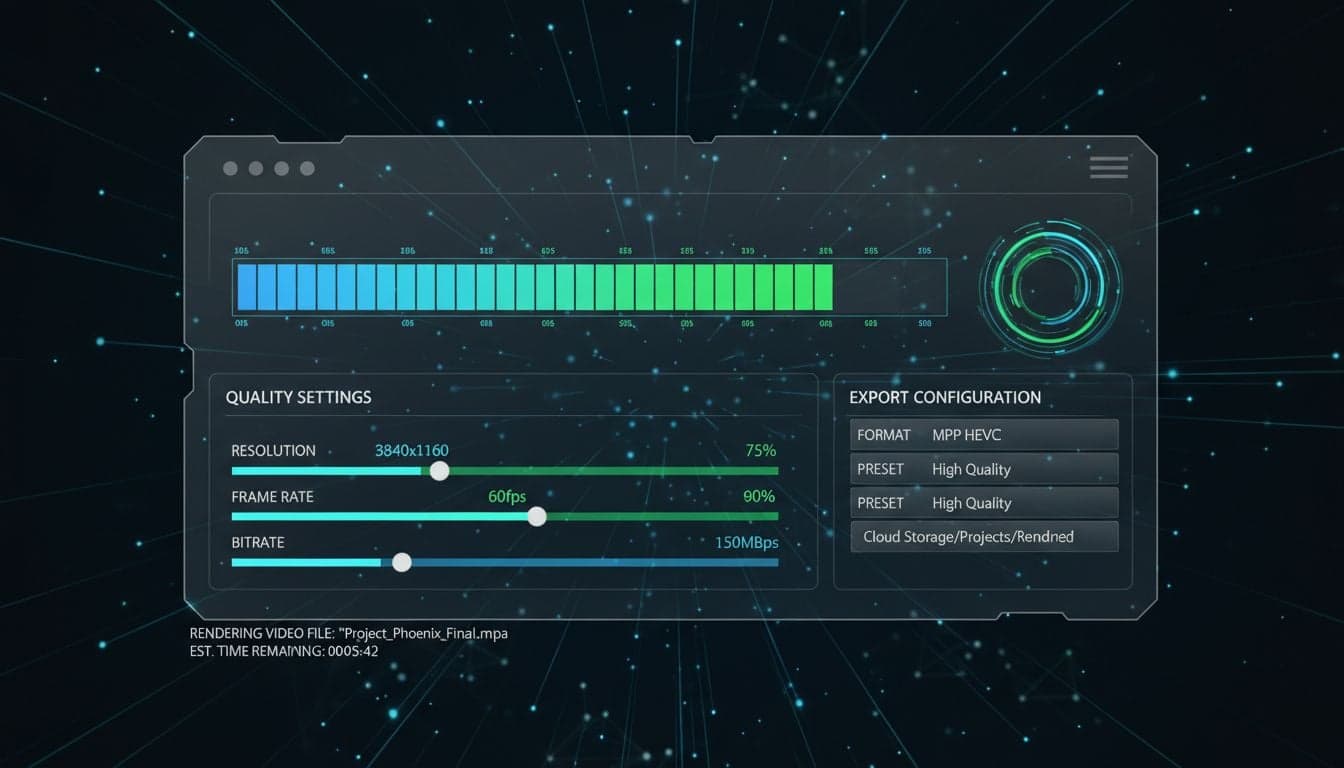
Your AI-generated video looks perfect in the Vexub editor, but the exported file appears pixelated or compressed. This frustrating scenario happens when render settings don't match your platform requirements or quality expectations.
Vexub offers granular control over export parameters, but choosing the wrong combination wastes rendering time and produces suboptimal results. Understanding how resolution, bitrate, codec, and format interact determines whether your content stands out or gets scrolled past.
This guide breaks down every Vexub render and export option with platform-specific recommendations that maximize quality while keeping file sizes manageable for uploads and audience delivery.
Understanding Vexub Export Settings
Vexub's export interface provides five critical parameters that control your final video output. Each setting impacts quality, file size, compatibility, and processing time differently.
Resolution Settings
Resolution defines the pixel dimensions of your exported video. Vexub supports standard resolutions from 720p through 4K:
720p (1280×720): Minimum recommended quality for social media. Fast rendering, small file sizes, but noticeable quality reduction on larger screens.
1080p (1920×1080): The sweet spot for most platforms. Excellent quality-to-filesize ratio. Recommended for YouTube, Instagram, and general distribution.
1440p (2560×1440): Premium quality for platforms that support it. Larger file sizes but noticeably sharper on high-resolution displays.
4K (3840×2160): Maximum quality for future-proofing and professional projects. Significantly longer render times and large files.
Your source content quality matters—upscaling 720p AI-generated images to 4K won't add detail. Match resolution to your source material and target platform for optimal results.
Bitrate Configuration
Bitrate controls how much data encodes each second of video. Higher bitrate means better quality but larger files. Vexub offers three presets:
Standard (5-8 Mbps): Sufficient for simple graphics and talking head videos. Smallest file sizes, fastest uploads.
High (10-15 Mbps): Recommended for most AI-generated content with detailed visuals and motion. Balances quality and practicality.
Maximum (20-30 Mbps): Preserves fine details in complex scenes. Use for cinematic projects or when archiving master copies.
Platform compression happens after upload. Starting with higher bitrate gives algorithms more information to work with, resulting in better final quality after platform processing.
Format and Codec Options
Vexub exports primarily in MP4 container format using H.264 or H.265 codecs. The codec choice significantly impacts compatibility and efficiency:
H.264 (AVC): Universal compatibility across all platforms and devices. Larger file sizes than H.265 but guaranteed playback everywhere. Choose this for maximum compatibility.
H.265 (HEVC): 50% smaller file sizes at equivalent quality. Not all platforms and older devices support it. Use when file size is critical and your audience has modern devices.
For social media uploads, H.264 remains the safer choice. Platforms re-encode uploaded videos anyway, so H.265's compression advantage disappears after processing.
Create videos like this with AI
Script, voiceover, images and subtitles — automated in minutes.
Platform-Specific Optimal Settings
Each social platform has different technical requirements and compression algorithms. These configurations maximize quality while meeting platform specifications.
YouTube Recommended Settings
YouTube's advanced encoding preserves quality better than most platforms, rewarding higher-quality uploads:
Resolution: 1080p minimum, 1440p or 4K for premium content
Bitrate: High preset (12-15 Mbps) for 1080p, Maximum (20+ Mbps) for 4K
Codec: H.264 for guaranteed compatibility
Frame rate: Match source (typically 30fps for AI content, 24fps for cinematic)
Audio: AAC codec, 192 kbps bitrate, stereo
YouTube supports 4K and HDR, making it worth the extra render time if your content creation workflow produces high-quality source material. The platform's viewer base increasingly expects sharp, professional-looking content.
TikTok Export Configuration
TikTok's aggressive compression means you need to start with excellent quality:
Resolution: 1080p (1080×1920 for vertical)
Bitrate: High to Maximum preset (15+ Mbps)
Codec: H.264 for universal mobile compatibility
Frame rate: 30fps (higher frame rates get downsampled)
Audio: AAC, 128 kbps minimum
Instagram Reels and Feed Posts
Instagram has strict file size limits that force quality compromises:
Resolution: 1080p (1080×1350 for 4:5 feed posts, 1080×1920 for Reels)
Bitrate: High preset (10-12 Mbps to stay under 100MB for long Reels)
Codec: H.264
Frame rate: 30fps maximum
Duration considerations: Longer videos require lower bitrate to stay under size limits
Instagram's 100MB limit for Reels over 60 seconds forces bitrate adjustments. A 90-second Reel at 15 Mbps exceeds limits—drop to 10 Mbps or use H.265 encoding to reduce file size.
Facebook and LinkedIn Videos
These platforms accept larger files but still compress aggressively:
Resolution: 1080p
Bitrate: Standard to High (8-12 Mbps)
Codec: H.264
Aspect ratio: 16:9 for landscape, 1:1 for feed, 9:16 for Stories
Both platforms prioritize fast loading over quality preservation. High-bitrate exports don't significantly improve final quality after their compression, so moderate settings save render time.
Quality vs File Size Trade-offs
Every render setting adjustment affects three factors: quality, file size, and processing time. Understanding these relationships helps you make informed compromises.
Calculating File Size Requirements
Approximate file size formula: (Bitrate in Mbps × Duration in seconds) ÷ 8 = File size in MB
Examples:
60-second video at 10 Mbps: (10 × 60) ÷ 8 = 75 MB
90-second video at 15 Mbps: (15 × 90) ÷ 8 = 169 MB
3-minute video at 20 Mbps: (20 × 180) ÷ 8 = 450 MB
Platform upload limits constrain bitrate choices. Instagram's 100MB Reel limit forces maximum 11 Mbps for 60-second videos. Exceeding limits requires re-rendering at lower bitrate.
When to Prioritize Quality
Choose higher quality settings (1440p+, Maximum bitrate) when:
Creating content for YouTube long-form where file size isn't limited
Archiving master copies for future repurposing
Producing client work or paid content where quality justifies longer render times
Videos contain fine text, detailed graphics, or rapid motion that compression artifacts would ruin
Premium quality settings triple or quadruple render times. Reserve maximum settings for content where quality differences are visible and valuable.
When Standard Settings Suffice
Lower settings (720p-1080p, Standard bitrate) work perfectly for:
Testing content ideas before full production
High-volume posting schedules where speed matters more than marginal quality gains
Simple talking head videos or static graphics without complex motion
Platforms with aggressive compression that negates quality differences
Most viewers watch on mobile devices where 1080p at moderate bitrate looks indistinguishable from 4K after platform compression. Don't waste resources on imperceptible improvements.
Advanced Export Techniques
Beyond basic settings, these advanced techniques solve specific export challenges and optimize your Vexub workflow.
Batch Export Optimization
When exporting multiple videos with identical settings, configure your preferred preset once and reuse it:
Export your first video with desired settings
Note the exact configuration (resolution, bitrate, codec)
Apply identical settings to subsequent projects
Queue multiple exports during off-hours to maximize efficiency
Consistent settings across video series ensure uniform quality. Viewers notice quality fluctuations between episodes—standardized exports maintain professional consistency.
Handling Audio Quality
Vexub's audio export settings impact final video quality as much as visual parameters:
Sample rate: 48 kHz matches professional standards and platform requirements
Bitrate: 192 kbps for music-heavy content, 128 kbps for voice-only
Channels: Stereo for most content, mono acceptable for simple narration
Poor audio bitrate creates compression artifacts in music and voiceovers. Prioritize audio quality—viewers tolerate moderate video compression but notice audio degradation immediately.
Exporting for Multiple Platforms Simultaneously
Create platform-specific versions efficiently:
Export master version at highest quality (1440p or 4K, Maximum bitrate)
Use the master as archival copy and source for future edits
Create platform-specific exports by adjusting resolution and bitrate from master
Maintain folder organization: project-name/youtube/, project-name/tiktok/, etc.
This workflow future-proofs content. When platforms increase quality limits or you repurpose content later, your master copy provides maximum flexibility without re-generating from Vexub.
Troubleshooting Common Export Issues
Even with optimal settings, export problems occasionally occur. These solutions address the most frequent issues.
Pixelation or Blurriness
Blurry exports typically result from bitrate too low for chosen resolution:
Increase bitrate to High or Maximum preset
Reduce resolution if file size constraints prevent bitrate increase
Check source content quality—AI-generated images have resolution limits
Verify frame rate matches source (mismatched rates cause interpolation blur)
If AI-generated content exports consistently blur, your source images may be lower resolution than export settings. Match export resolution to source quality.
File Size Exceeding Platform Limits
When exports exceed upload limits:
Lower bitrate gradually (reduce by 2-3 Mbps increments and test)
Switch from H.264 to H.265 codec for 40-50% size reduction
Reduce resolution (1440p to 1080p drops file size significantly)
Trim video length if platform limits allow shorter content
Never compress an already-exported video in third-party tools. Re-export from Vexub at lower settings to maintain quality during initial encoding.
Slow Export Processing
Long render times frustrate urgent posting schedules:
Lower resolution temporarily (1080p renders 3-4× faster than 4K)
Close unnecessary applications to free processing resources
Queue exports during breaks or overnight
Consider Standard bitrate for test exports, Maximum for final version
Render time scales exponentially with resolution. A 4K video takes significantly longer than four 1080p videos of the same duration. Plan accordingly for deadlines.
Best Practices for Consistent Quality
Establishing standardized export workflows ensures reliable quality across all projects and prevents repeated troubleshooting.
Create Platform Presets
Document your tested, optimal settings for each platform:
YouTube: 1080p, H.264, High bitrate, 30fps
TikTok: 1080p vertical, H.264, Maximum bitrate, 30fps
Instagram: 1080p, H.264, High bitrate adjusted for duration
Archive: 1440p or 4K, H.264, Maximum bitrate
Keep a reference document or spreadsheet with these settings. Eliminates guesswork and ensures team members export consistently if you collaborate.
Test Before Batch Production
Before exporting a series or batch of videos:
Export a single test video with planned settings
Upload to target platform and review on mobile device
Check for quality issues, platform compatibility, or size problems
Adjust settings if needed, then proceed with batch export
Testing one video saves hours of re-rendering an entire batch. Platforms update compression algorithms periodically—regular testing catches changes early.
Monitor Export Logs
Vexub provides export status information during processing. Pay attention to:
Estimated completion time (unusually long suggests settings too high for system)
Error messages about codec incompatibility
File size predictions (catch limit violations before completion)
Canceling an export with predicted problems saves processing time. Adjust settings and restart rather than waiting for a failed export.
Mastering Vexub Export Settings
Optimal render settings balance quality, file size, and platform requirements. Starting with platform-specific configurations from this guide eliminates trial-and-error experimentation.
Remember that aggressive platform compression diminishes marginal quality differences. The jump from Standard to High bitrate significantly impacts quality, but High to Maximum shows minimal viewer-facing improvement on most platforms.
Develop standardized presets for your regular posting platforms, test exports before batch processing, and maintain master copies at maximum quality for future flexibility. These practices transform Vexub from a rendering tool into a reliable production system.
Your export settings determine how audiences experience your AI-generated content. Invest time optimizing configurations once, then apply that knowledge consistently for professional results every time.







