
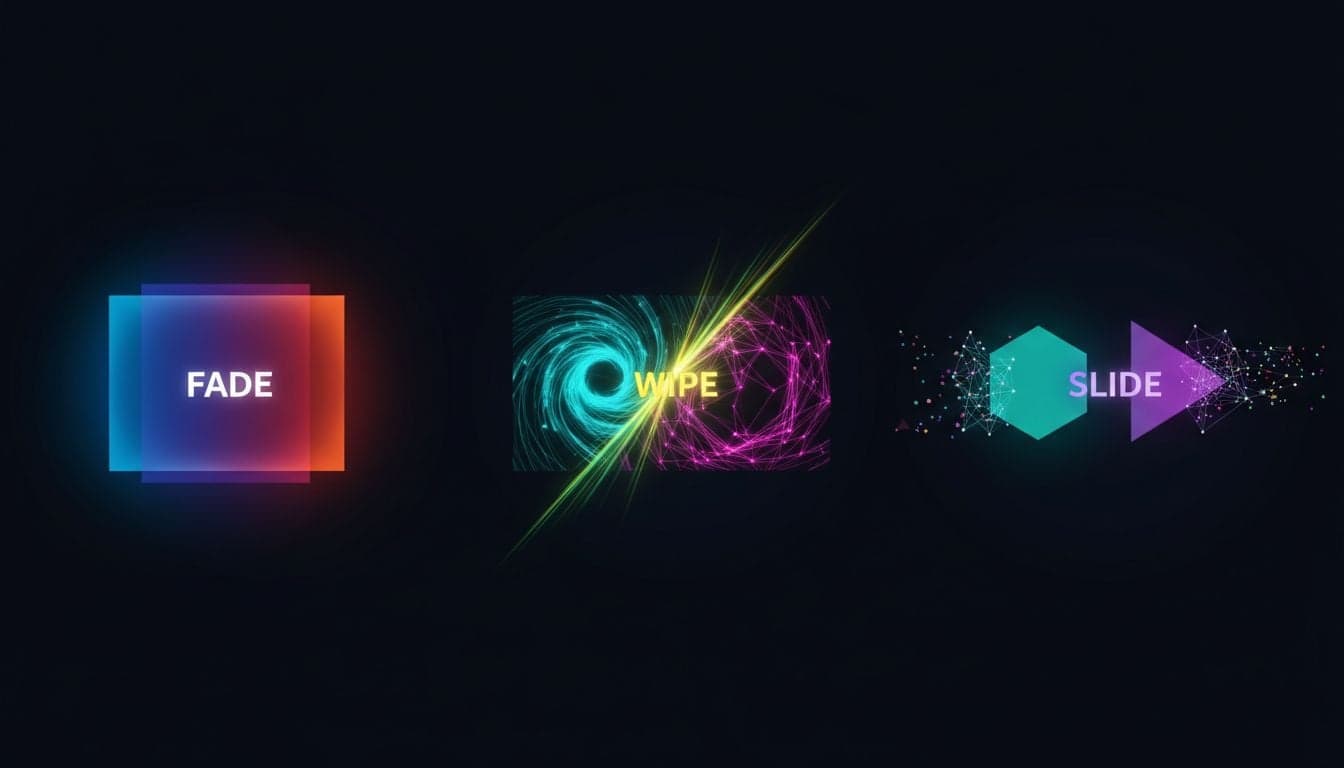
Transitions and effects transform raw footage into polished, professional videos that capture attention and keep viewers engaged. The difference between a choppy, amateur-looking video and a smooth, professional production often comes down to how well transitions are executed.
Vexub provides a comprehensive suite of transition effects and visual enhancements designed specifically for AI-generated content. Whether you're creating faceless YouTube videos or viral TikTok content, mastering these tools elevates your production quality immediately.
This guide covers every transition type, visual effect, and timing technique available in Vexub's editor. You'll learn when to use each transition, how to combine effects for maximum impact, and professional techniques that make your videos stand out.
Understanding Vexub's Transition System
Vexub organizes transitions into three main categories: cuts, motion transitions, and creative effects. Each category serves specific purposes in your video flow.
Cuts are instantaneous changes between clips. While they seem basic, strategic cuts create rhythm and pacing. Use hard cuts for dramatic moments, topic changes, or fast-paced content like short-form social media videos.
Motion transitions include fades, slides, zooms, and wipes. These smooth the visual flow between scenes and give viewers time to process information. They're essential for narrative content and educational videos.
Creative effects add visual interest through distortions, blurs, glitches, and specialty animations. These work best as accent transitions—used sparingly for emphasis rather than between every clip.
Fade Transitions: The Professional Standard
Fade transitions are the most versatile and widely used effects in professional video editing. Vexub offers three fade variants, each with specific applications.
Fade to Black
This classic transition completely darkens the screen between clips. Use fade to black for:
Scene changes: Transitioning between different locations or time periods.
Chapter breaks: Separating major sections in longer videos.
Dramatic pauses: Creating emphasis before revealing important information.
End sequences: Concluding videos with a professional finish.
In Vexub, set fade to black duration between 0.5-1.5 seconds for most applications. Longer fades (2+ seconds) work for emotional or contemplative moments.
Cross Dissolve
Cross dissolve blends two clips together, with the outgoing clip fading out while the incoming clip fades in. This creates seamless transitions perfect for:
Similar scenes: Moving between related visuals or variations on a theme.
Montage sequences: Showing progression or passage of time.
B-roll integration: Smoothly cutting to supporting footage.
Mood continuity: Maintaining emotional tone across scene changes.
Set cross dissolve between 0.3-0.8 seconds for most content. Shorter dissolves feel snappier, while longer dissolves create dreamy or reflective moods.
Fade from White
This transition brightens the screen to white before revealing the next clip. It creates an ethereal, hopeful, or energetic feeling. Use it for:
Uplifting moments: Positive revelations or inspirational content.
New beginnings: Starting fresh sections or introducing new topics.
Dream sequences: Surreal or imaginative content segments.
High-energy transitions: Fast-paced content with optimistic tone.
Slide and Push Transitions
Slide and push transitions move clips across the frame, creating dynamic motion that draws the eye. Vexub offers directional control for maximum creative flexibility.
Slide Left and Slide Right
The new clip slides in from the edge, covering the previous clip. Direction matters:
Slide left: Creates forward progression, moving the story ahead.
Slide right: Suggests returning to previous content or flashbacks.
These transitions work exceptionally well for sequential content like tutorials, step-by-step guides, or numbered lists. The directional movement reinforces the logical flow of information.
Slide Up and Slide Down
Vertical slides create different psychological effects:
Slide up: Reveals content, builds anticipation, or elevates the mood.
Slide down: Introduces new information, grounds concepts, or shifts to serious topics.
Vertical slides particularly suit faceless content creation where visual variety keeps viewers engaged without on-screen talent.
Push Transitions
Push transitions physically move the previous clip off screen while the new clip enters. This creates stronger, more assertive scene changes than standard slides. Use push transitions for:
Emphasizing major topic shifts
Creating energetic pacing in fast-content
Building momentum through sequences
Matching upbeat music or voiceovers
Create videos like this with AI
Script, voiceover, images and subtitles — automated in minutes.
Zoom and Scale Effects
Zoom transitions add depth and dimension to your videos. They create the illusion of movement toward or away from content, making flat 2D videos feel more dynamic.
Zoom In Transitions
The new clip appears to zoom toward the viewer from a distant point. This creates:
Focus and attention: Drawing viewers into important details.
Revelation moments: Building up to key information reveals.
Energetic pacing: Accelerating the video's rhythm.
Emphasis: Highlighting crucial points or visuals.
Zoom in works exceptionally well when transitioning from wide establishing shots to detailed close-ups, or when moving from general concepts to specific examples.
Zoom Out Transitions
The previous clip appears to zoom away, revealing the new clip behind it. This effect:
Provides context: Showing the bigger picture after focusing on details.
Creates relief: Giving viewers breathing room after intense content.
Establishes scope: Demonstrating scale or relationships between elements.
Combine zoom out with fade effects for smooth, professional transitions that don't jar the viewer.
Ken Burns Effect
While not a transition between clips, the Ken Burns effect applies slow zoom and pan to static images, bringing them to life. Vexub automatically applies subtle Ken Burns to images, but you can adjust:
Zoom intensity (10-150% scale)
Pan direction (horizontal, vertical, or diagonal)
Duration (sync with voiceover or music timing)
This effect proves invaluable for AI-generated image content where static visuals need motion to maintain engagement.
Wipe Transitions
Wipe transitions reveal the new clip by moving a boundary line across the frame. These create clean, geometric transitions with a professional broadcast feel.
Linear Wipes
The simplest wipe draws a straight line across the screen:
Horizontal wipes: Professional, corporate feel—perfect for business content.
Vertical wipes: Modern, editorial style—suits news or documentary formats.
Diagonal wipes: Dynamic, energetic—works for sports or action content.
Circular and Radial Wipes
These wipes expand from a point, creating focal attention:
Circle wipes expand from center or corners
Radial wipes create clock-like sweeping motion
Perfect for revealing surprising information or plot twists
Shape Wipes
Vexub includes specialty wipes using custom shapes:
Star wipes for playful, retro aesthetics
Heart wipes for romantic or lifestyle content
Arrow wipes for directional or instructional videos
Use shape wipes sparingly—they're novelty effects that lose impact with overuse. Reserve them for brand-specific moments or themed content series.
Advanced Effect Combinations
Professional video editors rarely use single transitions in isolation. Combining effects creates signature styles that make your content instantly recognizable.
Fade + Zoom Combo
Layer a fade transition with subtle zoom for cinematic quality:
Apply cross dissolve (0.5 seconds)
Add 5-10% zoom in on the incoming clip
Synchronize timing so zoom completes with fade
This combination appears in premium productions because it feels smooth while adding subtle dynamism.
Slide + Blur Technique
Add motion blur to slide transitions for high-energy content:
Select slide transition (any direction)
Apply directional blur matching slide direction
Set blur intensity to 15-25%
Keep transition duration under 0.4 seconds
This creates the illusion of speed and momentum, perfect for sports highlights, action sequences, or energetic TikTok content.
Multi-Layer Dissolves
Create depth by transitioning different elements at different speeds:
Background dissolves over 1 second
Foreground elements dissolve over 0.5 seconds
Text or graphics cut instantly
This technique requires manual timing adjustment in Vexub's timeline editor but produces Hollywood-quality results.
Creative and Specialty Effects
Beyond standard transitions, Vexub offers creative effects that add personality and style to your videos.
Glitch Transitions
Digital glitch effects create modern, tech-forward aesthetics:
RGB split: Separates color channels for chromatic aberration.
Pixel distortion: Creates blocky, corrupted visual effects.
Static overlay: Adds TV interference for retro-futuristic look.
Glitch transitions work brilliantly for tech content, gaming videos, cyberpunk themes, or anywhere you want an edgy, digital-native feel. Keep them brief (0.2-0.4 seconds) for maximum impact.
Light Leaks and Lens Flares
Optical effects simulate camera lens artifacts:
Light leaks create warm, organic transitions
Lens flares add cinematic quality
Both soften harsh cuts between clips
These effects particularly enhance outdoor scenes, travel content, or any video aiming for film-like quality. Adjust opacity (40-70%) to make them feel natural rather than artificial.
Distortion Effects
Warping and distortion create surreal or comedic transitions:
Ripple: Water-like distortion for fluid transitions.
Twist: Rotational distortion for dizzy or confused moments.
Bulge: Fish-eye effect for exaggerated emphasis.
Use distortion effects for comedy videos, abstract content, or moments requiring visual punctuation.
Timing and Duration Best Practices
Even the perfect transition fails if timing feels wrong. Vexub gives you precise control over transition duration—here's how to use it.
The 0.5 Second Rule
Most transitions should last approximately 0.5 seconds (15 frames at 30fps). This duration:
Feels natural to viewers
Maintains pacing without dragging
Matches typical eye movement speed
Works across platforms and devices
Adjust from this baseline based on content type and mood rather than using it blindly.
Fast Content Timing
For short-form social media videos or high-energy content:
Reduce transitions to 0.2-0.3 seconds
Use cuts more frequently than transitions
Match transition speed to music beats
Maintain consistent rapid pacing throughout
Slow, Cinematic Timing
For documentary-style or emotional content:
Extend transitions to 1-2 seconds
Use more dissolves than cuts
Allow moments to breathe between transitions
Sync transitions with voiceover pauses
Music Synchronization
Align transitions with your soundtrack for professional polish:
Identify beat markers in your music
Place transitions at significant beats
Match transition intensity to music energy
Use hard cuts on drum hits, dissolves on sustained notes
Vexub's timeline waveform display makes beat-matching straightforward—look for visual peaks that indicate musical accents.
Troubleshooting Common Transition Issues
Even experienced editors encounter transition problems. Here are solutions to the most common issues in Vexub.
Jarring or Choppy Transitions
If transitions feel harsh despite proper settings:
Check clip frame rates: Ensure all clips use matching frame rates (30fps or 60fps).
Verify transition overlap: Confirm sufficient clip length for transition duration.
Adjust easing curves: Use ease-in-out rather than linear timing.
Review audio sync: Audio cuts can make smooth visual transitions feel choppy.
Transitions Not Appearing
When transitions seem to disappear:
Clips must have sufficient duration before and after the transition point
Minimum 1 second of content required on each side
Transition duration cannot exceed available clip length
Check that transitions are enabled in preview settings
Quality Loss During Transitions
If video quality degrades during transition effects:
Increase export quality: Select 1080p or higher resolution.
Check source footage: Transitions magnify existing quality issues.
Reduce effect intensity: Heavy effects require more processing.
Use simpler transitions: Complex effects may reduce quality on lower-tier plans.
Platform-Specific Transition Strategies
Different platforms have different audience expectations and technical requirements. Optimize your Vexub transitions for each destination.
YouTube Long-Form Content
YouTube audiences tolerate longer, more cinematic transitions:
Use 0.5-1 second transitions as standard
Employ fade to black for chapter breaks
Add creative effects every 3-4 minutes for variety
Match transition style to content niche
TikTok and Instagram Reels
Short-form platforms demand faster pacing:
Keep transitions under 0.3 seconds
Use hard cuts more than transitions
Add glitch or zoom effects for viral appeal
Transition on beat with trending audio
Facebook and LinkedIn
Professional platforms favor subtle transitions:
Stick to fades and dissolves
Avoid flashy or creative effects
Use 0.4-0.6 second durations
Prioritize clarity over style
Building Your Signature Transition Style
Consistent transition choices create brand recognition. Develop your signature style by establishing transition rules for your content.
Choose 2-3 primary transitions that align with your content tone. Educational content might use simple fades and wipes, while entertainment channels could favor zooms and slides. Use creative effects as accents—perhaps one unique transition per video to mark special moments.
Document your choices in a style guide: which transitions for which situations, preferred durations, color overlays, and audio pairings. This consistency helps viewers instantly recognize your content and builds professional credibility.
As you master Vexub's transition system, you'll develop intuition for which effects enhance your story. The complete Vexub tutorial covers additional editing techniques that pair perfectly with these transition skills, while our beginner's guide to AI video editing provides foundational concepts for new creators.
Transitions transform individual clips into cohesive stories. Master these techniques, and your Vexub videos will captivate audiences from the first frame to the final fade.







