
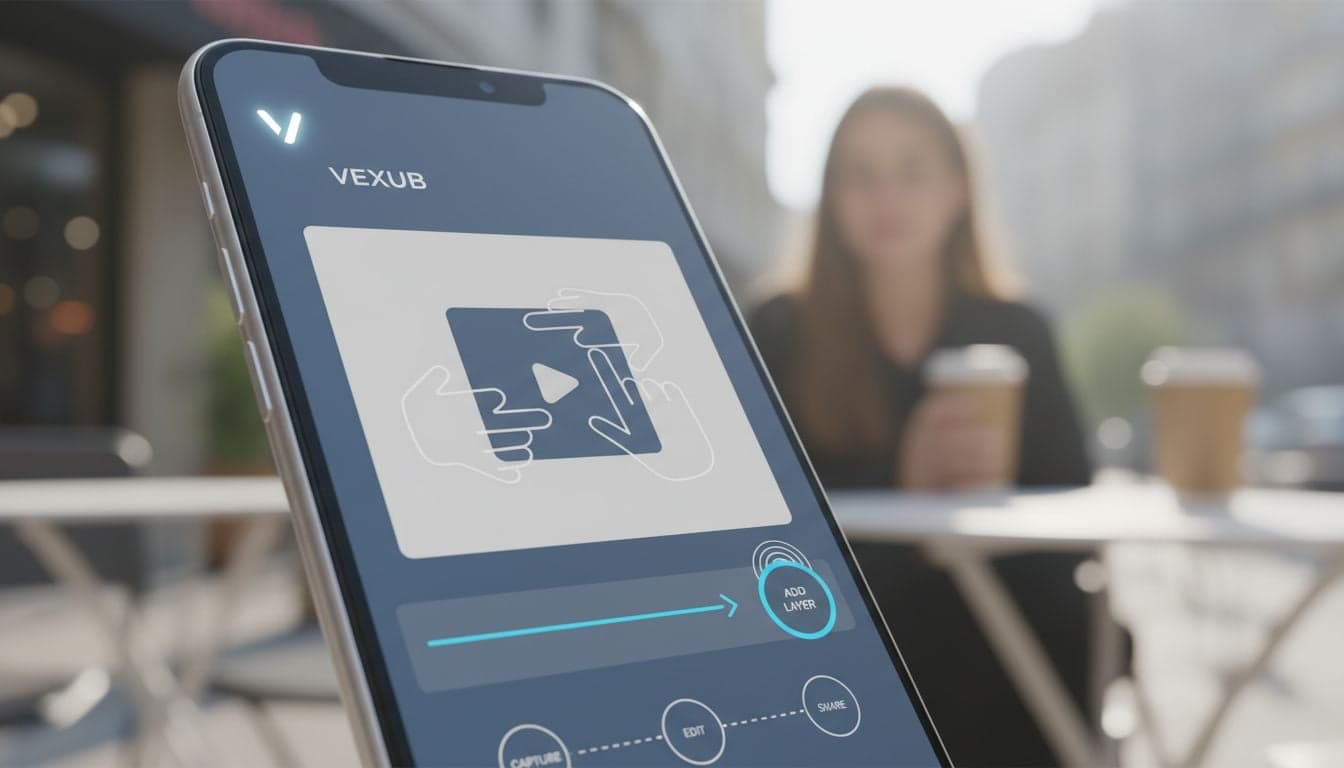
Your phone is now your most powerful video creation studio. With Vexub's mobile interface, you can create professional AI-generated videos anywhere — during your commute, between meetings, or while waiting for coffee.
Mobile video creation isn't just about convenience. It's about capturing ideas the moment they strike and turning them into finished content before inspiration fades. The creators generating thousands of views daily understand this: speed and accessibility matter more than having the perfect desktop setup.
This guide reveals the specific techniques that make Vexub mobile workflows 3x faster than traditional video creation, along with the mistakes that slow most creators down.
Optimizing Your Mobile Device for Vexub
Before creating your first mobile video, configure your device for maximum efficiency. These settings transform a frustrating experience into a seamless workflow.
Browser Configuration
Vexub runs in your mobile browser, making browser optimization critical. Use Chrome or Safari for the best performance. Firefox mobile works but has occasional rendering delays with the video preview.
Enable desktop mode: Long-press the refresh button in Safari or tap the three dots in Chrome to request the desktop site. This unlocks the full interface without mobile limitations.
Clear cache regularly: Video generation creates temporary files. Clear your browser cache weekly to maintain speed.
Disable data saver: Chrome's data saver compresses images and videos, reducing preview quality. Turn it off for accurate previews.
Allow notifications: Enable browser notifications so you know immediately when your video finishes rendering.
Network Considerations
Video generation requires stable internet. Vexub processes everything in the cloud, so your connection speed directly impacts workflow speed.
4G connections work fine for video generation, though downloading finished videos takes 30-60 seconds longer than on 5G or WiFi. The actual generation happens server-side — your connection only needs to upload your script and download the result.
Mobile-First Script Writing Techniques
Writing scripts on a phone keyboard requires different techniques than desktop typing. These methods help you create better scripts faster without the frustration of tiny keys and autocorrect battles.
Voice Input Strategy
Voice typing is 4x faster than thumb typing for long-form content. Open your script editor, tap the microphone icon on your keyboard, and speak your script naturally.
Speak in complete sentences: Say punctuation aloud — 'period', 'comma', 'new line' — to maintain structure.
Edit after speaking: Get all your ideas out first, then go back to fix typos and adjust phrasing.
Use specific words: Say 'number five' instead of 'five' if you want the numeral, not the word.
Voice input works best for text-to-video creation where you're narrating ideas conversationally. Technical scripts with special characters require manual typing.
Template Library Usage
Save successful script structures as notes on your phone. When you need to create a similar video, copy the template and modify the specific details.
Create templates for your most common video types: fact videos, story narratives, tutorial scripts, question-answer formats. This reduces writing time from 20 minutes to 5 minutes per video.
Short-Form Script Optimization
Mobile creation excels at short-form content. Scripts under 300 words generate faster and are easier to review on small screens. Break longer videos into series rather than creating one long video on mobile.
Create videos like this with AI
Script, voiceover, images and subtitles — automated in minutes.
Efficient Mobile Navigation Workflow
The Vexub mobile interface requires different navigation patterns than desktop. Master these specific gestures and shortcuts to move through the creation process without wasted taps.
The Three-Tap Creation Method
Experienced mobile creators generate videos in exactly three taps after writing their script:
Paste script: Long-press the script field, tap paste, and your pre-written content fills the editor.
Select template: Tap your saved template or style. Don't customize every parameter — use proven templates.
Generate: Tap the generate button and lock your phone. The video processes while you move on.
This workflow takes 45 seconds from idea to generation. The key is preparation — write scripts in your notes app, save favorite templates, and know exactly which style you'll use before opening Vexub.
Managing Multiple Projects
Mobile screens make juggling multiple projects difficult. Use these organization tactics:
Name projects clearly: Use descriptive names like 'History-Napoleon-Short' instead of 'Project 1'. You'll remember what each video contains when scrolling your library.
Complete one video before starting another: Mobile multitasking slows everything down. Finish, download, and delete completed projects before starting the next.
Use tags in project names: Add prefixes like '[TikTok]' or '[YT Short]' to quickly identify videos by platform.
Advanced Mobile Editing Techniques
The editing interface on mobile requires precision with limited screen space. These techniques help you make accurate adjustments without frustration.
Zoom and Pan for Precision
Use pinch-to-zoom on the timeline to see individual frames clearly. This turns imprecise tapping into surgical editing. Zoom in to adjust subtitle timing, zoom out to see the full video flow.
The Vexub editing workflow emphasizes preview over timeline scrubbing on mobile. Play the video, note the timestamp where changes are needed, then navigate to that exact moment.
Subtitle Adjustment on Small Screens
Subtitle editing is the most common mobile adjustment. Tap any subtitle block in the timeline to edit text, adjust timing, or change styling.
Text corrections: Tap the subtitle, tap the text field, make changes. Don't try to adjust multiple subtitles at once.
Timing adjustments: Drag subtitle edges to expand or contract duration. Zoom in first for precision.
Style changes: Apply style changes to all subtitles at once using the global subtitle style selector, not individual blocks.
For complex subtitle work involving more than 5 corrections, switch to desktop. Mobile excels at quick fixes, not comprehensive subtitle overhauls.
Background Media Swaps
Changing background images or video clips on mobile requires careful selection. The media library displays thumbnails in a grid — tap any thumbnail to preview it full-screen before applying.
When swapping media, preview the entire video afterward to ensure transitions still work smoothly. Media changes sometimes affect pacing that wasn't obvious from the thumbnail.
Mobile Video Review and Quality Control
Your phone screen shows exactly what viewers see on mobile devices — where most social media consumption happens. This makes mobile preview your most accurate quality check.
Full-Screen Preview Testing
Always watch the generated video full-screen before downloading. Tap the preview window, rotate your phone to landscape, and watch as a viewer would. Look for:
Subtitle readability: Can you read every word without pausing? If not, adjust font size or background opacity.
Visual clarity: Do images look sharp or pixelated? Small details visible on desktop disappear on mobile.
Pacing appropriateness: Does the video feel rushed or too slow on a small screen? Mobile viewers have less patience than desktop viewers.
Audio Check with Headphones
Mobile speakers don't reveal audio issues that headphones catch immediately. Before finalizing any video with voiceover or music, listen with earbuds. Check for:
Volume balance between voice and background music
Clarity of AI voice pronunciation
Sudden volume changes between clips
Background noise or audio artifacts
Audio issues that seem minor on phone speakers become glaring problems when viewers use headphones or car speakers.
Downloading and Sharing from Mobile
The final step — getting your video from Vexub to your posting platform — requires specific mobile techniques to avoid quality loss or upload failures.
Download Best Practices
When downloading videos to your phone, connection stability matters more than speed. A slow, stable connection beats a fast, fluctuating one.
Use WiFi for downloads: Even with unlimited data, WiFi downloads are more reliable and won't drain your battery as quickly.
Download to Files app first: On iOS, download to Files instead of Photos for better organization and easier platform-specific uploading.
Check file size before downloading: Vexub shows estimated file size. Videos over 100MB may take 5+ minutes on mobile data.
Direct Upload Strategy
Skip the download-then-upload cycle when possible. Some platforms allow direct browser uploads from Vexub's preview screen. Test this with your specific platforms — it works for YouTube Shorts and some TikTok configurations.
Cloud Storage Integration
For creators managing multiple platforms, download videos to cloud storage (Google Drive, iCloud, Dropbox) directly from Vexub. This creates a backup and makes the video accessible across all devices without multiple downloads.
Set up a dedicated 'Vexub Videos' folder in your cloud storage. Download all finished videos there, then upload to platforms from that central library.
Common Mobile Workflow Mistakes to Avoid
Most mobile video creation slowdowns come from these preventable errors. Recognize and eliminate them from your workflow.
Overcomplicating the Mobile Process
The biggest mistake: trying to do everything on mobile that you'd do on desktop. Mobile excels at speed and convenience, not comprehensive editing. Use mobile for:
Quick video generation from pre-written scripts
Minor edits and adjustments
Reviewing and approving videos
Downloading and posting
Save complex editing, custom image style creation, and multi-video project management for desktop sessions.
Ignoring Battery Management
Video generation drains batteries faster than most apps. Long generation sessions on mobile data can drain 40% battery in an hour. Always:
Start with 60%+ battery charge
Enable low power mode if generating multiple videos
Carry a portable charger for extended mobile creation sessions
Close background apps before starting video generation
Skipping the Script Preparation Step
Writing scripts directly in the Vexub interface on mobile is inefficient. Your browser might refresh, your session might time out, or autocorrect might sabotage your carefully crafted sentences.
Always write scripts in a dedicated notes app first. This provides auto-save protection, better writing tools, and the ability to refine your script without Vexub open. When ready, copy-paste into Vexub and generate.
Building a Sustainable Mobile Creation Routine
The creators succeeding with mobile video creation have established repeatable routines that fit their daily schedules. These patterns turn random video creation into consistent content production.
The Commute Creation System
Your daily commute is prime video creation time if you're not driving. This routine works for any regular travel time:
Write scripts during the first half of your commute using voice input or thumb typing
Generate videos during the second half, starting them 10 minutes before arrival
Videos finish processing during your workday, ready for review during lunch or the return commute
This system produces 2-4 videos daily without dedicating specific creation time. You're using otherwise passive time productively.
The Evening Review Workflow
Set aside 20 minutes each evening to review videos generated throughout the day, make minor adjustments, and download finished content. This separation between creation and review prevents the perfectionism that slows mobile workflows.
Generate in the morning, review in the evening. Make adjustments overnight, post the next morning. This 24-hour cycle maintains quality without rushing.
The Weekend Batch Strategy
For creators who prefer focused creation sessions, dedicate 2 hours on weekends to mobile video generation. Write 10-15 scripts in your notes app, then spend one hour generating all videos using saved templates.
This batch approach requires less context-switching than daily creation and produces a week's worth of content in one session. The complete Vexub tutorial covers batch creation workflows in detail.
Maximizing Mobile Creation Quality
Mobile creation doesn't mean compromising on quality. These final optimization techniques ensure your mobile-generated videos match desktop standards.
First, use templates proven to work. Don't experiment with new styles or settings on mobile. Test new approaches on desktop, save successful configurations as templates, then use those templates on mobile.
Second, understand your mobile device's limitations. Older phones struggle with video preview above 1080p. If previews lag, your device is telling you to simplify — use lighter templates or shorter videos.
Third, treat mobile as your rapid prototyping tool. Generate ideas quickly on mobile, identify what works through posting and analytics, then create polished versions of successful videos on desktop if needed.
Mobile Vexub creation is about speed without sacrificing substance. Master these workflows, avoid the common pitfalls, and you'll discover that your phone is all you need to build a consistent content creation system. The best camera, the best editing suite, and the best creation tool is the one you have with you — and that's your phone.







